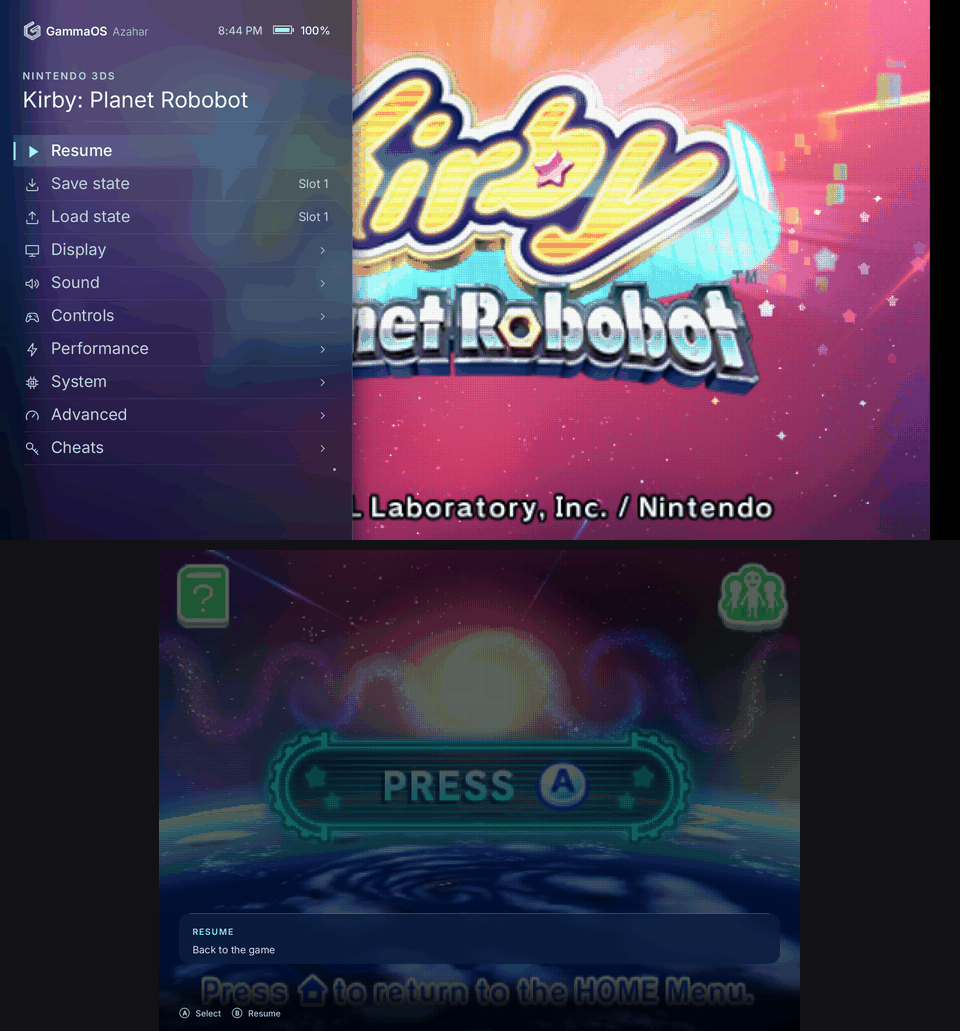
azahar-nano is the Nintendo 3DS emulator built into GammaOS, based on Azahar. It starts straight from the home, draws directly on the screens, and has the GammaOS in-game menu with save states, per game settings, cheats and an installer for updates and DLC.
Playing 3DS games
Put your games in ROMs/n3ds on internal storage or the SD card and open them from the home. The 3DS games need to be decrypted.
| Type | Extensions |
|---|---|
| Games | .3ds, .cci, .cxi, .app, .3dsx, .elf, .axf |
| Compressed games | .zcci, .zcxi, .z3dsx |
| Bundles (a game with its update and DLC in one file) | .bcci, .bcxi |
A bundle starts with its update and DLC applied, with nothing to install.
GammaOS includes the Pokemon Omega Ruby and Alpha Sapphire Special Demo in ROMs/n3ds, so there is something to try straight away.
Opening the in-game menu
| Input | Action |
|---|---|
| Short press of Back (or Home / Guide) | Open or close the menu |
| Hold Back | Leave the game |
| R3 (right stick click) | Fast forward, by default |
The game pauses while the menu is open.
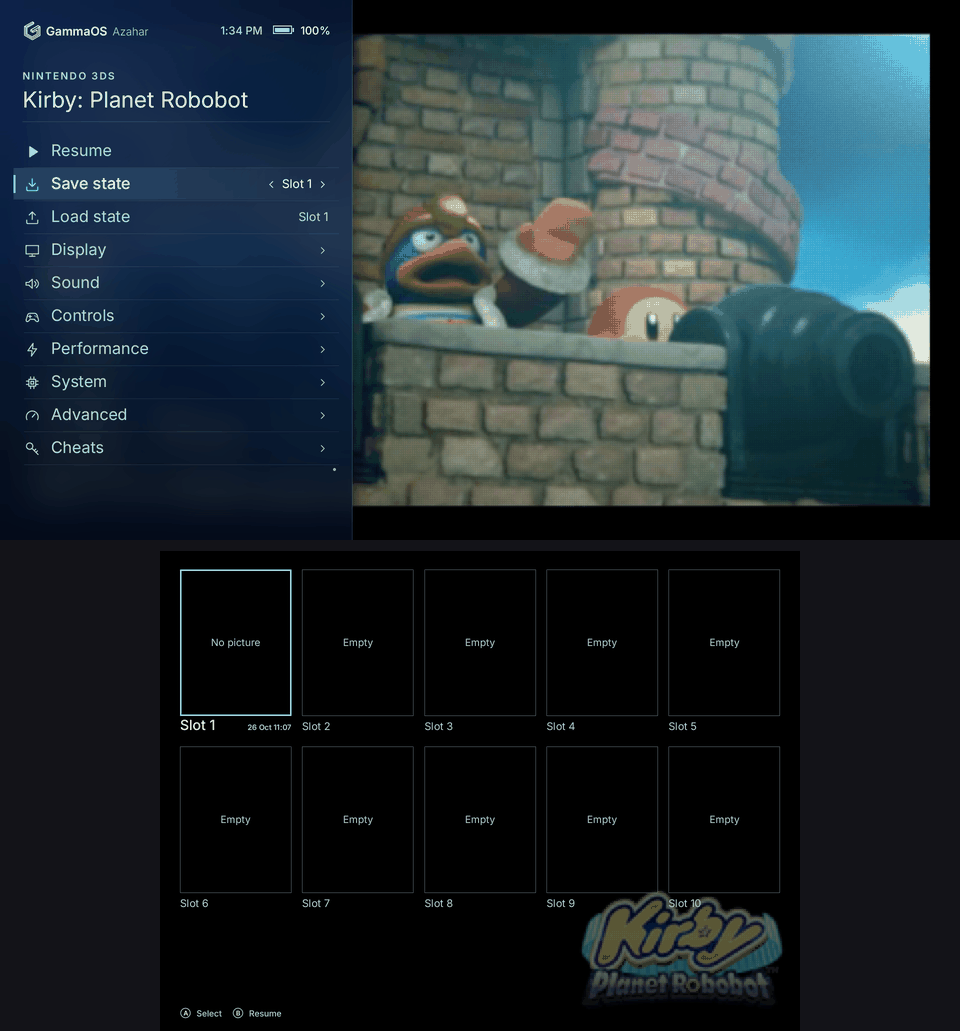
The menu
| Row | What it does |
|---|---|
| Resume | Back to the game |
| Save state / Load state | Ten slots; Left and Right pick the slot |
| Display, Sound, Controls, Performance, System, Advanced | Pages of settings (below) |
| Cheats | The game's cheats, a search, and your own codes |
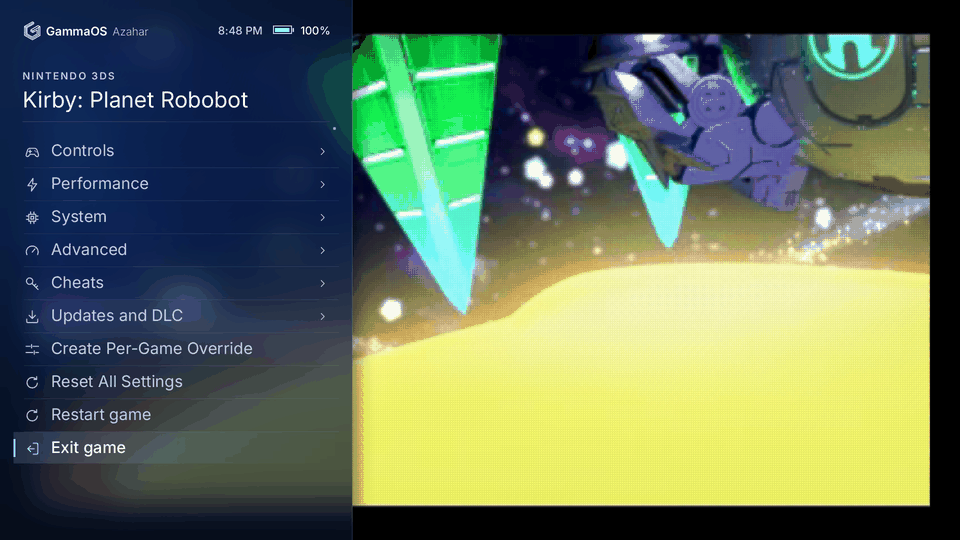
| Updates and DLC | Install a game's update or DLC (below) |
| Create Per-Game Override | Keep this game's settings apart from the others |
| Reset All Settings | Back to the defaults (Reset This Game's Settings when an override is active) |
| Restart game, Exit game |
When a change needs a restart, a Restart game to apply row appears.
Controls, Button Mapping and Hotkeys
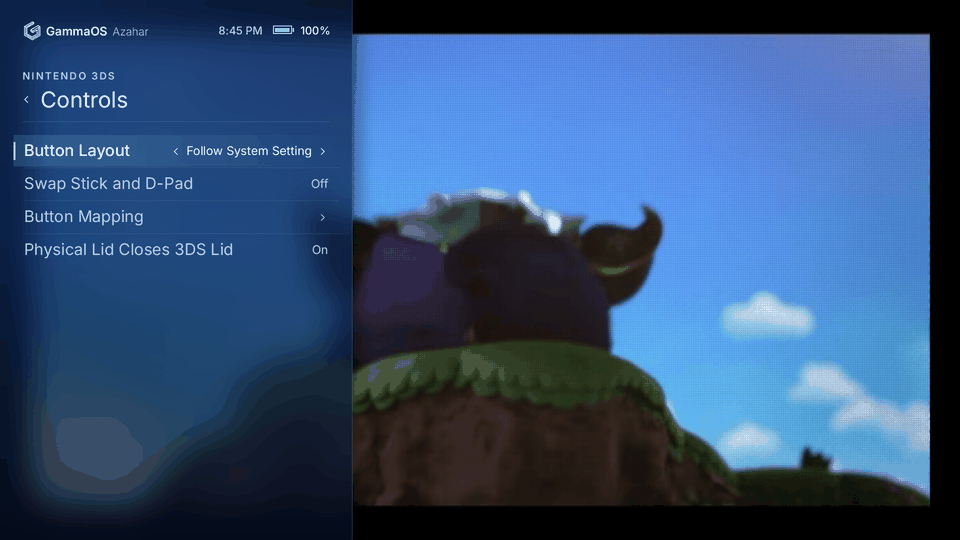
Controls has:
| Row | Values |
|---|---|
| Button Layout | Follow System Setting, or Swap A/B and X/Y |
| Swap Stick and D-Pad | Off / On |
| Button Mapping | Choose which control plays each 3DS button, and the hotkeys |
| Physical Lid Closes 3DS Lid | On devices with a lid: closing the lid closes the 3DS lid in the game (On by default) |
In Button Mapping, press A on a row and then the control you want, or X to clear it. By default the face buttons stay in their places, L and R are L1 and R1, and ZL and ZR are L2 and R2. Reset to Defaults puts them back.
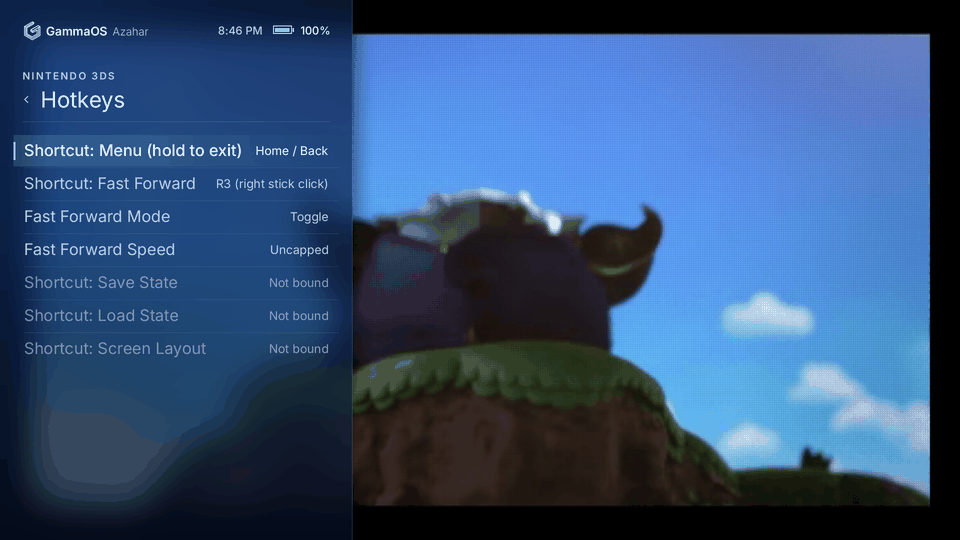
The Hotkeys page at the bottom of Button Mapping:
| Hotkey | Default |
|---|---|
| Shortcut: Menu (hold to exit) | Home / Back |
| Shortcut: Fast Forward | R3 (right stick click) |
| Fast Forward Mode | Toggle (or Hold) |
| Fast Forward Speed | Uncapped, or 110% to 500% |
| Shortcut: Save State | Not bound |
| Shortcut: Load State | Not bound |
| Shortcut: Screen Layout | Not bound; steps through the top panel layouts |
Updates and DLC
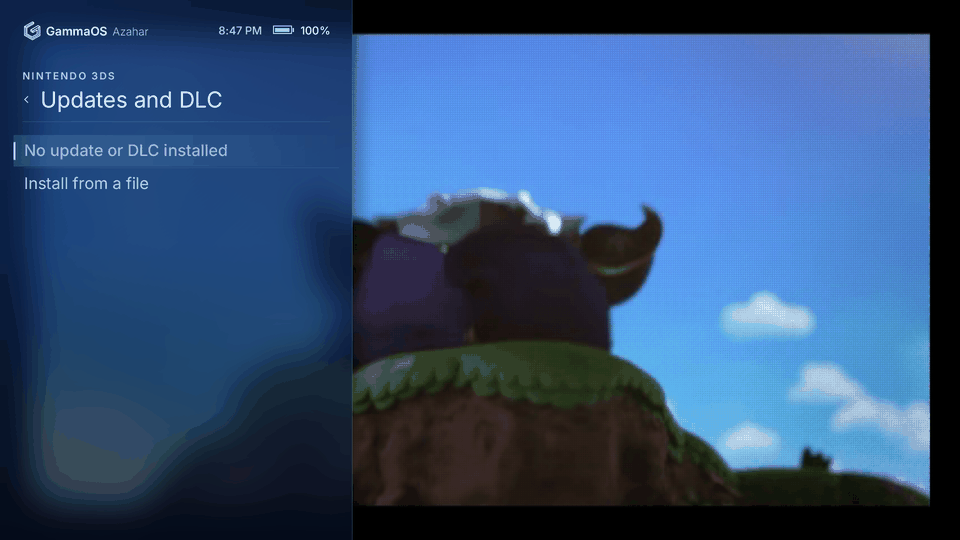
Updates and DLC installs a game's update or DLC into the emulated SD card.
- Put the files in the game's own folder, or in a folder named
updatesordlcinside it. Files for the running game that are not installed yet are listed automatically. - Install from a file opens a file picker for files kept anywhere else.
- Only decrypted
.cia,.zciaand.bciafiles install; an encrypted file is refused. - The game stays paused during the install. Restart the game afterwards to use the new content.
- Content that came inside a bundle is shown as part of the bundle and cannot be removed.
Display
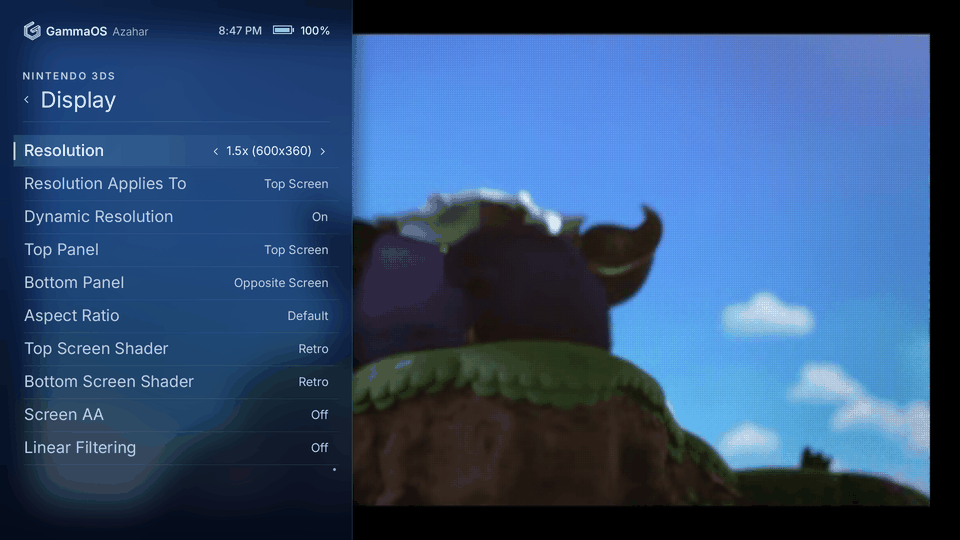
| Row | Values |
|---|---|
| Resolution | From Native 1x (400x240) up to 6x |
| Resolution Applies To | Top Screen, Bottom Screen or Both Screens |
| Dynamic Resolution | Drops to 1x while the game runs slow |
| Top Panel, Bottom Panel | What each physical screen shows: the top or bottom 3DS screen, both, side by side, a large screen, or a hybrid layout |
| Aspect Ratio | Default, 16:9, 4:3, 21:9, 16:10, Stretch |
| Top Screen Shader, Bottom Screen Shader | Off, LCD1x, LCD3x, zfast LCD, Retro, Bevel, Sharp Bilinear |
| Screen AA, Linear Filtering, Texture Filter, Texture Sampling | Picture filtering |
| Stereoscopic 3D, 3D Depth | Side by Side, Anaglyph or Interlaced 3D |
| FPS counter, Brightness, Menu colour |
Sound, Performance and System
- Sound: Volume, Audio Stretching, Realtime Audio, and Audio Emulation (HLE, LLE, or LLE multithreaded; applies at the next launch).
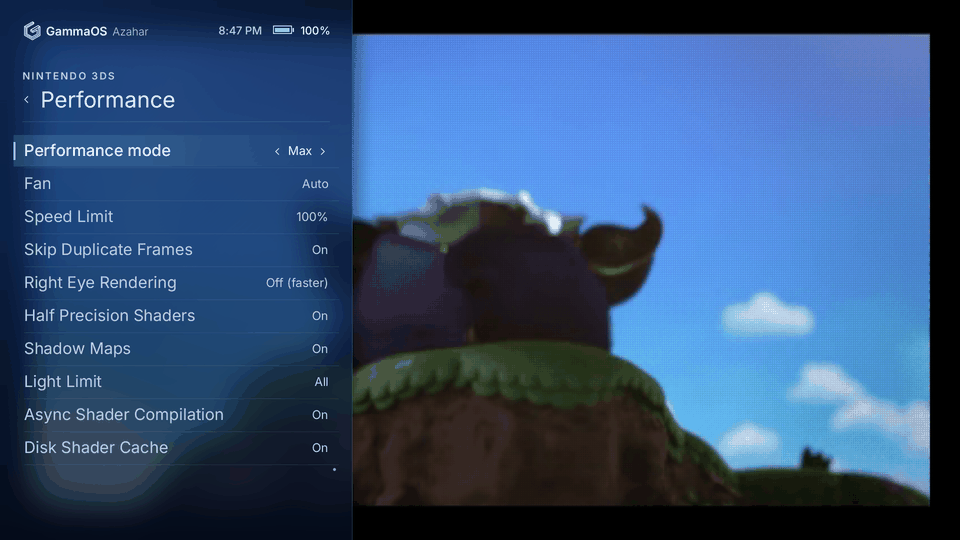
- Performance: Performance mode (Max, Stock, Powersave), Fan (Auto, Cool, Max, Off), Speed Limit, frame and shader options, Light Limit, and GPU Driver with Import GPU Driver.
- System: New 3DS Mode (on by default), Region, CPU Clock, User name, Birthday, Language, and the Data folder.
- Advanced: further pages for timing, the renderer, layout, textures, audio and the microphone.
Where your data lives
Saves, save states, cheats, per game settings and texture packs are kept in the azahar-nano folder on internal storage. You can move it with Settings > Game Settings > Azahar Data Folder; the files move with it. Saves and states follow the game's title ID, so a renamed or repacked game keeps them.
| Folder | Holds |
|---|---|
sdmc/, nand/ |
The emulated SD card and system memory (game saves, installed updates and DLC) |
states/ |
Save states |
cheats/ |
Cheat files |
overrides/ |
Per game settings |
load/textures/ |
Custom textures |
gpu_drivers/ |
GPU drivers you import |