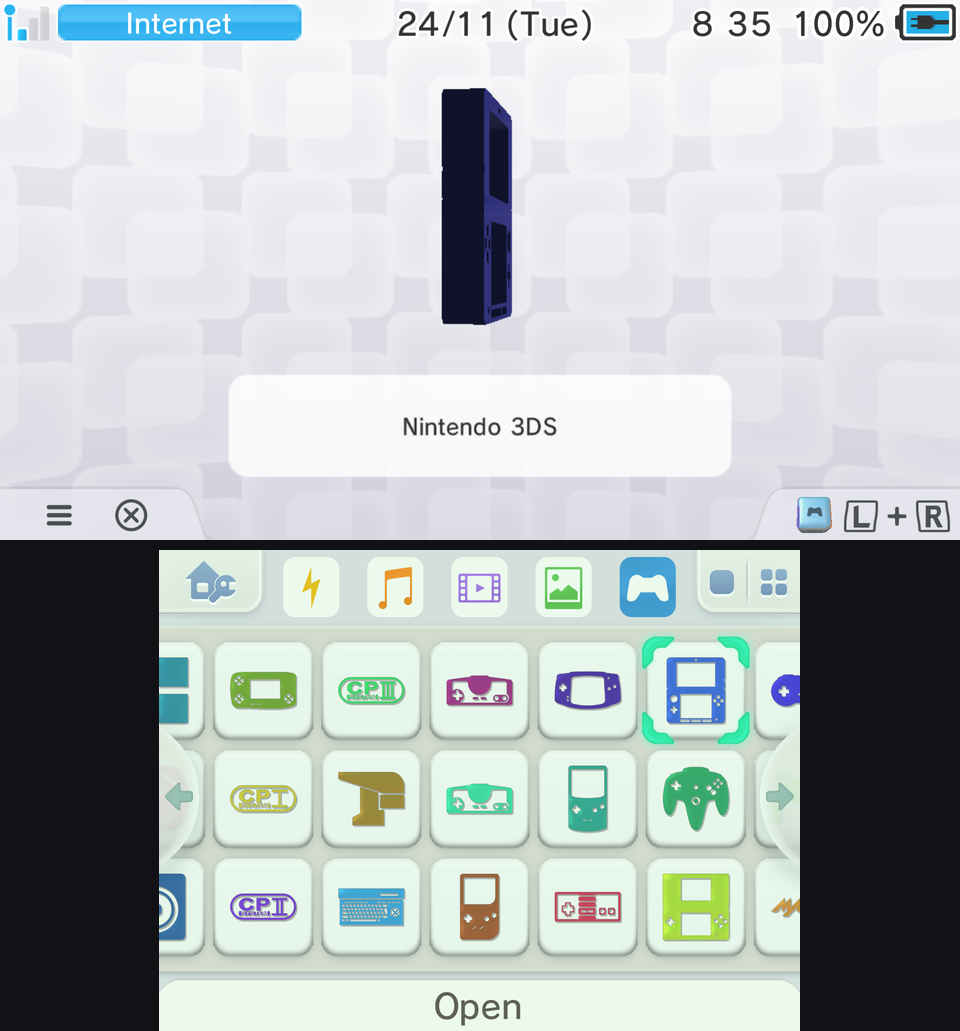
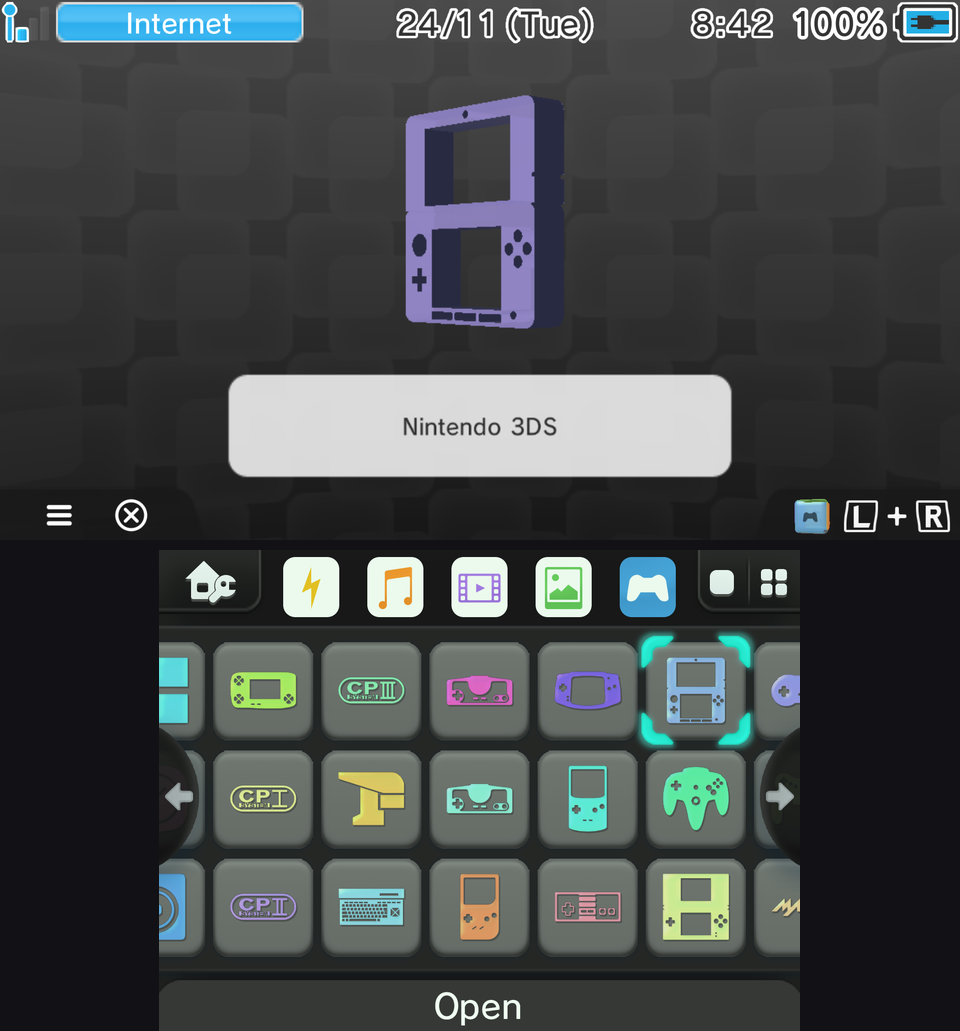
The 3DS Menu is a home theme in the style of the Nintendo 3DS HOME Menu. The top screen shows the selected title's banner, the bottom screen holds a grid of icons and a bar of category buttons. It works on dual screen handhelds and on single screen ones.
Turning it on
- Open Settings > Theme Settings.
- Choose Home Theme and pick 3DS Menu.
The home restarts with the new theme. To go back, pick another theme in the same place. The Home Themes page covers the other four.
The two screens
| Screen | What it shows |
|---|---|
| Top | The selected item: a 3DS game's 3D banner, a DS game's cartridge icon, or a system's icon turning on its own. The status bar (Wi-Fi, date, time, battery) runs along the top. |
| Bottom | The icon grid, with the category bar above it and Open below it. |
On a single screen device the two screens are stacked, the bottom screen in the lower half. On 4:3 and 3:2 panels the top screen grows taller to fill the panel.
Categories
The bar above the grid switches between categories. Press L or R to step through them, or tap a button.
| Button | Opens |
|---|---|
| House | Settings, as a list in the HOME Menu style |
| Lightning bolt | Quick Menu (see below) |
| Note | Music |
| Film | Video, Internet Radio, IPTV and media servers |
| Picture | Photos |
| Game pad | Games: your game systems, Recently Played, Applications and collections |
| The last two | Zoom out and zoom in on the grid |
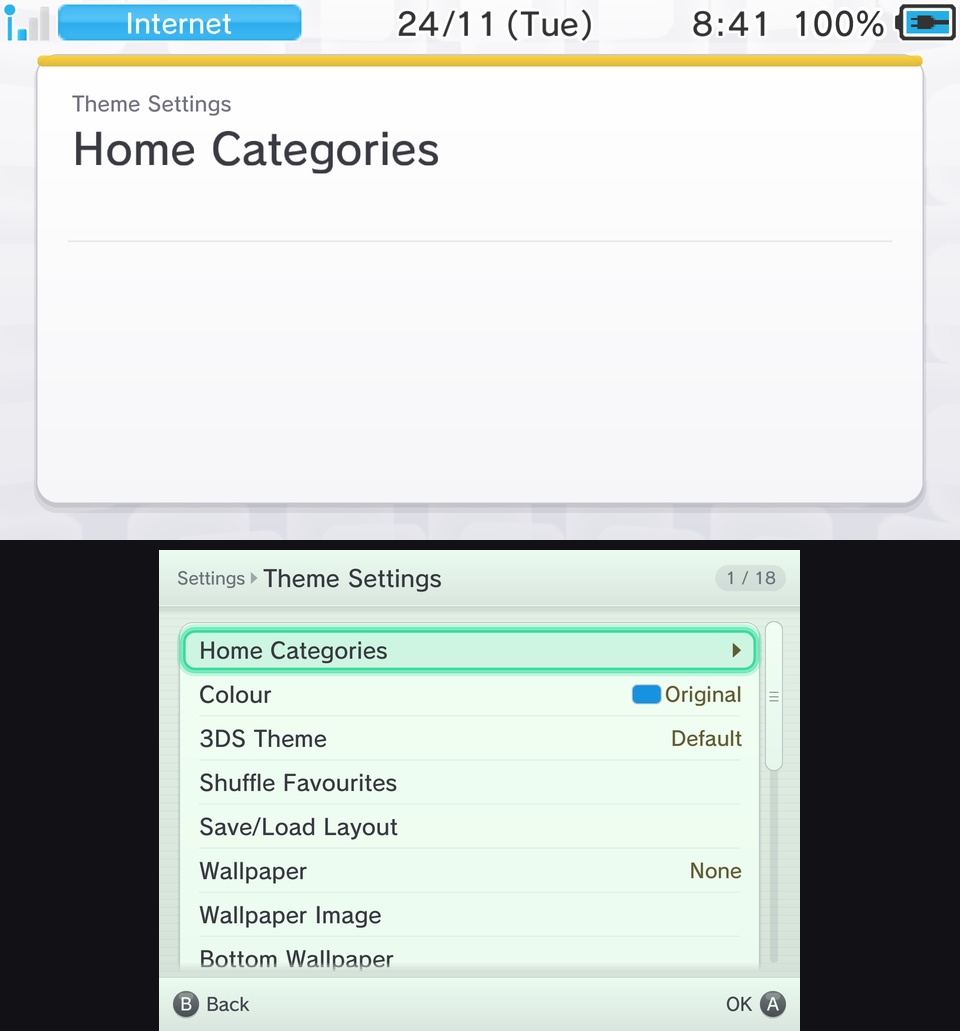
A category you hide in Theme Settings > Home Categories no longer appears as a choice on the bar.
Quick Menu
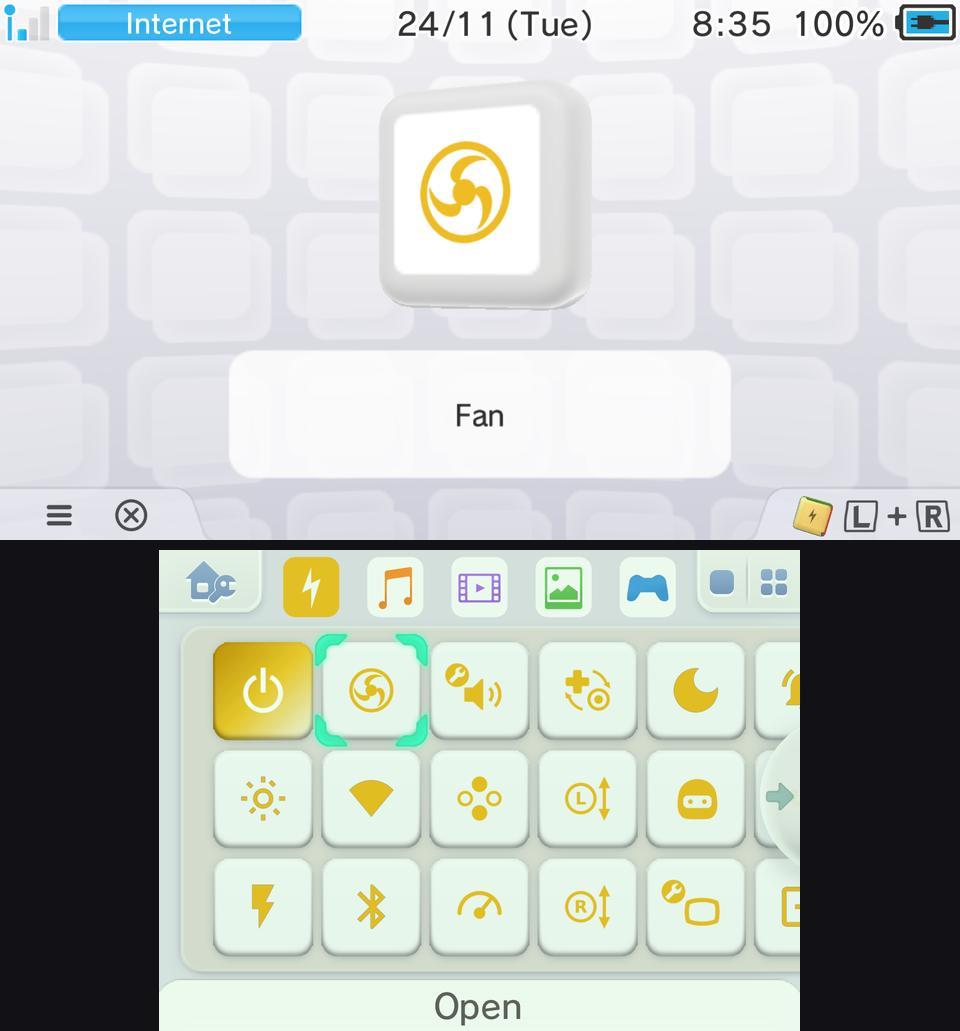
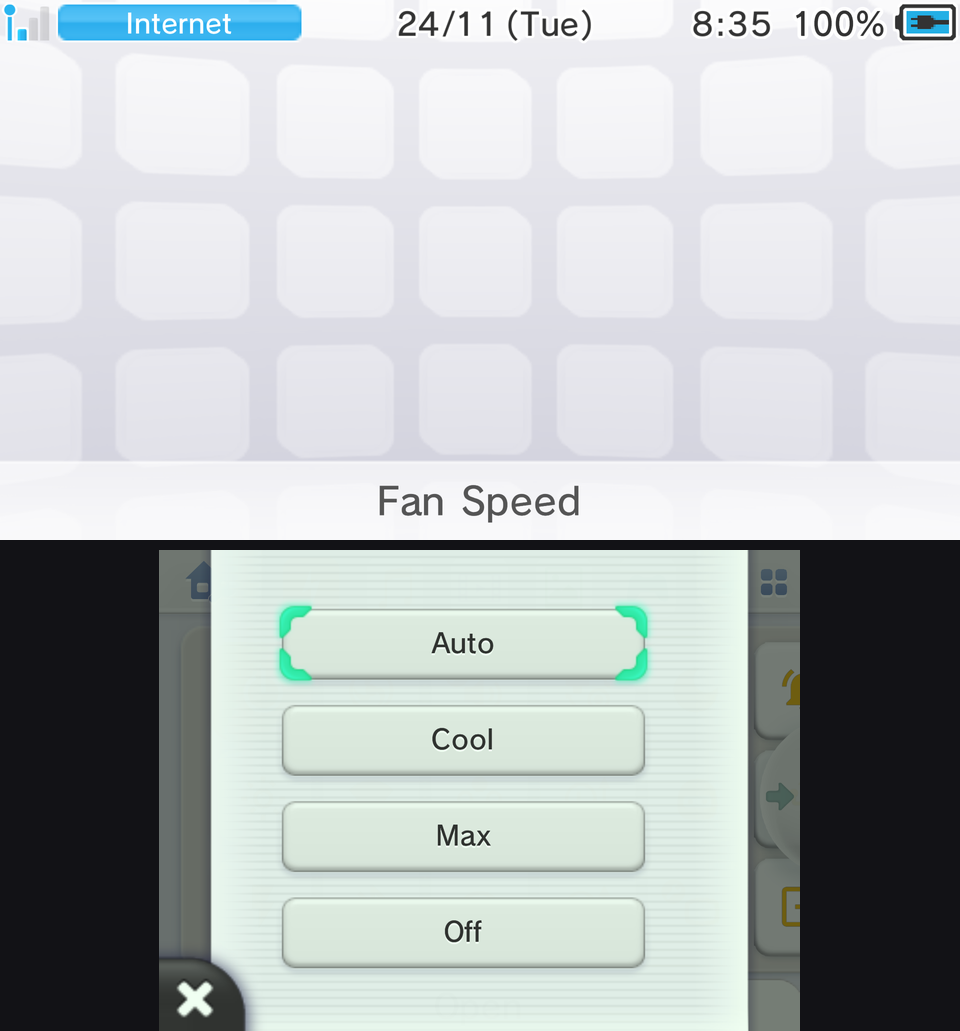
The Quick Menu category shows every Quick Menu item as an icon on one grid: Power first, then Screen Brightness, Performance Mode, Fan (on devices with a fan), the Quick Settings tiles, System Settings, Global Shaders, Notifications, USB Settings and the close and kill app items. See Quick Menu for what each one does.
Controls
| Input | Action |
|---|---|
| D-pad or left stick | Move around the grid |
| A | Open a folder, start a title, or press a bar button |
| B | Close the folder, or go back |
| X | The selected title's options |
| Start | The same options; on a folder, the folder's options |
| Y | On the Games grid, change the sort order (a balloon names the new order) |
| L / R | Previous or next category |
| Select | Search |
| Touch | One tap opens a title or presses a bar button. Hold an icon to pick it up, then drag it. |
Game banners and icons
3DS games show their own icon on the grid and their animated 3D banner on the top screen, and a banner can play its jingle once. DS games show their cartridge icon, animated DSi icons move, and games without art get a plain box. Names come from the game itself first when Titles From ROM is on.
Options for a title
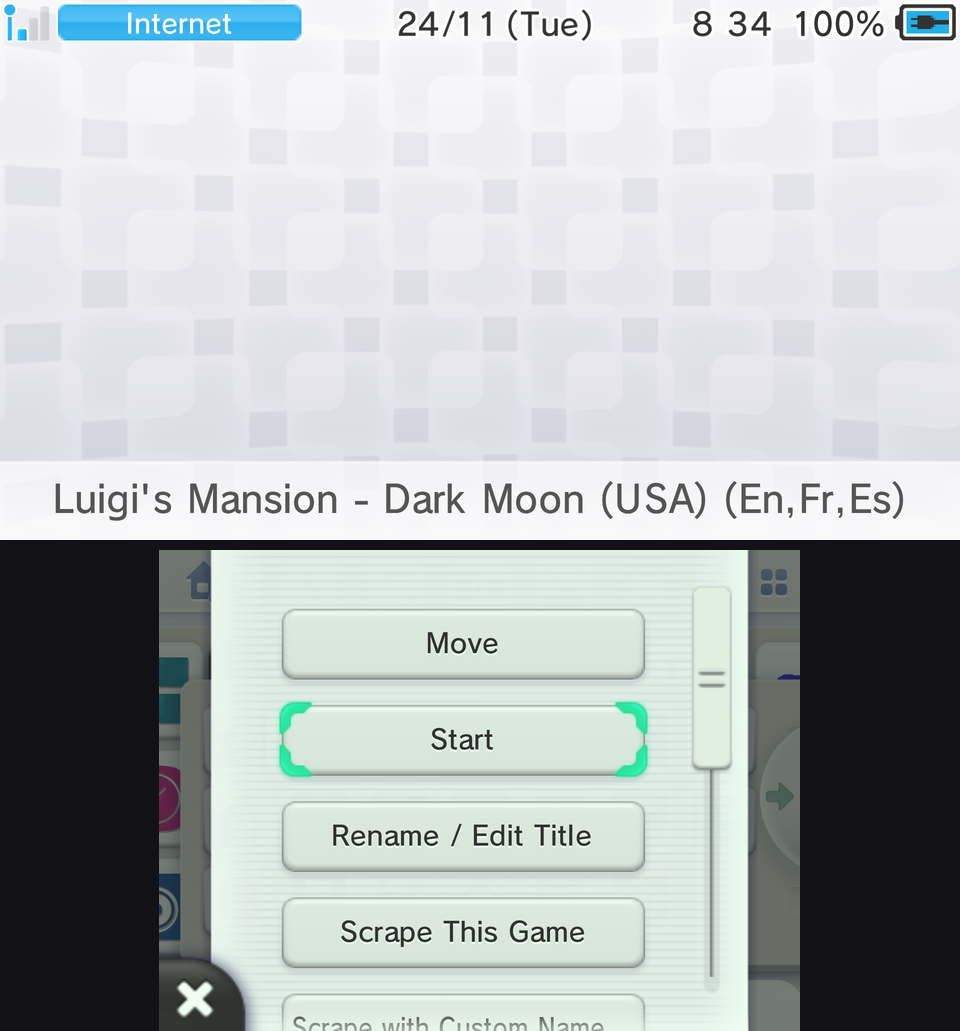
Press X on a game for its options. Move comes first, then the usual game options: Start, Rename / Edit Title, Scrape This Game, Scrape with Custom Name..., Information, Set Boxart, Add to Favorites, Add to Collection and Hide Game. See Context Menus.
Putting games on the HOME Menu
You can take a game out of its system's folder and place it on the main grid, as a shortcut:
- With touch: hold the icon, then drag it out of the folder over the strip at the top of the open folder.
- With buttons: choose Move, move the icon with the D-pad and press A to drop it.
A game placed this way gets Remove from HOME Menu in its options. That takes the shortcut off the grid; the game stays in its system's folder.
Folders
You can make your own folders on the main grid, as on the console:
- Select an empty slot on the main grid: the button under the grid becomes Create Folder. Tap it or press A.
- Drag an icon onto a folder to put it inside.
- A folder's options (Start or X on it) are Rename, Move and Delete Folder. Deleting a folder puts its titles back on the grid. System folders only have Move.
Holding a dragged icon over the arrow at the edge of the grid turns the page.
Layouts
Theme Settings > Save/Load Layout keeps up to eight HOME Menu layouts, each with the grid, your folders, the zoom and the 3DS Theme, and loads one back, like the console's own Save/Load Layout. X saves to a slot, Y loads one.
Colour themes and SD card themes
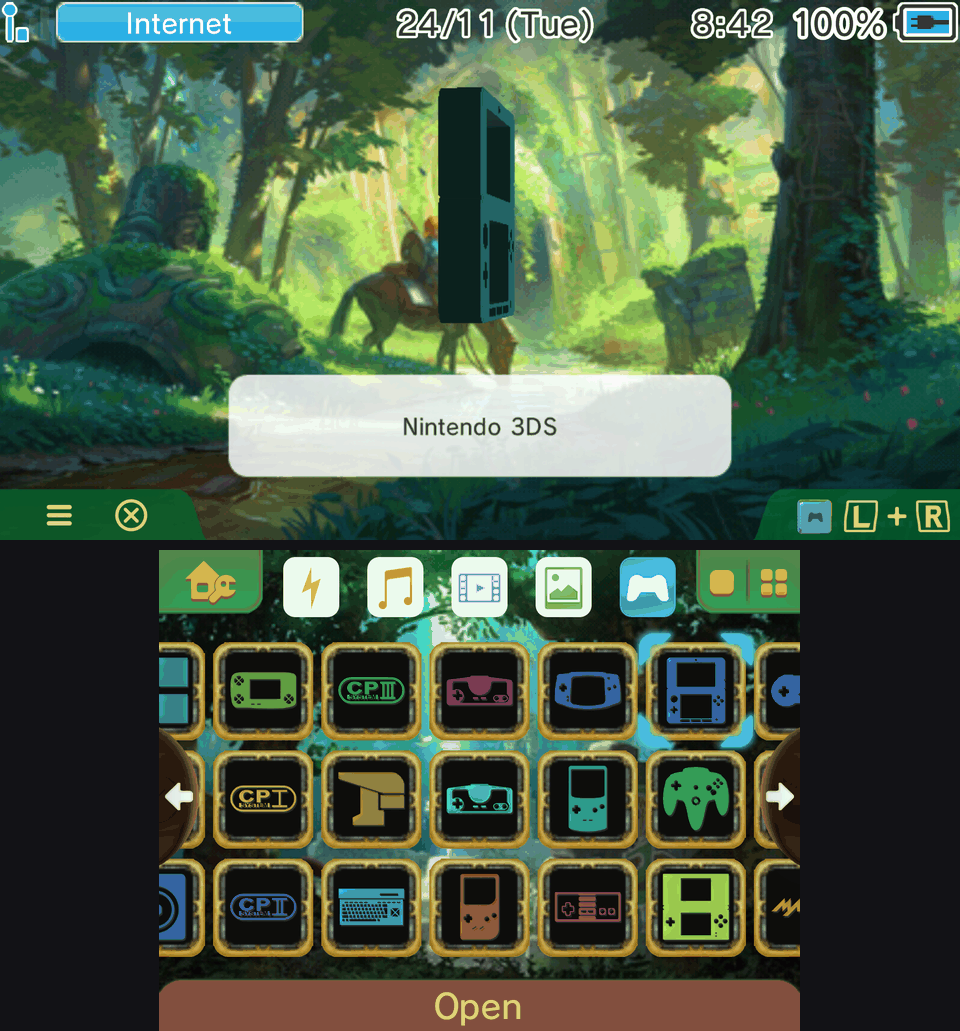
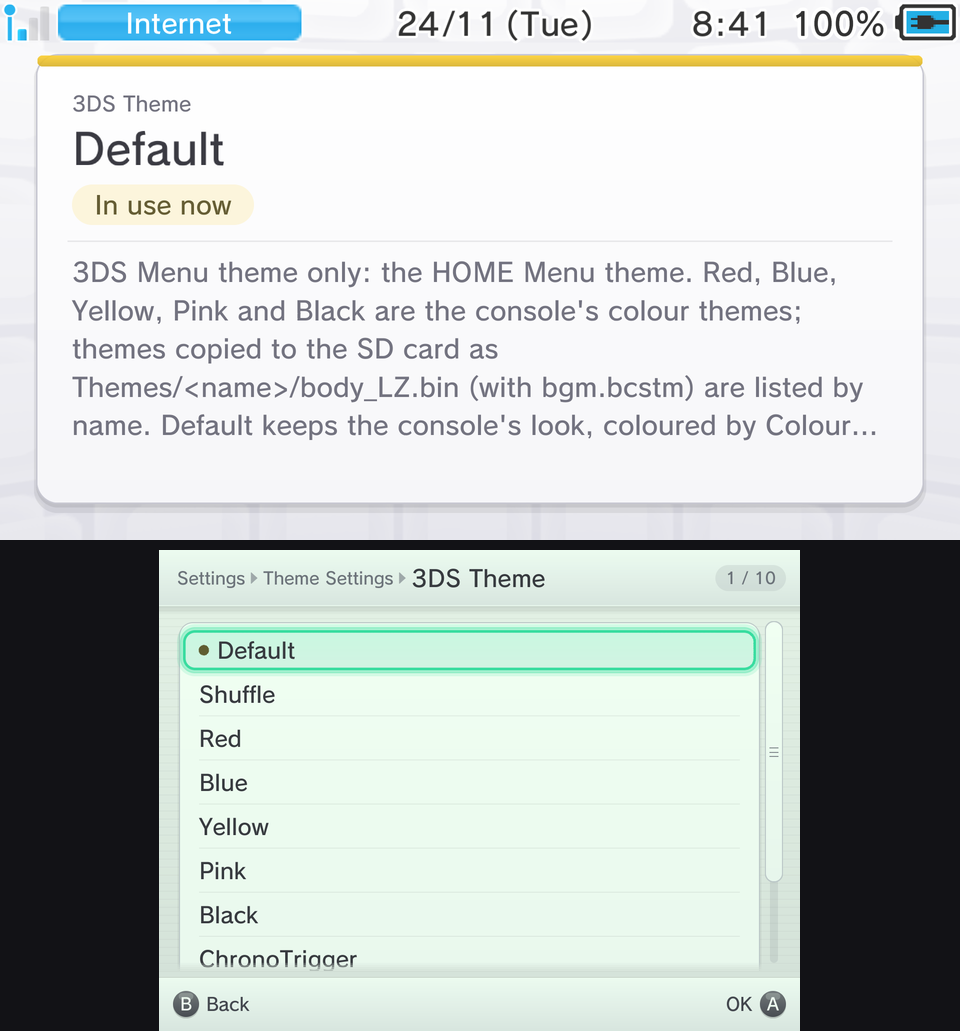
Theme Settings > 3DS Theme changes the look of the whole HOME Menu and applies immediately.
| Choice | What it does |
|---|---|
| Default | The console's look, tinted by Theme Settings > Colour |
| Shuffle | Takes turns with the themes you pick in Shuffle Favourites (up to ten): a new one each time the menu starts and when the device wakes from sleep, never the same one twice in a row |
| Red, Blue, Yellow, Pink, Black | The console's colour themes |
| Themes on the SD card | Listed by their own names |
To add your own themes, copy each one to Themes/<name>/body_LZ.bin on your storage. A theme can carry its own music (bgm.bcstm next to it) and its own name (info.smdh). Themes bring their wallpapers, folder looks, icon frames, music and sound effects.
Theme Settings for the 3DS Menu
These rows appear in Theme Settings only while the 3DS Menu is the home theme:
| Row | What it does |
|---|---|
| 3DS Theme | The colour theme or SD card theme (above) |
| Shuffle Favourites | The themes Shuffle takes turns with |
| Save/Load Layout | Save and load HOME Menu layouts |
| Player Bottom Screen | What the bottom screen does while the music or video player is open: Backlight Off, Blank, or Keep Home |
Shared rows that also work here include Show Battery Percent (the charge as a number next to the battery icon), Menu Music, Titles From ROM, Wallpaper and Bottom Wallpaper, Colour, Navigation Sounds and Boot Sound.
Settings
The house button opens Settings as a list in the HOME Menu style. The pages of settings are laid out like the console's System Settings, with the selected row described on the top screen.
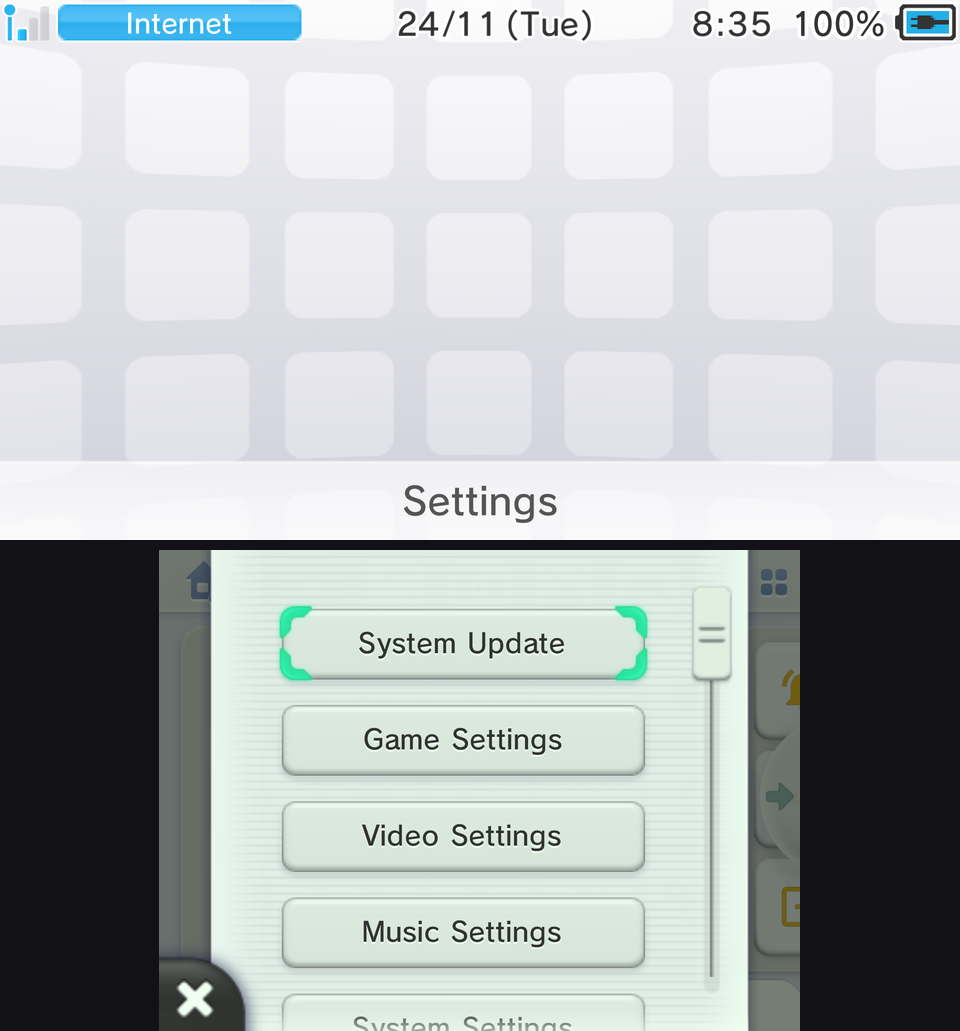
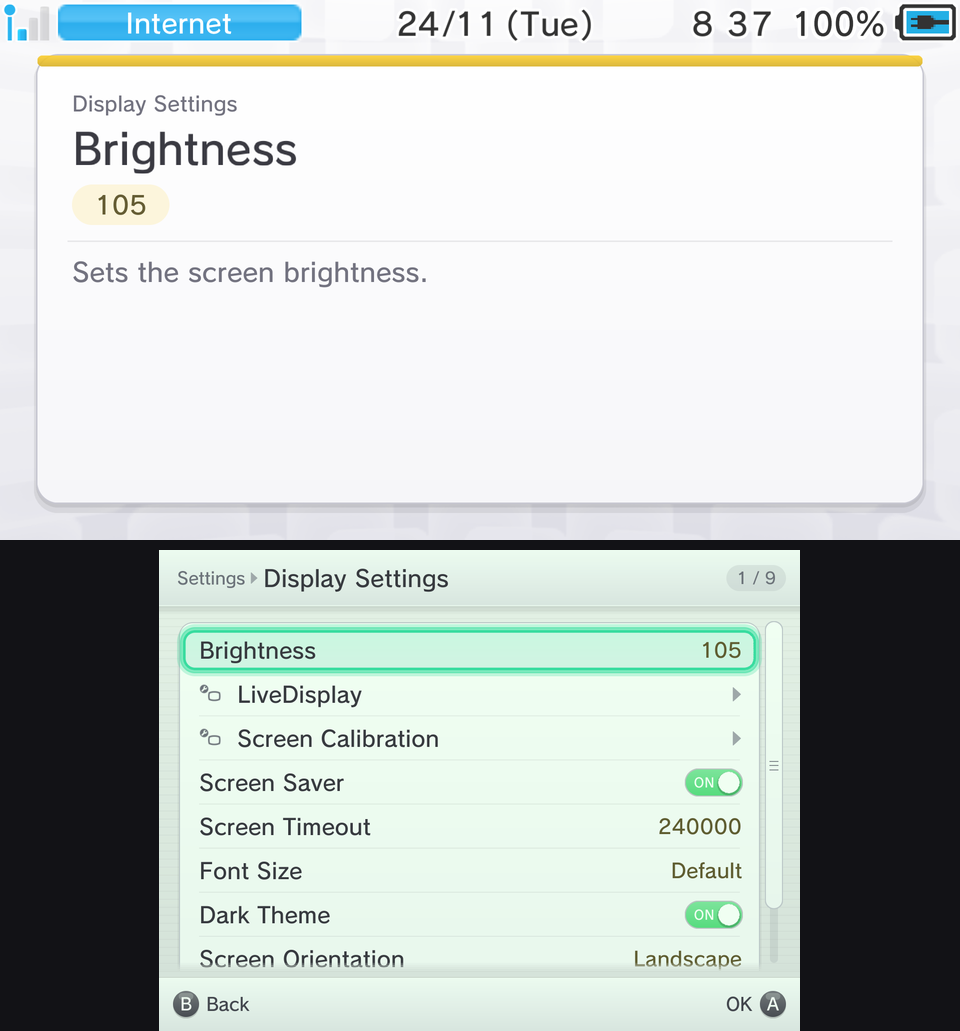
Start up
When the device starts, the 3DS Menu plays its own start up animation and chime, shows the important notice (tap the screen to continue), then the HOME Menu opens.
First-run setup
On a fresh install with the 3DS Menu theme, first-run setup uses the console's own layouts on the top screen: a welcome screen, Select Language, Time Zone, Wi-Fi Setup (it waits for the system to finish starting if needed), the installation of the emulators, RetroArch and the bundled content (this takes a few minutes and carries on by itself), and a last "You're all set!" screen. Time Zone and Wi-Fi can be skipped with Start.
While a game runs
Raising the home over a running game (hold Power, see the in-game overlay) brings back the HOME Menu with the game suspended: the game's screen dims, its icon pulses on the grid, and the bar shows Close and Resume. Resume returns to the game; Close asks before it ends the game.
Languages
The theme draws every language the home supports, including Japanese, Simplified and Traditional Chinese, Korean and Arabic (right to left). Japanese and Chinese lines wrap between characters.