GammaOS Nano gives you five complete home themes in one interface. Pick the look you love and everything (games, media, apps, Settings) reshapes to match.
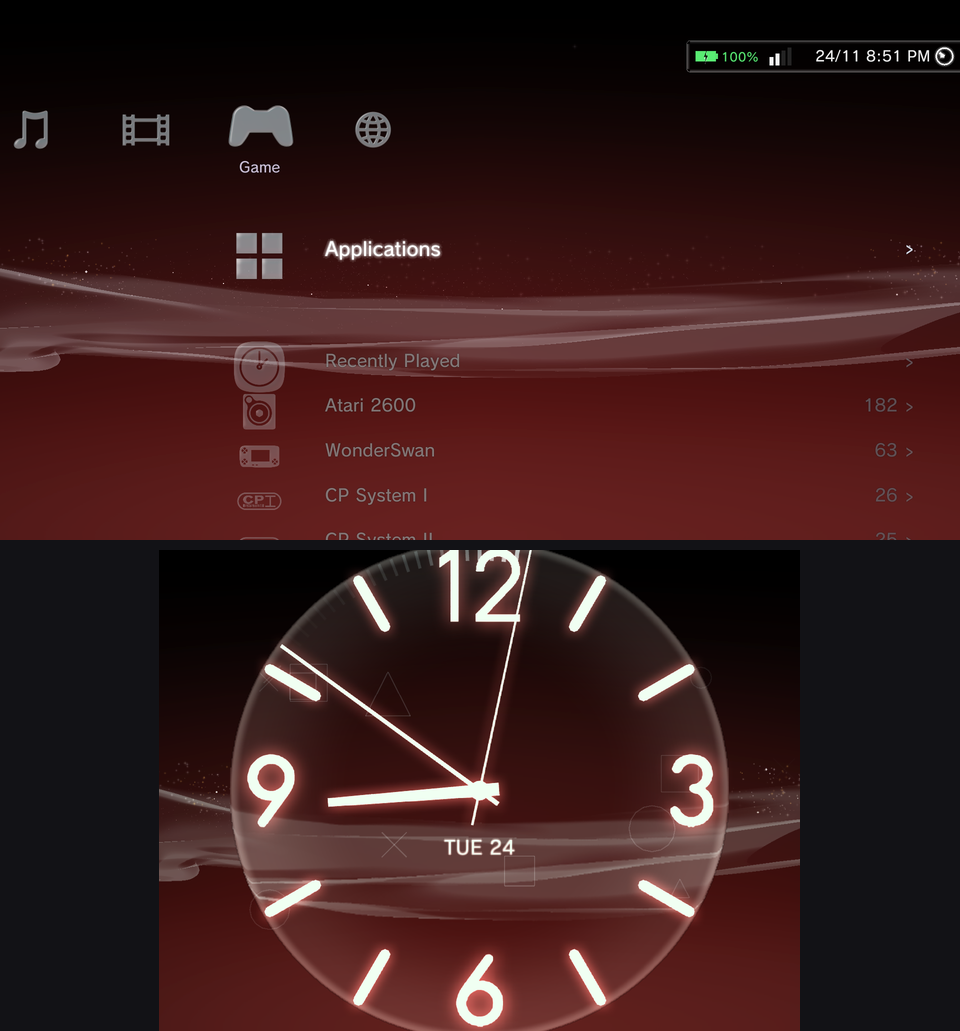
PlayStation 3 style
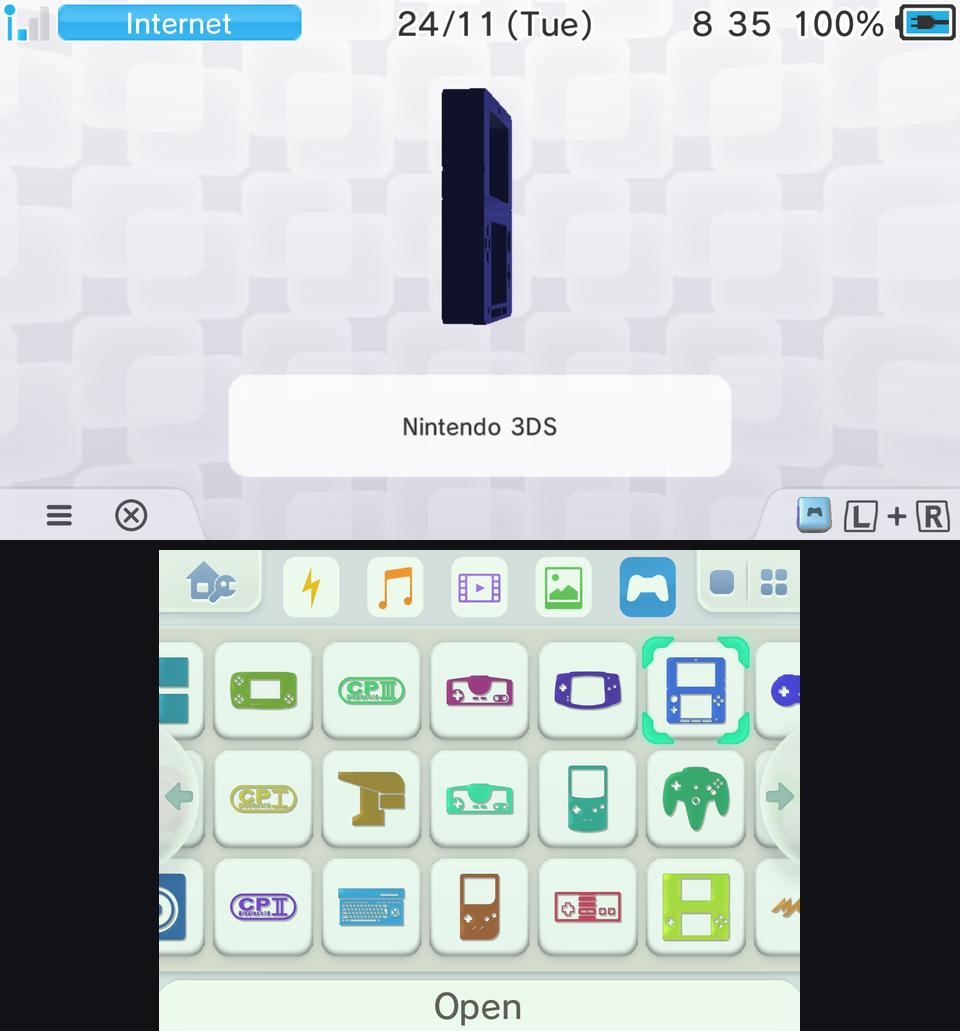
Nintendo 3DS style
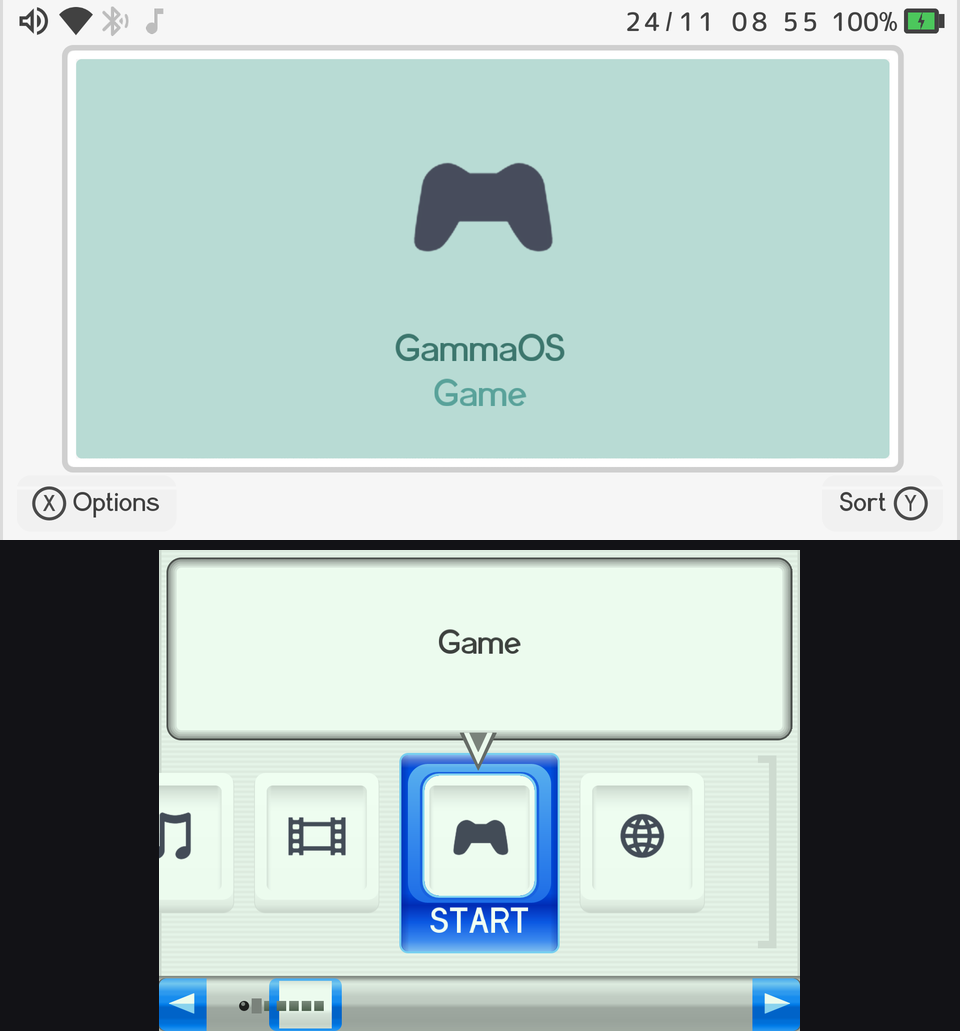
Nintendo DSi style
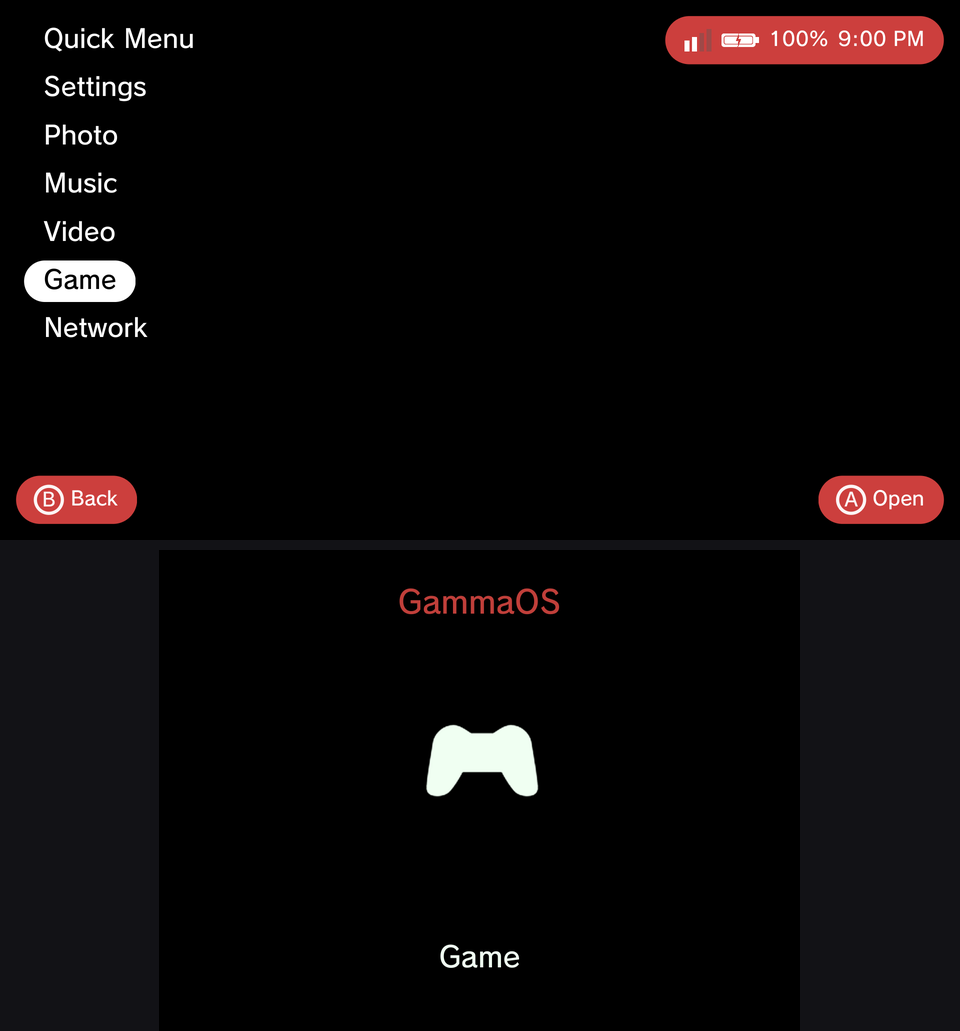
Minimal list style
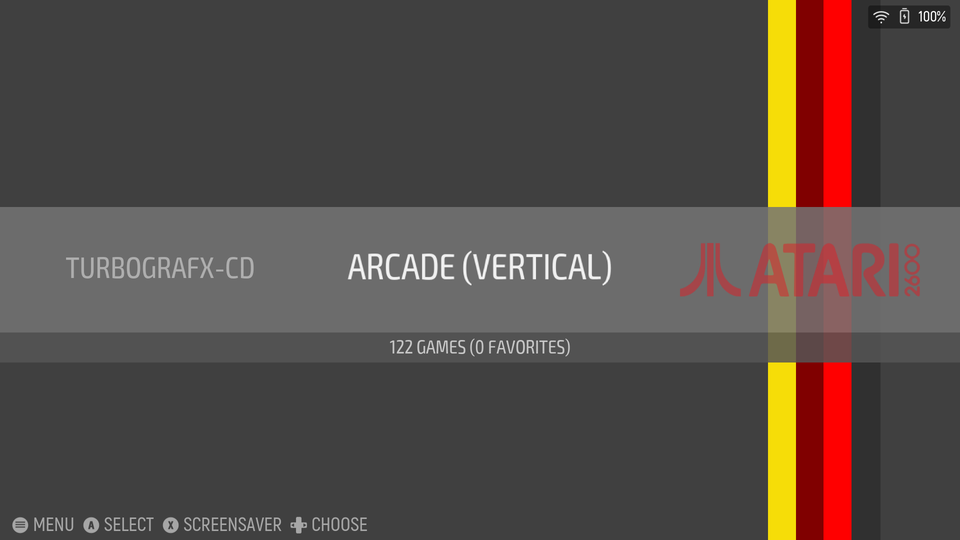
ES-DE themes
All five themes launch the same games, play the same media, and share the same deep Settings. They just wear it differently. The pictures on this page come from the Retroid Pocket Duo Lite, with the top screen above the bottom screen.
GammaOS XMB (PlayStation 3 style)
This is the default look. A horizontal category bar runs across the screen, and the item list for the active category drops down vertically from it. Behind everything flows the continuous PS3 "wave" background, with glass icons and firmware-style animations. It adapts to any screen size or orientation automatically. You can see the wave and the sliding category rail in the clip above.
XMB has a few looks that are all its own, under Settings > Theme Settings:
| Option | Choices | Default |
|---|---|---|
| XMB Wave | On / Off | On (turns off automatically when you set a custom wallpaper) |
| Background | Original / Classic / Wallpaper | Original |
| Font | Original / Rounded / Pop | Original |
| Day/Night | Auto (by time of day) / Day / Morning / Dusk / Evening / Night | Night |
Day/Night changes the lighting mood of the whole home. Leave it on Auto and it follows the time of day for you.
DSi Menu (Nintendo DSi style)
A carousel of glossy tiles glides across a light field with a soft scanline background. Tiles spring into place as the menu opens, and you can fling or scrub the carousel with a touch panel, snapping neatly to each slot.
Drill into a category (like Game) and you get a familiar list with boxart, the same as the other themes.
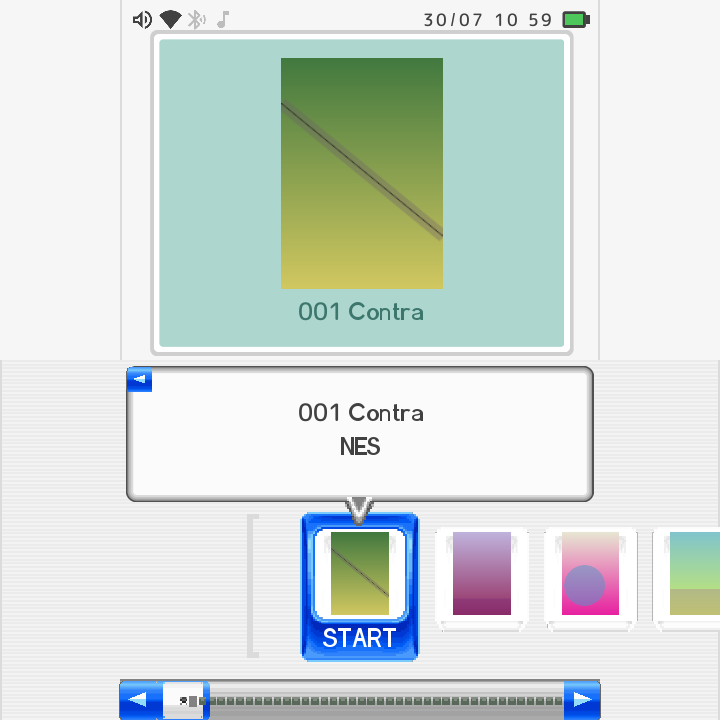
DSi has options of its own in Theme Settings:
| Option | Choices |
|---|---|
| DSi Assets | High Resolution (default): smooth art that also suits wide top screens. Original Resolution: the DSi's pixel art at twice its size, with text at full resolution. Applies immediately. |
| DSi Dark Theme | Off / On: a dark slate and teal look |
Its settings pages are laid out like a console settings app: Left / Right change a value in place, and L / R turn a page. In Game Systems, Right opens a system's emulator list, grouped into In use, Installed, Available and Other, with the recommended one starred.
On single-panel devices there is one more choice: a Single-Screen / Stacked layout choice. You can keep the carousel-only view (the default), or switch to a stacked layout with the status bar on top. Dual-screen devices always use both physical panels, so this choice is for single-panel handhelds.
Minima (NextUI style)
A clean, minimal vertical text list on a black canvas. The selected row is a bright white rounded capsule with inverted text, and there is a small accent status pill plus a bottom button-hint bar so you always know your controls. Scrolling is a smooth exponential glide. The main list keeps things text-only with no icons.
Even in this stripped-back theme, your games still show their boxart once you drill into a system.
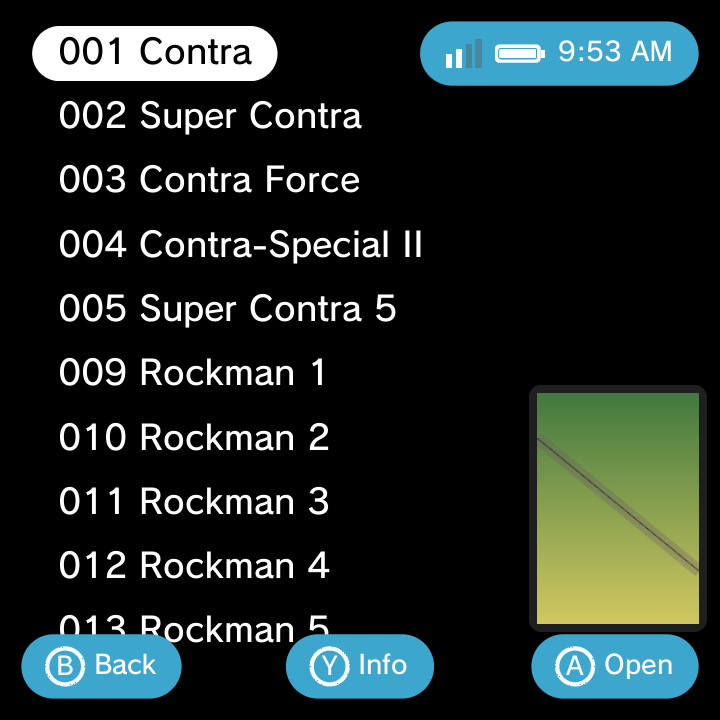
Minima adds two of its own options: a Background Colour (a solid colour instead of black, though a photo or video wallpaper overrides it), and an opt-in for the XMB wave (off by default in Minima, since the flat look is the point).
3DS Menu (Nintendo 3DS style)
A HOME Menu grid on the bottom screen and the selected title's banner on the top screen, with folders you arrange, colour themes, SD card themes and its own start up animation. It has its own page: 3DS Menu Theme.
Custom / ES-DE
This theme draws ES-DE themes, so you can use the large collection of themes made for ES-DE. Themes go in Internal storage > ES-DE > themes, and the theme's start menu can download themes for you.
Switching themes
Changing your whole home is one setting away.
- Open Settings > Theme Settings.
- Choose Home Theme.
- Pick GammaOS XMB, DSi Menu, Minima, Custom / ES-DE or 3DS Menu.
Applying a new theme restarts the home so the new look loads cleanly. Give it a second and you are in the new interface.
The same menus simply look different in each theme. A Settings screen in Minima (see min_settings.png) and an Options menu in DSi (see dsi_optmenu.png) show the exact same choices as their XMB counterparts, just dressed to match the theme you chose.
Accent Colour
Under Settings > Theme Settings > Colour you get 21 accent choices that apply to whichever theme you are using (on the 3DS Menu it tints the Default 3DS theme):
Original (each theme's signature colour: XMB uses a per-month hue, Minima a berry tone, DSi its azure), plus Yellow, Green, Pink, Dark Green, Light Purple, Teal, Dark Blue, Magenta, Orange, Brown, Red, Black, White, Gray, Blue, Cyan, Lime, Gold, Violet, and Crimson.
The accent shows up differently in each theme. On XMB it tints the wave and menu accents, on Minima it colours the capsule and hint bar, and on DSi it hue-rotates the chrome.
Wallpapers
You can replace the default background with your own picture or a looping video, all from Settings > Theme Settings.
| Option | What it does |
|---|---|
| Wallpaper Image | Pick a photo for the home background, using the photo grid picker |
| Bottom Wallpaper | A separate wallpaper for the bottom screen (dual-screen devices only) |
| Video Wallpaper | Pick a looping video for the top-screen background |
| Clear Wallpaper | Remove your custom wallpaper and restore the wave |
| Wallpaper Dimming | Darken a bright wallpaper so icons and text stay readable (default 25%) |
| XMB Wave | On / Off; turns off automatically when a wallpaper is set, then is honored exactly as you leave it |
Supported wallpaper image types: jpg, png, webp, bmp, gif, heic. Supported video types: mp4, mkv, webm, mov, 3gp, avi, ts, mpg.
If your wallpaper makes text hard to read, nudge Wallpaper Dimming up until icons and labels pop again.
Keep exploring
See the full list of every option in the Settings reference, and check the GammaOS Toolbox for extra display and system tweaks that pair well with your chosen theme.