The Quick Menu is your fast lane to the settings you reach for most: brightness, performance mode, shaders, USB mode, and power options. You can open it from the home, and you can raise it right over a running game without quitting.
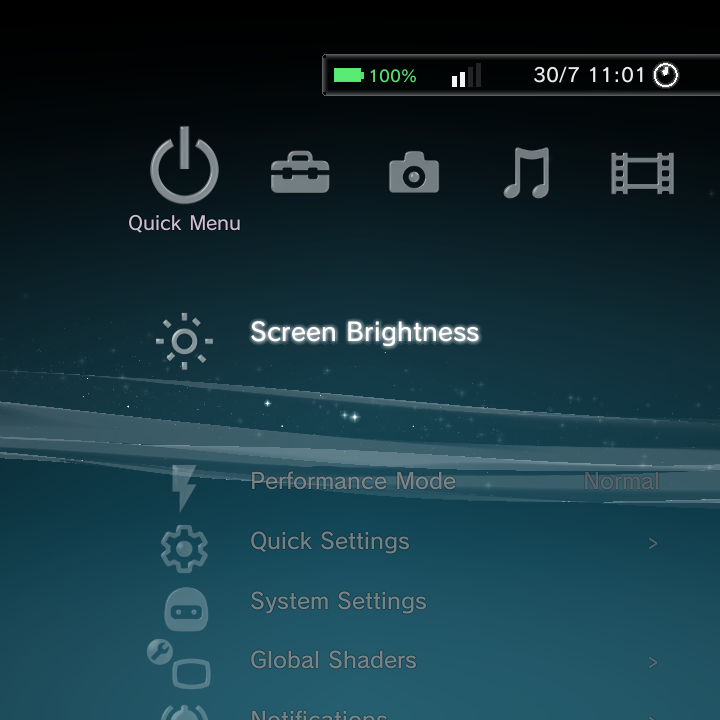
Opening the Quick Menu
- On the home, the Quick Menu is the far-left category (the power-icon column). Move to it like any other category.
- Over a running game or app, hold Power to raise the Nano overlay, which opens straight on the Quick Menu. Press B or hold Power again to drop back into your game. See the in-game overlay.
- Holding Power on the home jumps directly to the Quick Menu's Power submenu.
What is in it
| Item | What it does |
|---|---|
| Resume Audio Player | Jumps back to the now-playing screen (shown only while music is playing) |
| Screen Brightness | An inline slider; move Left / Right to adjust |
| Performance Mode | Normal, Max Performance, or Power Saver CPU/GPU profile |
| Fan | Fan Speed: Auto, Cool, Max or Off (shown only on devices with a fan; the same setting as the GammaOS Toolbox fan speed) |
| Quick Settings | A page of toggle tiles (see below) |
| System Settings | Opens the full Android Settings app |
| Global Shaders | Turns the system display shader on or off and tunes it (see below) |
| Notifications | Shows active system notifications; dismiss the focused one |
| USB Settings | Switch the USB mode: Charging only, MTP, PTP, or RNDIS (USB Ethernet) |
| Close Current App | Force-stops the foreground app and returns you home |
| Kill Background Apps | Force-stops background apps, sparing the one in front |
| Kill All Apps | Force-stops all third-party apps |
| Screen Orientation | Force an app's orientation (shown only over a running app) |
| Quick Resume | Toggles Quick Resume on or off |
| Power | A submenu: Restart, Power Off, Recovery, Safe Mode, Boot Android |
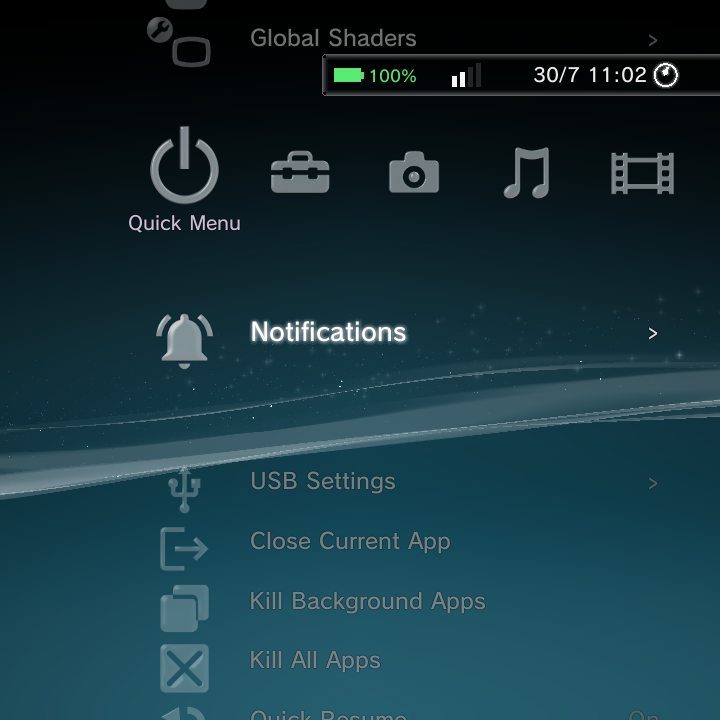
In the 3DS Menu theme
The 3DS Menu shows the Quick Menu as its own category of icons, with Power first and the Quick Settings tiles inline. See 3DS Menu Theme.
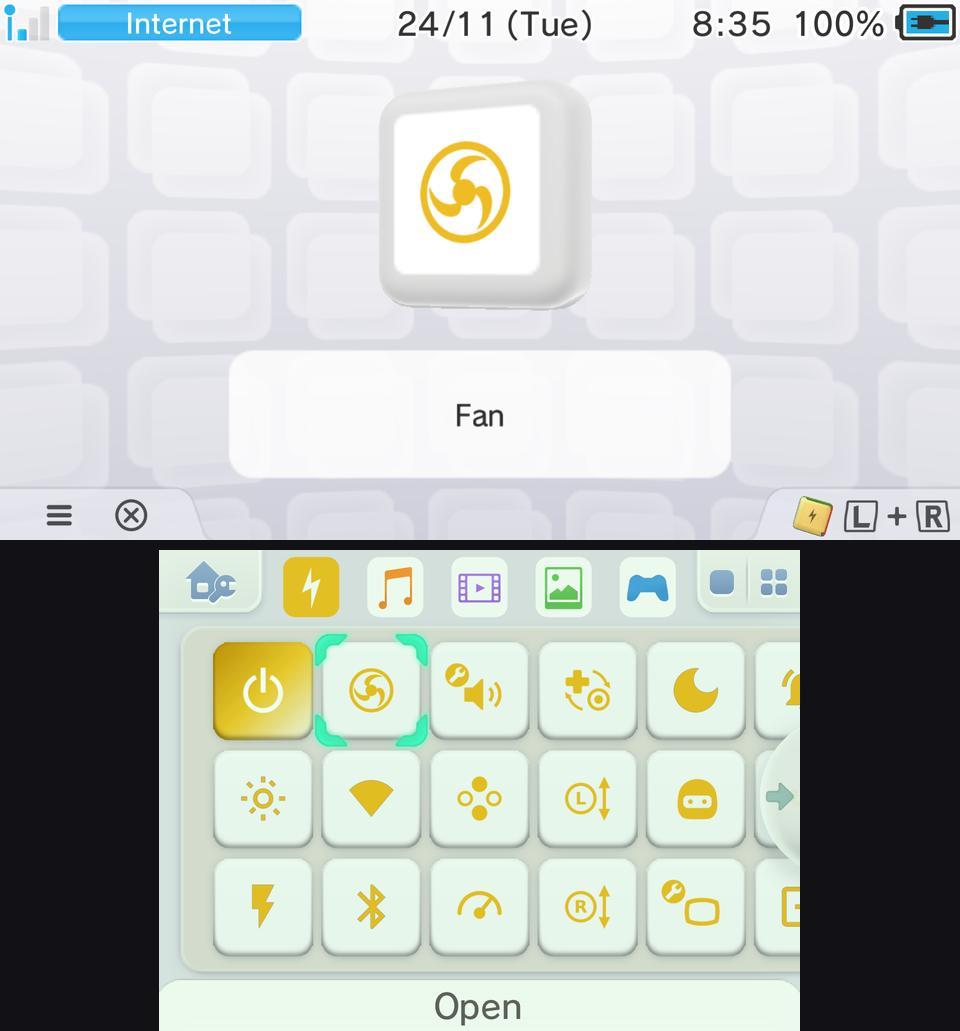
Control Center
On dual screen devices the Control Center can sit over an app on the bottom screen. On devices with a fan, a Fan tile takes the place of the Mouse tile: a tap steps through Auto, Cool, Max and Off, and holding it opens the list. Holding the Shader tile for half a second opens a list of shaders (Off, CRT, LCD 3x, LCD Shader, Blur Fill, and Custom once a custom preset has been picked), and the tile shows the active shader's name. On the Retroid Pocket Duo Lite the Mode button shows and hides it, and holding Back in a bottom screen app brings it up instead of closing the app.
Performance Mode
Three profiles trade battery for speed:
- Normal scales up and down with load (the everyday default).
- Max Performance holds high clocks for the most demanding games.
- Power Saver keeps clocks low for light emulation and long sessions.
Global Shaders
The Global Shaders item applies a system-wide display shader over everything on screen. Pick a preset and tune it:
- Off turns shaders off.
- CRT adds scanlines (adjust Scanline Size and Scanline Strength).
- LCD3x and LCD emulate an LCD grid.
- Blur Fill fills the empty sides of a non-fullscreen image (with a Resolution and Orientation control).
- Custom Shader loads your own preset, with Resolution Scale and Scanline Density controls.
If a shader ever makes the screen unreadable, hold Power + Select to disable it instantly. See Controls.
Quick Settings tiles
The Quick Settings page is a grid of one-tap toggles, including Wi-Fi, Bluetooth, Performance Mode, Global Shaders, GammaRGB, GammaEQ, Screen Map, Deep Sleep Mode, External as Primary, Immersive Mode, ABXY Swap, D-Pad/Analog Swap, Global Sensitivity, Analog Calibration, and stick inversion. Tap one to flip it.
USB Settings
Switch how the device appears when plugged into a computer:
- Charging only (default): no data connection.
- MTP: browse the device's files as media storage.
- PTP: transfer photos.
- RNDIS: share the device's connection as USB Ethernet.
Where to go next
- Controls for the in-game overlay and system shortcuts.
- Settings Reference for the full Settings tree.
- GammaOS Toolbox for the deeper system tweaks.