Screen Calibration sets the brightness, contrast, saturation, hue and white balance of each screen separately. It works on top of LiveDisplay, applies everywhere (the home, the emulators and their games, and apps), and is kept across reboots.
Where to find it
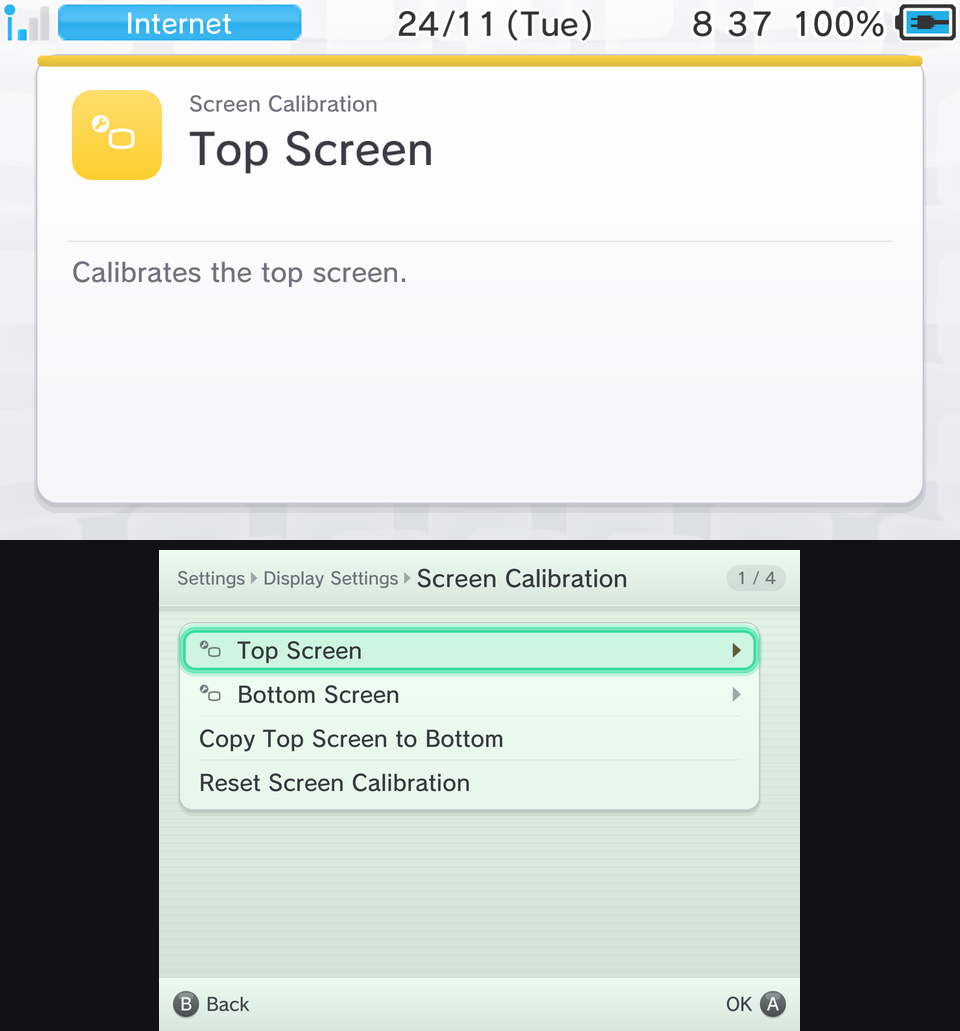
Settings > Display Settings > Screen Calibration.
| Row | What it does |
|---|---|
| Top Screen | The settings for the top screen |
| Bottom Screen | The settings for the bottom screen |
| Copy Top Screen to Bottom | Gives the bottom screen the same settings as the top |
| Reset Screen Calibration | Puts both screens back to the defaults |
On a single screen device there is one Screen page and no Copy row.
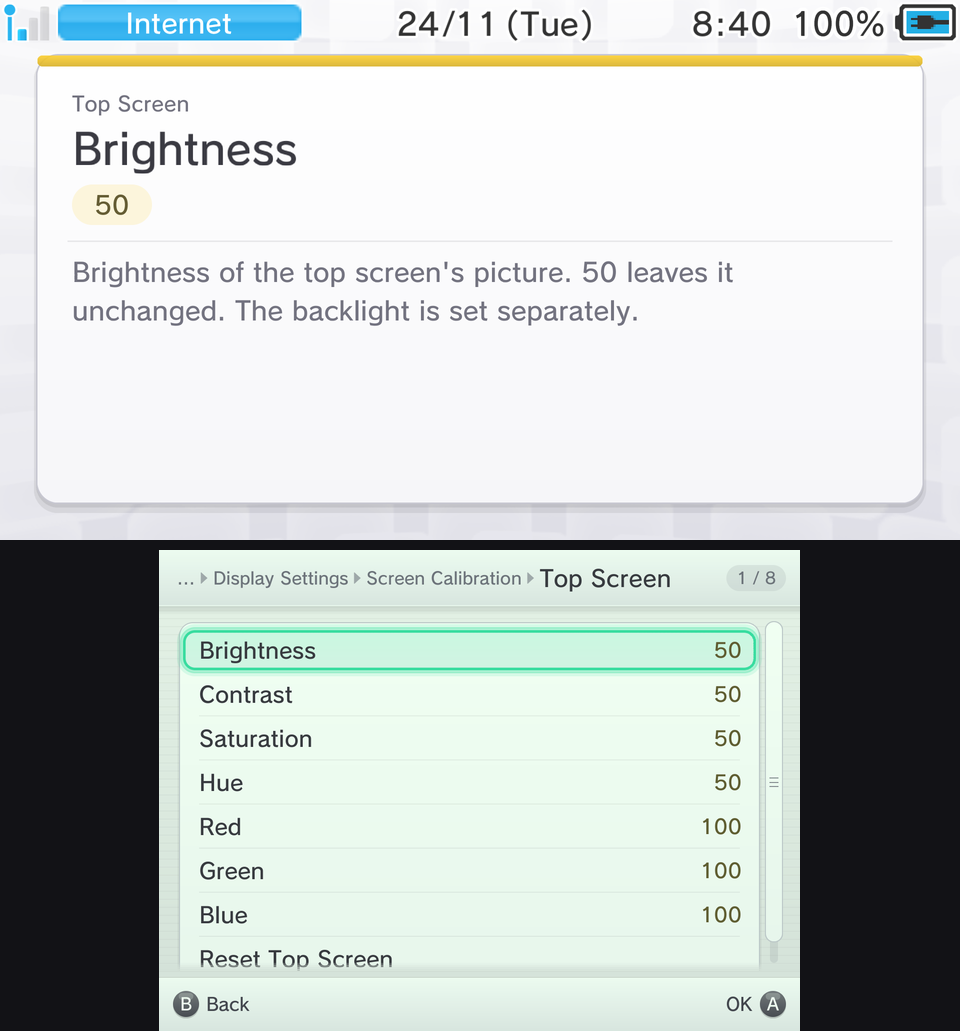
The settings for each screen
| Row | Range | Unchanged picture |
|---|---|---|
| Brightness | 0 to 100 | 50 |
| Contrast | 0 to 100 | 50 |
| Saturation | 0 to 100 | 50 |
| Hue | 0 to 100 | 50 |
| Red, Green, Blue | 20 to 100% | 100% |
| Reset Top Screen (or Bottom Screen) | Puts this screen back to the defaults |
Brightness here is the level of the picture. The backlight is set separately, with the normal brightness controls.
Test patterns
Opening a value fills both screens with a test pattern and shows a small on-screen display over the screen you are adjusting.
| Input | Action |
|---|---|
| Left / Right | Change the value (hold to repeat) |
| Up / Down | The previous or next value of the same screen |
| L / R | The previous or next pattern |
| A or B | Leave |
The patterns, in order: White, Grey Steps, Colour Ramps, Colour Bars, Red, Green, Blue, Cyan, Magenta, Yellow, Grey and Black. The value is saved as you go. The on-screen display fades after six seconds without a press and comes back on the next one.
Matching two screens: set the top screen first, use Copy Top Screen to Bottom, then fine tune the bottom screen's Red, Green and Blue on the White and Grey Steps patterns until the two look the same.