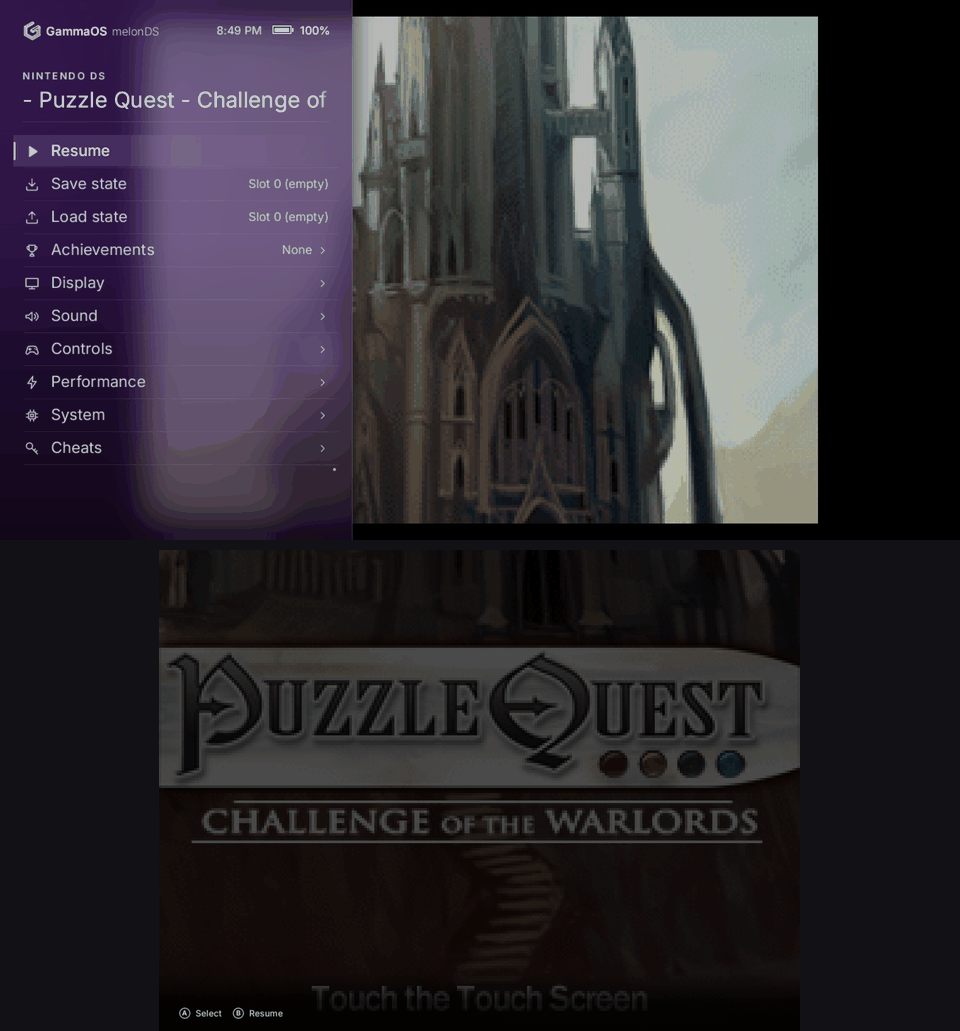
melonds-nano is a Nintendo DS emulator built into GammaOS, based on melonDS. It runs DS games and DSi games, draws both DS screens straight onto your handheld's screens, and has the GammaOS in-game menu with save states, per game settings, cheats and RetroAchievements.
melonDS or DraStic
GammaOS has two DS emulators, and you choose which one plays your DS games: Settings > Game Settings > Game Systems > Nintendo DS > Emulator, then melonDS (GammaOS) or DraStic (GammaOS).
| melonds-nano | DraStic Nano | |
|---|---|---|
| DSi games and DSiWare | Yes | No |
| RetroAchievements | Yes | No |
| Quick Resume | No (use Auto load state on launch) | Yes |
Playing DS games
Put games in ROMs/nds. Plain .nds files work, and so do .zip and .7z archives. DSiWare also opens from .dsi, .srl and .app files.
DS games need no BIOS: melonds-nano has its own. DSi mode needs the DSi ARM9 BIOS, DSi ARM7 BIOS and DSi firmware, and DSiWare also needs the DSi NAND. Put them in RetroArch/system or in the bios folder inside melonds-nano's folder; any file names work. If a file is missing, a screen lists what was found and what is missing.
Opening the in-game menu
| Input | Action |
|---|---|
| Short press of Back (or Guide) | Open or close the menu |
| Hold Back | Leave the game |
| R2 | Fast forward on or off |
| L2 | Swap the screens |
The menu
| Row | What it does |
|---|---|
| Resume | Back to the game |
| Save state / Load state | Slots 0 to 8, plus Auto (the slot used to resume a game) |
| Achievements | RetroAchievements: log in, see the game's achievements, hardcore mode |
| Display, Sound, Controls, Performance, System | Pages of settings (below) |
| Cheats | Cheats for the game, a search, and your own codes |
| Create Per-Game Override | Keep this game's settings apart from the others |
| Restart game, Exit game |
The menu opens again where you left it.
Controls, Button Mapping and Hotkeys
| Row | What it does |
|---|---|
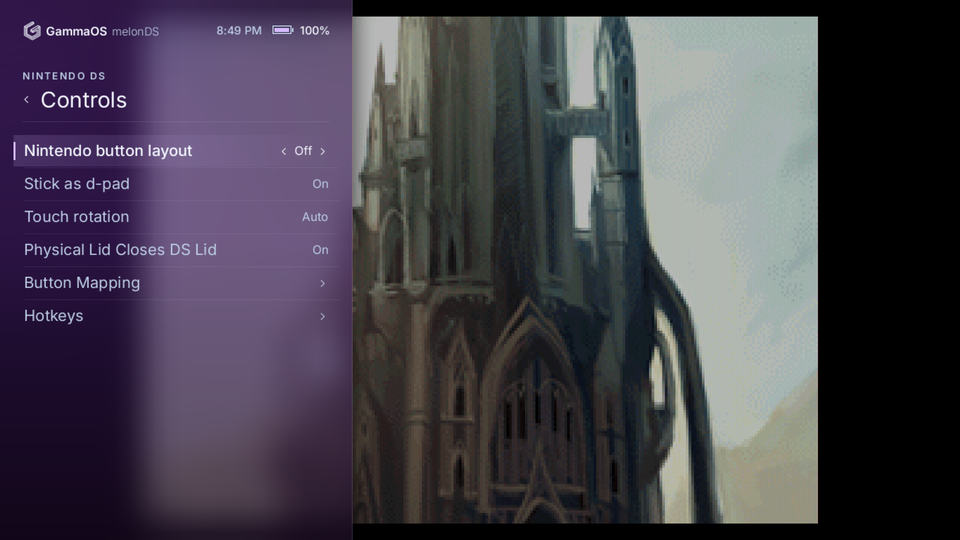
| Nintendo button layout | Off: each DS button is the pad button with the same letter. On: buttons go by position, so the DS's A is the right hand button |
| Stick as d-pad | The left stick works as the d-pad |
| Touch rotation | Auto, 0, 90, 180 or 270 |
| Physical Lid Closes DS Lid | On devices with a lid: closing the lid closes the DS's lid in the game, and the device sleeps if the lid stays shut for 2.5 seconds (On by default) |
| Button Mapping | Choose which control plays each DS button |
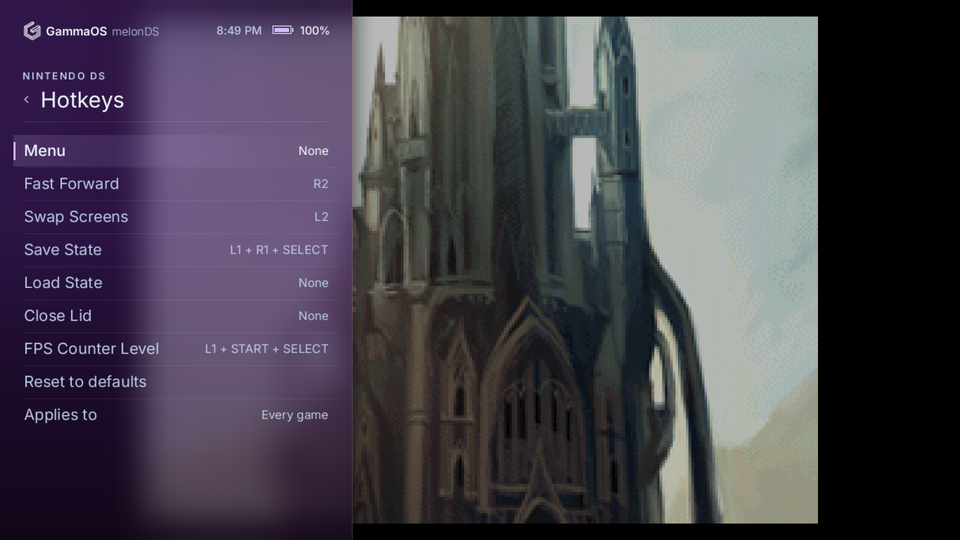
| Hotkeys | Shortcuts, each one button or a combination held together |
| Hotkey | Default |
|---|---|
| Menu | Back / Guide |
| Fast Forward | R2 |
| Swap Screens | L2 |
| Save State | L1 + R1 + Select |
| Load State | None |
| Close Lid | None |
| FPS Counter Level | L1 + Start + Select |
Each mapping page has Reset to defaults and Applies to (Every game, or This game).
Display
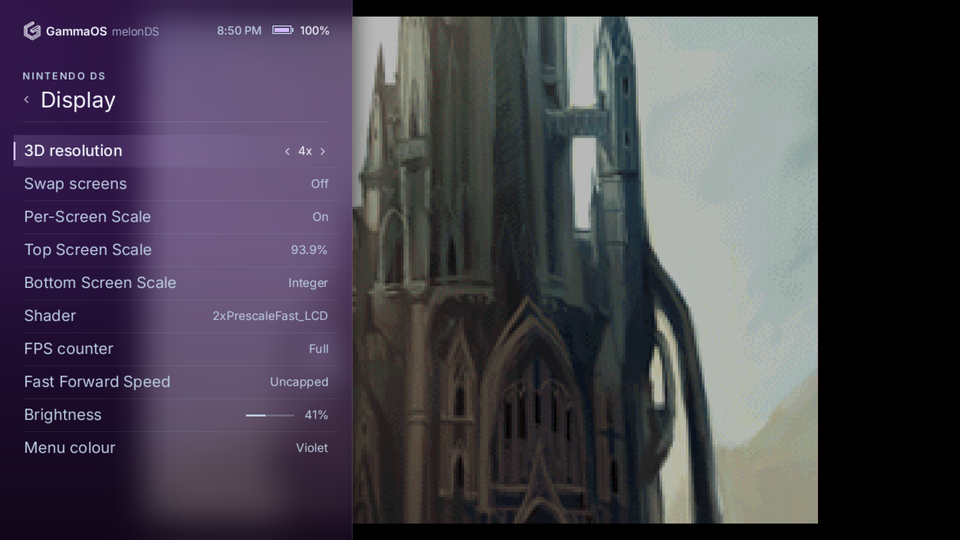
| Row | Values |
|---|---|
| 3D resolution | 1x to 8x |
| Swap screens | Off / On |
| Motion Smoothing (Experimental) | Off / On, on panels that can show it |
| Per-Screen Scale | Off / On; when On, Top Screen Scale and Bottom Screen Scale appear |
| Shader | None, or one of the LCD and prescale effects (LCD1x, LCD3x, Retro, 4xLCD_Subpixel and more) |
| FPS counter | Off, FPS or Full |
| Fast Forward Speed | 110% to 300%, or Uncapped |
| Brightness, Menu colour |
Sound and System
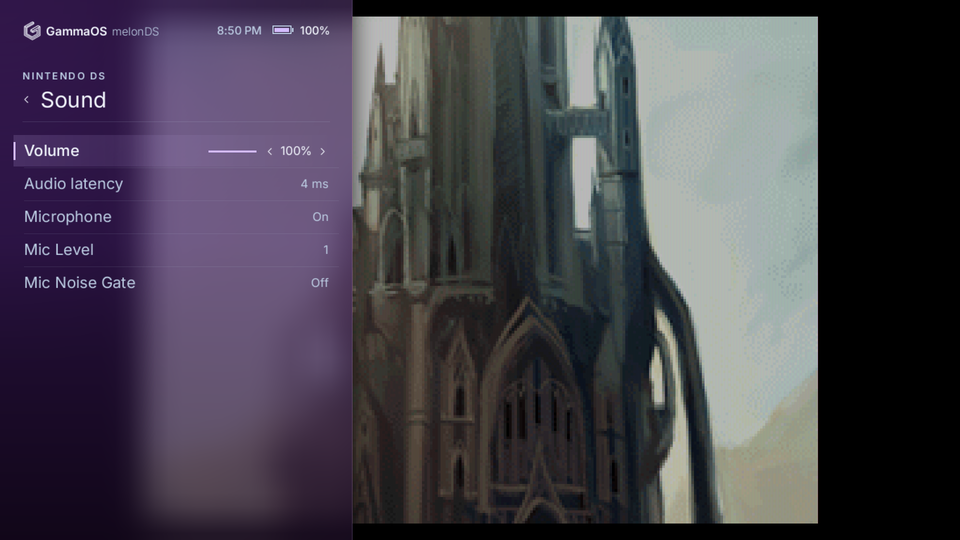
- Sound: Volume, Audio latency, Microphone, Mic Level, Mic Noise Gate.
- Performance: Performance mode, and Fan on devices with a fan.
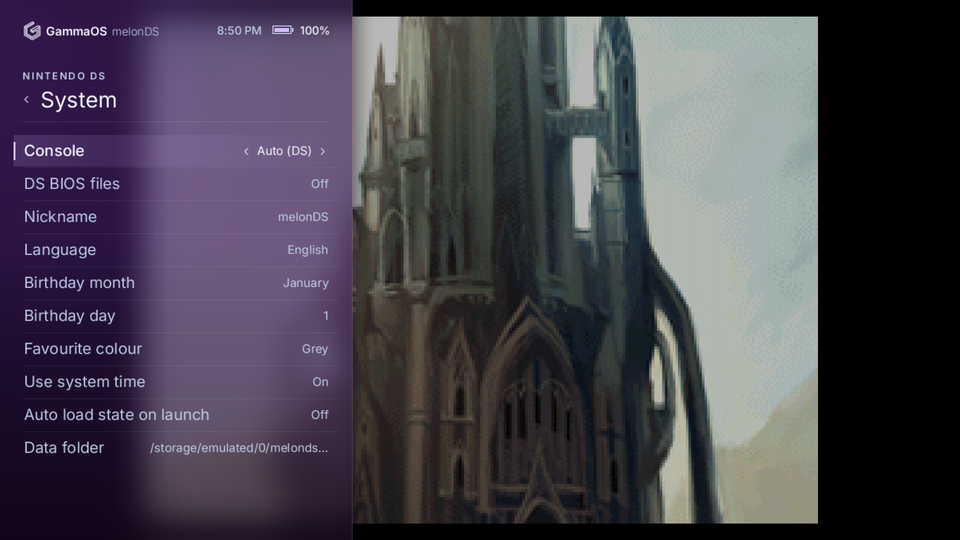
- System: Console (Auto, DS or DSi), DS BIOS files, Nickname, Language, Birthday, Favourite colour, Use system time, Auto load state on launch, and the Data folder.
RetroAchievements
Log in from Achievements with your RetroAchievements user name and password. Unlocks earned offline are sent the next time you are online. Hardcore mode is off by default; with it on, cheats and loading states are turned off as RetroAchievements requires, and loading a state asks whether to continue as softcore.
Where your data lives
Everything is in the melonds-nano folder on internal storage: saves/, savestates/, cheats/ and overrides/ (per game settings). Move it with Settings > Game Settings > melonDS Data Folder; the files move with it.