Installation Video Guide
Prerequisites (Windows Only)
- Grab your release
- https://github.com/TheGammaSqueeze/GammaOSNext/releases/tag/v.1.2.0-MANGMIAIRX
Full and Lite builds are available. - Full includes Google Apps and Play Services.
- Lite is leaner, faster, and contains no Google services.
-
Users already on GammaOS Next v.1.1.0 can optionally perform an in-place upgrade to v.1.1.1 using the upgrade XML to keep their data.
-
7-Zip
- Install 7-Zip (or another archive tool capable of extracting split archives).
- Extract the release by opening the
.7z.001file. Enter the Patreon password when prompted. -
Extraction will produce the firmware folder containing the QFIL-compatible files (
prog_firehose_ddr.elf,rawprogram_unsparse0.xml,rawprogram_unsparse0_upgrade.xml,patch0.xml, etc.). -
Qualcomm USB Drivers
-
Install the Qualcomm USB drivers:
https://github.com/TheGammaSqueeze/GammaOSNext/releases/download/v.1.1.1-MANGMIAIRX/Qualcomm_USB_Driver_v1.0.10061.1.zip -
QPST (includes QFIL)
- Install QPST from the package below. QFIL is included in this bundle:
https://github.com/TheGammaSqueeze/GammaOSNext/releases/download/v.1.1.1-MANGMIAIRX/qpst.win.2.7_installer_00495.1.zip
Note: A clean install of GammaOS Next or stock firmware will wipe all user data. Back up your files before proceeding.
The only exception is the optional in-place upgrade from GammaOS Next usingrawprogram_unsparse0_upgrade.xml, which is designed to keep your data.
Step 1: Prepare the Device and Enter EDL Mode
-
Power off the Mangmi Air X completely.
Ensure no USB cables are connected. -
Enter EDL mode:
- Hold Volume Down + Volume Up together.
- While continuing to hold both buttons, insert the USB cable.
- Keep holding until the device enumerates in Windows as
Qualcomm HS-USB QDLoader 9008.
-
If it does not appear as a QDLoader device, repeat the process ensuring:
- Device was off
- Buttons were held before cable insertion
- Drivers are installed properly
Step 2: Launch QFIL and Load the Firmware
-
Open QFIL from the QPST installation folder.
-
Click Select Port.
- Choose the entry that shows Qualcomm HS-USB QDLoader 9008.
- If no port appears, return to Step 1 and confirm the device is in EDL mode.
-
Ensure Flat Build is selected.
-
In Select Programmer, click Browse and choose:
prog_firehose_ddr.elfinside the extracted firmware folder.
-
In Select Flat Build, click the Load XML button. QFIL will automatically prompt you for two XML files:
- If you are performing a new install (coming from stock, another ROM, or if you want a completely clean GammaOS Next install):
- First select:
rawprogram_unsparse0.xml -
Then select:
patch0.xml
This path will wipe all data and is the recommended option when you are not already on GammaOS Next. -
If you are already on GammaOS Next and want to upgrade without losing data (optional upgrade):
- First select:
rawprogram_unsparse0_upgrade.xml - Then select:
patch0.xml
This path is designed to preserve your existing data while upgrading the system.
Do not userawprogram_unsparse0_upgrade.xmlif you are not already on GammaOS Next. Make sure to remove any PIN/Password/Lock screen gestures before performing any upgrades.
-
Open Configuration → FireHose Configuration and set:
- Device Type:
emmc - Validation Mode:
0 - No Validation - Reset After Download: checked
- Leave other values at default.
- Device Type:
Your QFIL settings should match the reference screenshots.
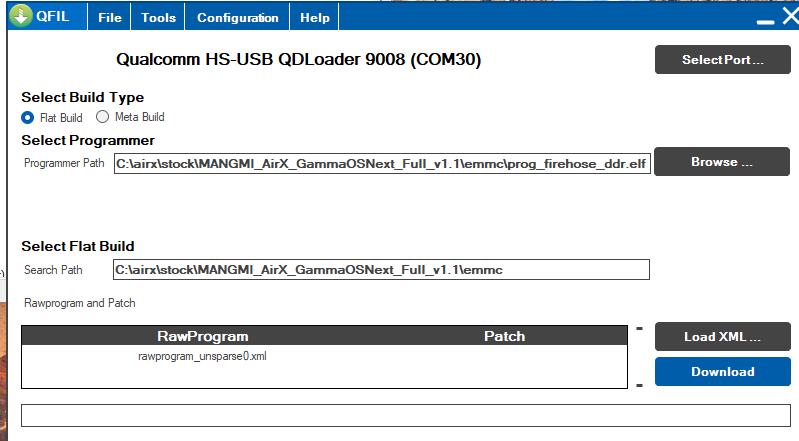

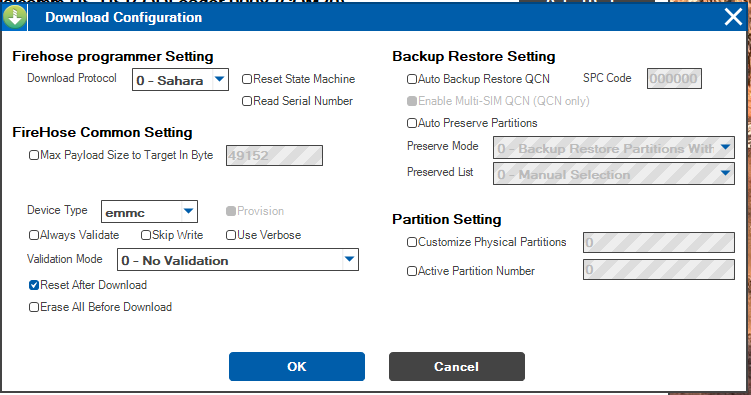
Step 3: Flash the Firmware
- Confirm the correct QDLoader 9008 port is still selected in QFIL.
- Click Download.
- QFIL will immediately begin flashing once the device is detected.
- Wait for Download Succeeded.
- The device will reboot automatically. First boot may take several minutes.
These steps are identical for both GammaOS Next and stock firmware, as well as for the optional in-place upgrade for existing GammaOS installs.
Troubleshooting Tips
- No QDLoader port appears:
- Reinstall Qualcomm drivers
- Use a different USB cable or port
- Hold both volume buttons before inserting the cable
-
Ensure the device is completely powered off
-
Flashing fails or errors shown:
- Restart the PC
- Reinstall drivers
- Verify the correct files (
prog_firehose_ddr.elf, rawprogram XML, patch XML) -
Ensure you selected the correct XML for your scenario:
rawprogram_unsparse0.xmlfor new installsrawprogram_unsparse0_upgrade.xmlonly for upgrading from GammaOS Next v.1.1.0
-
Device stuck on boot:
- Reflash the firmware
-
Ensure you used the correct Full or Lite build
-
Device shows 32GB instead of 64GB internal storage:
- After flashing or upgrading, check your internal storage in Android settings.
- If it reports ~32GB instead of ~64GB, your partition layout is not fully expanded.
- In this case, perform a new install by reflashing using
rawprogram_unsparse0.xml(clean install). - This will wipe your data, so back up beforehand.
If issues persist, open a GitHub Issue and include screenshots or QFIL logs.
Stock Firmware (Optional)
Stock firmware (no password required):
https://mangmi.com/pages/download
Flash using the same QFIL procedure described above.