Installation Video Guide
- No video guide available yet for RG Rotate. If one becomes available, it will be linked here.
Prerequisites (Windows Only)
Note: Installing GammaOS will wipe your device.
Note: If you are already running GammaOS Next and previously followed this guide, your USB drivers are already installed. In that case, you can skip Step 1 and go straight to Step 2.
-
GammaOS Next Release (RG Rotate)
- Download the firmware and tools from the latest release:
https://github.com/TheGammaSqueeze/GammaOSNext/releases/tag/v1.4.1-ANBERNICRGROTATE - Two builds are available, each as its own split archive. Choose the one that suits you and download every part of that archive:
- GammaOS Lite (recommended) - no Google Services, best performance and battery life.
ums512_1h10_rg_rotate_gammaos_1.4.1_lite.7z.001ums512_1h10_rg_rotate_gammaos_1.4.1_lite.7z.002- GammaOS Full - includes Google Services, useful for Play Store and streaming apps.
ums512_1h10_rg_rotate_gammaos_1.4.1_full.7z.001ums512_1h10_rg_rotate_gammaos_1.4.1_full.7z.002- Also download:
UnisocTools_RG_ROTATE.zip
- Download the firmware and tools from the latest release:
-
7-Zip
- Install 7-Zip (or another archive tool capable of extracting split archives). You will need it to combine and extract the
.7z.001and.7z.002files. You will also need the archive password from the release.
- Install 7-Zip (or another archive tool capable of extracting split archives). You will need it to combine and extract the
-
Install Latest, 2005, 2008 and 2010 Microsoft Visual C++ Redistributable version
Step 1: Install USB Drivers
If you are already on GammaOS Next and have flashed your device previously using this guide, your drivers should already be installed. You can skip this step.
- Extract
UnisocTools_RG_ROTATE.zipand open the UnisocTools folder. - Navigate to the UnisocDrivers subfolder.
- Run the driver installer (e.g.,
DPInst64.exeor whichever installer is provided) to install UniSoc/Spreadtrum USB drivers.- On Windows 11, the Windows 10 driver package works fine.
- After installation, you should see UniSoc-related drivers listed in Device Manager once a device is connected in bootloader mode.
Step 2: Prepare the Firmware Archive
- Place both parts of your chosen build (
.7z.001and.7z.002) in the same folder. - Right-click on the
.7z.001file and choose "7-Zip -> Extract Here", entering the archive password from the release when prompted. - After extraction, you will have a single
.pacfile for the build you downloaded:ums512_1h10_rg_rotate_gammaos_1.4.1_lite.pac- Lite edition (no Google Services), orums512_1h10_rg_rotate_gammaos_1.4.1_full.pac- Full edition (with Google Services)
- This is the
.pacfile you will flash.
Step 3: Flash the Firmware
This will fully wipe the device.
Remove all SD cards from the device before flashing. A patched SPL can otherwise try to boot from an SD card and leave you on a black screen (see the Troubleshooting Tips below).
- In the UnisocTools/SPRD_Download_Tool folder, locate and run
UpgradeDownload.exe. - In the Flash Tool window, click Load Packet (or the folder icon).
- Browse to the folder you extracted and select the
.pacfile you want to flash (Lite or Full). - The tool will parse the file and display information like device name and firmware version. Confirm it matches.
- Ensure your device is powered off, no USB cable is connected, and all SD cards are removed.
- Click the Play/Start button in
UpgradeDownload.exe. - Open the RG Rotate to the open (slid-open) position. Then hold down the Back button in the middle of the joypad and, while holding it, connect the USB cable to your PC. The flash tool will detect the device in "Download" mode.
- The flashing process will begin. You will see a progress bar - do not disconnect or power on during this step.
- Once flashing completes, the tool will show a "Passed" or "OK" or "Reset" status. The device will automatically reboot and perform an internal format (factory reset). Disconnect your USB cable after this point.
- Let the device finish formatting and then reboot. It will boot into GammaOS Next on its first launch, which can take up to 2-3 minutes as it initializes.
On the very first boot after flashing, the screen may stay blank for up to a minute. This is completely normal while the device initializes. Just wait and the GammaOS Next boot will appear.
If you ever need to restart the flash (for example if it stalls or errors), hold down the Back button, Volume Down and Power together until flashing starts again.
Step 4: Initial Setup
- First Boot takes a bit longer. Be patient while Android sets up file systems and initial configurations.
- Follow the on-screen prompts to complete initial setup.
- Once setup completes, you will land on the GammaOS Next home screen. You are all set!
Troubleshooting Tips
- If the flash tool fails to detect your device, verify:
- USB drivers were installed correctly.
- The device is opened to the slid-open position and the Back button (in the middle of the joypad) is held down firmly during connection.
- USB cable and port are functional.
- If the flash stalls or errors partway through, restart it by holding the Back button, Volume Down and Power together until flashing starts again.
- If the device shows a black screen on boot or reboot, the patched SPL may be trying to boot from an invalid OS SD card. Remove the SD card and reboot the device by holding Volume Down and Power until it restarts.
- If the device does not boot into GammaOS Next after flashing:
- Double-check that you used the correct
.pacfile for RG Rotate. - Ensure the device filesystem was formatted (it may reboot and re-format automatically).
- Try re-flashing.
- For any errors or unexpected behavior, post details (error messages, device model) on the GammaOS Next GitHub Issues page.
Recovery: OTA failed and the device no longer boots (restore the Super partition)
This is for one specific symptom: after an OTA update the screen just stays black, and holding Power + Volume Down does not bring it back. In rare cases the OTA can leave the Super partition corrupted (this has not been reproducible on our side). You do not need a full reflash to fix it - you can reflash just the Super partition and the device will boot again, keeping the rest of your install intact.
You will use the same firmware from the RG Rotate release, just flashed a different way.
- Get the firmware and tools from the latest RG Rotate release:
https://github.com/TheGammaSqueeze/GammaOSNext/releases/tag/v1.4.1-ANBERNICRGROTATE- Download and extract your build's split archive to get the
.pacfile (the same Lite or Full.pacas a normal install - it is the.pacfrom this release). - Download and extract
UnisocTools_RG_ROTATE.zip.
- Download and extract your build's split archive to get the
- In the UnisocTools/SPRD_Download_Tool folder, run
ResearchDownload.exe- notUpgradeDownload.exethis time. If your copy does not include ResearchDownload, download the SPD Research Tool here: https://spdflashtool.com/research-tool/spd-research-tool-r27-25-4601/ - Click Load Packet and select your
.pacfile. Confirm it loads (the title bar shows the RG Rotate packet and version).
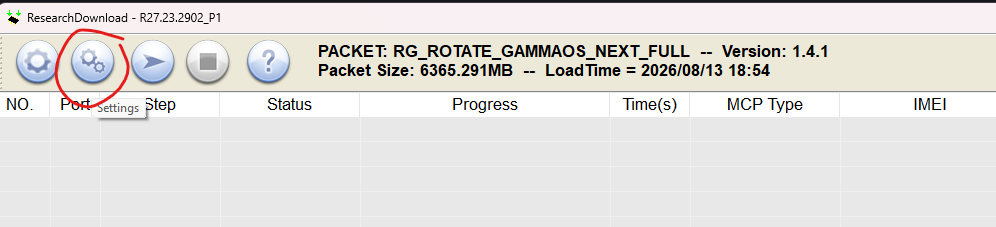
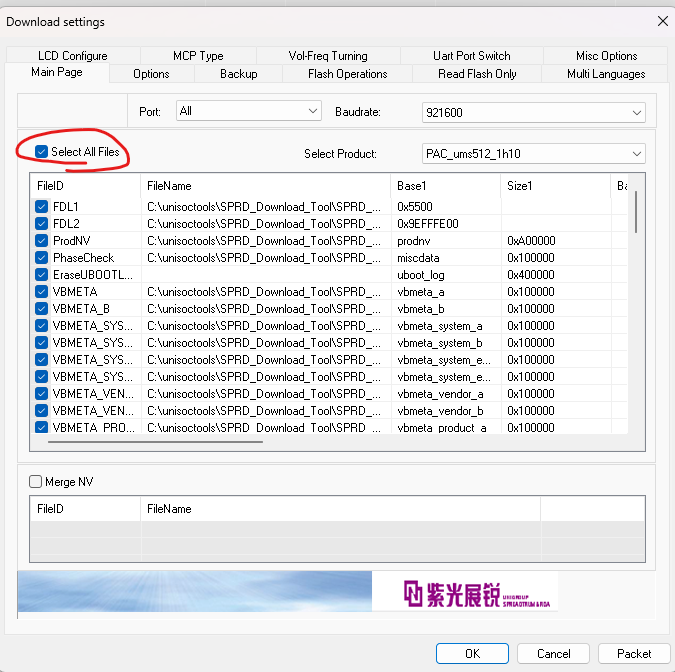
- Click the Settings button (the gear). On the Main Page tab, untick "Select All Files".
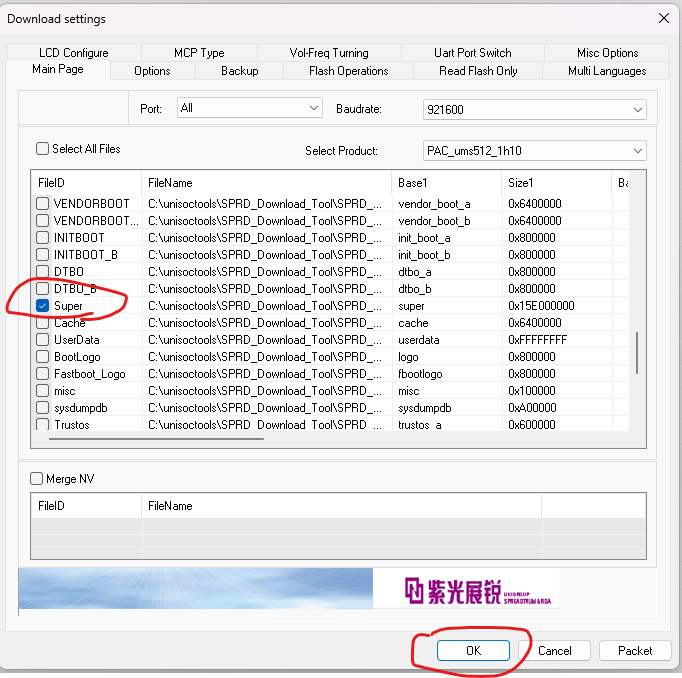
- Scroll down the file list and tick only
Super, then click OK.
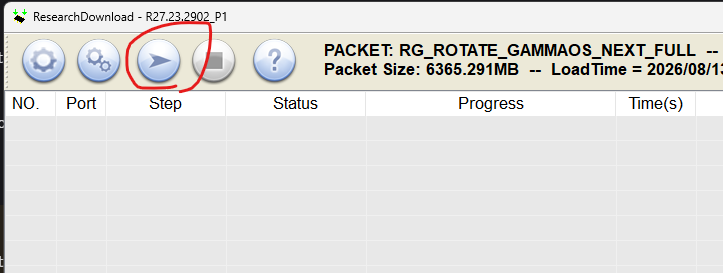
- Click the Play button (the arrow) to arm the tool.
- Now plug the RG Rotate into your PC while holding Volume Down + Power + the Back button (the Back button in the middle of the joypad). The tool will detect the device and start flashing.
- Wait for it to finish. This rewrites only the Super partition and restores it, after which the device should boot normally again. If it still does not boot, follow the full flash steps above to reinstall from scratch.
Stock Firmware (Optional)
If you ever need to unbrick or revert to the original firmware, download the stock firmware for the RG Rotate:
- https://drive.google.com/file/d/1dPmJk1nY9gvTtups1CF1hXQ-WHGoiF3P/view?usp=sharing
Flash it using the same instructions as GammaOS Next (use the stock .pac instead):
- Extract the stock firmware archive until you have the .pac file.
- Run UpgradeDownload.exe from the UnisocTools package and load the stock .pac.
- Enter download mode the same way: open the RG Rotate to the open position, hold the Back button in the middle of the joypad, then connect the USB cable. If the flash stalls, restart it by holding the Back button, Volume Down and Power together until flashing starts again.