GammaOS OTA Updates
Important: OTA updates are only available for devices running GammaOS Next v1.3.x or higher. If your device is on an older version (v1.2.x or below), the OTA system is not yet included in your build. A new device-specific release that incorporates the OTA system will be made available at a future date - please wait for that release before attempting to use OTA.
Do not attempt to install OTA packages through the Android Recovery UI. GammaOS OTA packages are not standard Android recovery zips and will not work there. Always install through the built-in updater as described below.
See the GammaOS Next Changelog for a full list of changes in each version.
GammaOS Next includes a built-in system update mechanism that lets you download and install updates directly on-device, without needing a PC, fastboot, or recovery mode. Updates are applied in-place while the device is running.
Requirements
- GammaOS Next v1.3.x or higher already installed
- Wi-Fi connection (for online updates)
- Battery at 25% or higher (or plugged in to a charger)
- Approximately 2 GB of free storage for the download
Method 1: Online Update (Recommended)
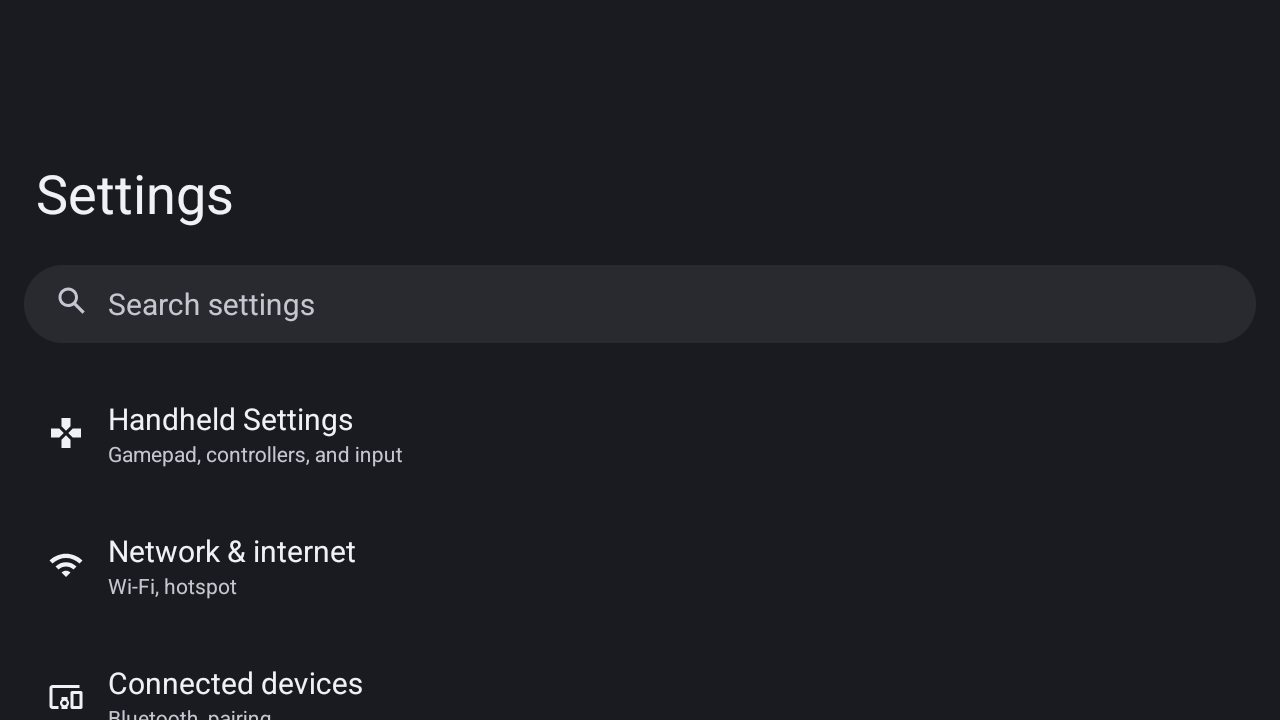
Step 1: Open Settings
Open the Settings app from your launcher or app drawer.
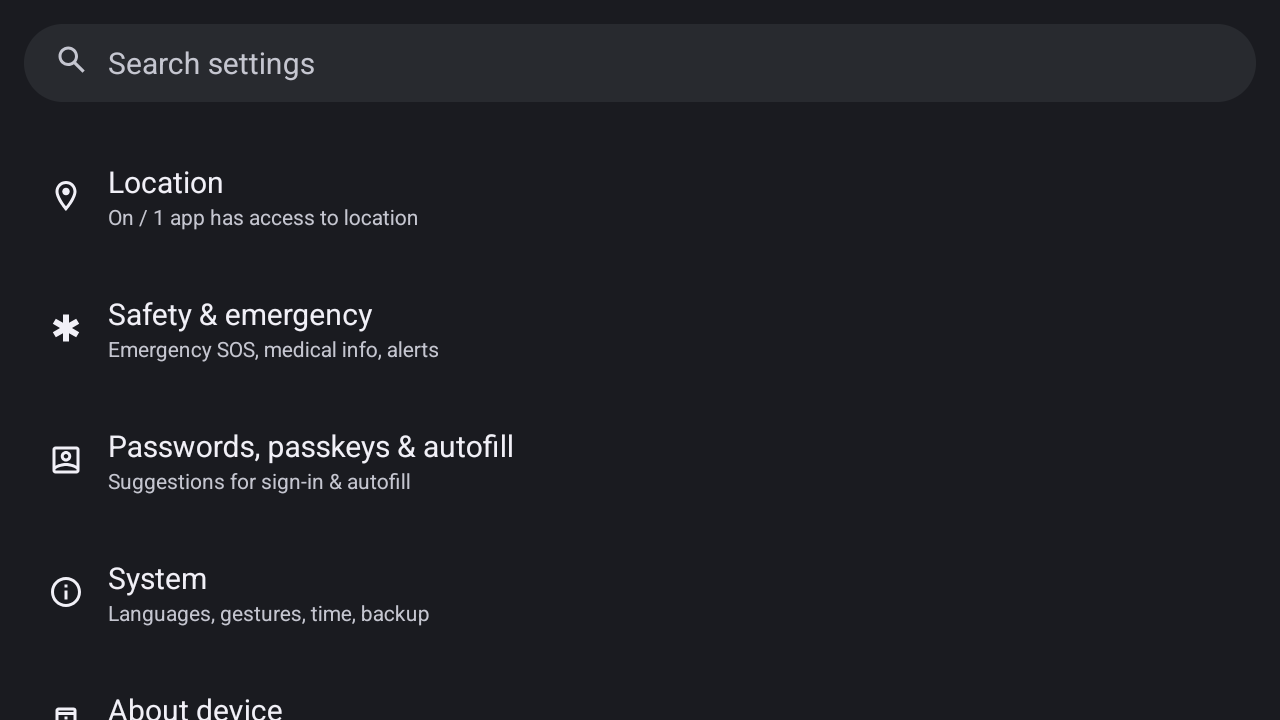
Step 2: Navigate to System
Scroll down and tap System.
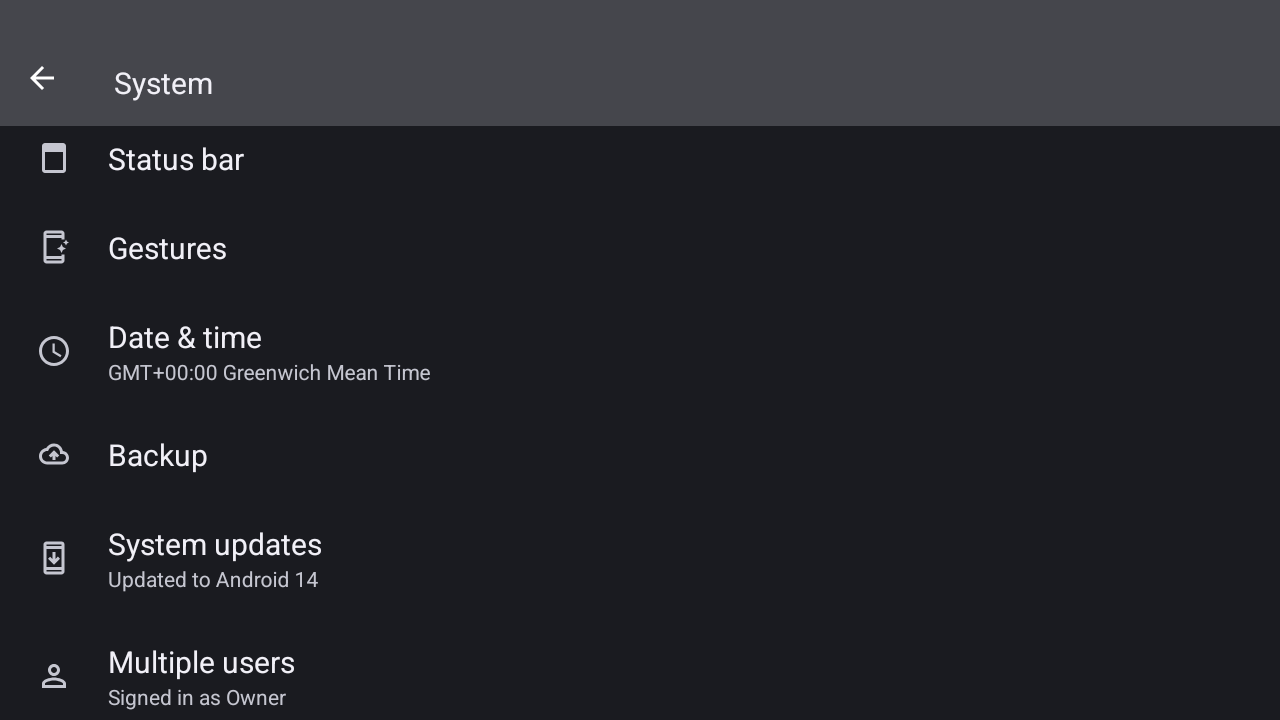
Step 3: Open System updates
Scroll down and tap System updates.
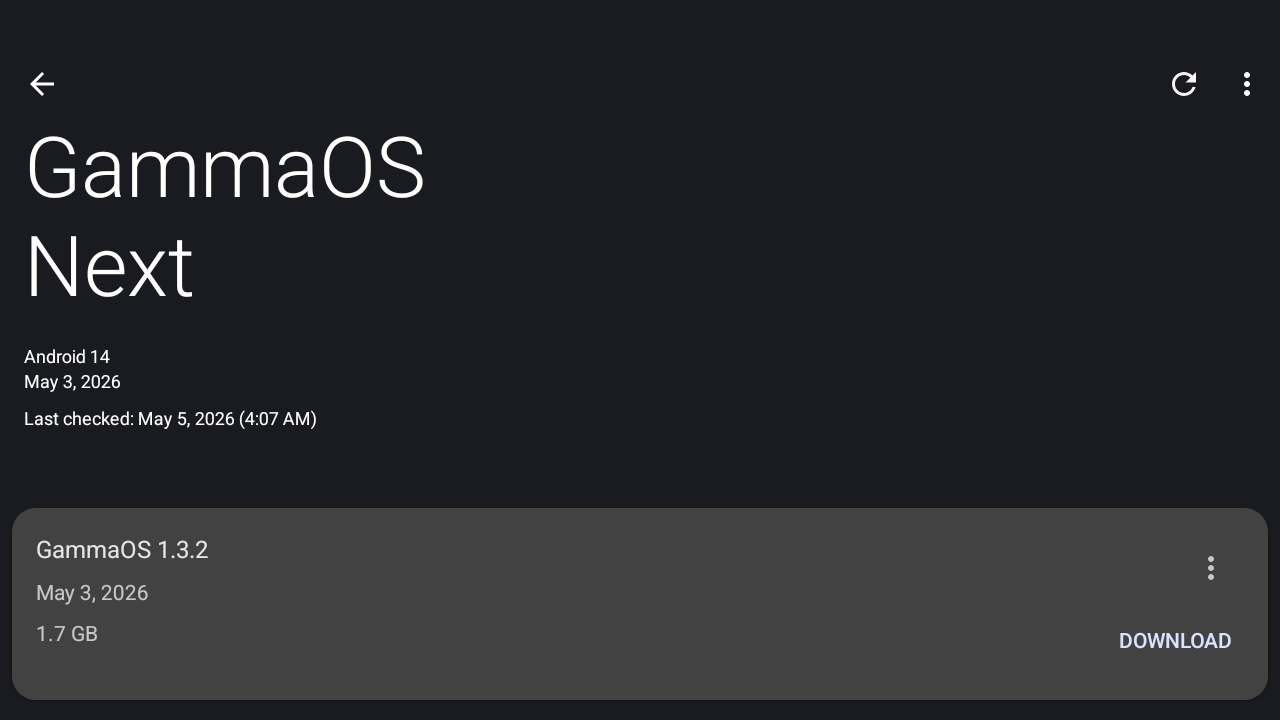
Step 4: Download the update
The updater will automatically check for available updates. If an update is available, you will see it listed with its version number, date, and size. Tap DOWNLOAD to begin downloading.
Step 5: Install
Once the download completes, tap INSTALL. The device will show a full-screen progress UI while the update is being applied. Do not power off the device during this process.
The device will reboot automatically when the update is complete.
Method 2: Install from Storage (Offline/Manual)
If you have already downloaded an OTA zip file (for example, from the GitHub releases page), you can install it directly from your device's storage.
Step 1: Transfer the OTA zip
Copy the OTA zip file to your device's internal storage or SD card. The file will be named something like gammaos-ota-1.3.2-lite.zip.
Step 2: Open the updater
Navigate to Settings > System > System updates as described above.
Step 3: Open the menu
Tap the three-dot menu in the top-right corner of the updater screen.
Step 4: Choose "Install from storage"
Tap Install from storage from the menu.
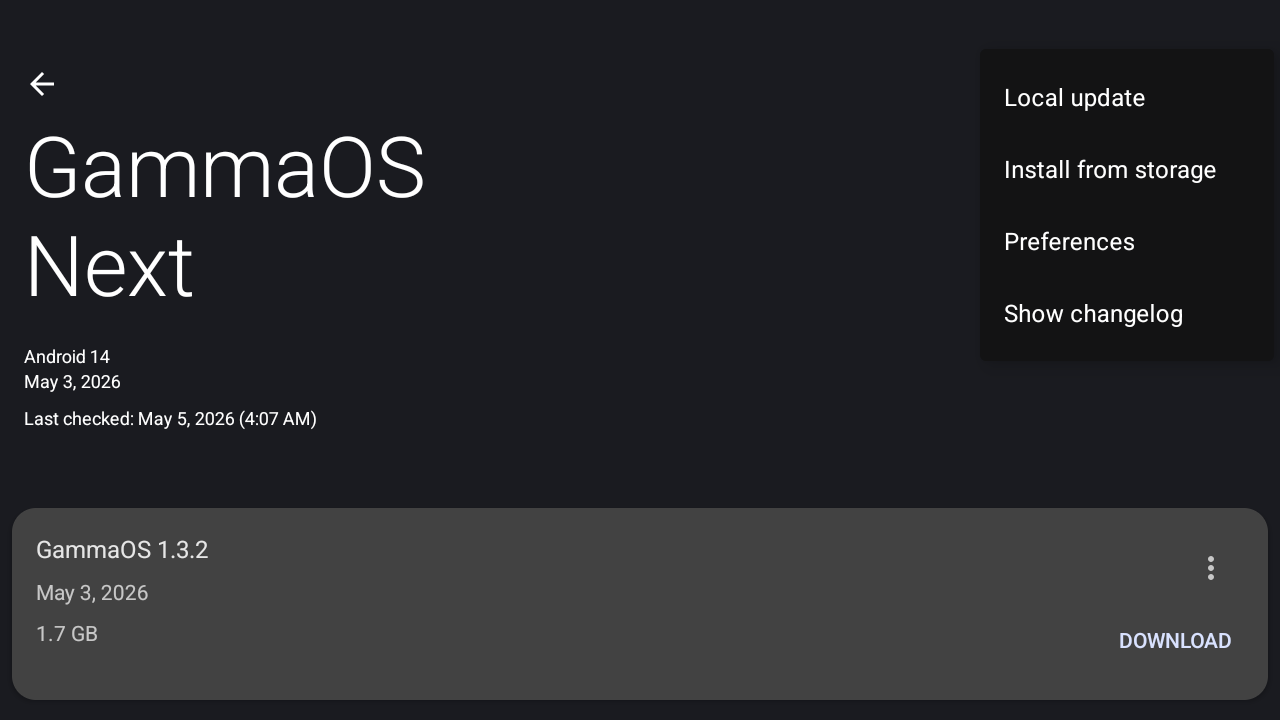
Step 5: Select the OTA zip
A file picker will open. Navigate to where you saved the OTA zip file and select it.
Step 6: Confirm and install
The updater will verify the package, then begin the installation. A full-screen progress UI will be shown. Do not power off the device during this process.
The device will reboot automatically when the update is complete.
Choosing the Right OTA Package
There are two variants of GammaOS Next. Make sure you download the correct one for your installation:
| Variant | Filename contains | Description |
|---|---|---|
| Full | full |
Includes Google apps (GApps-Go). Use this if your current build has Google Play Store. |
| Lite | lite |
No Google apps. Use this if your current build does not have Google Play Store. |
If you are unsure which variant you are running, go to Settings > About device and check the model name. It will say either "GammaOS Next Full" or "GammaOS Next Lite".
Troubleshooting
No update is showing
- Make sure your device is connected to Wi-Fi
- Tap the refresh icon (circular arrow) in the top-right of the updater screen
- Verify your device is running GammaOS Next v1.3.x or higher
"Install from storage" does not appear
- Make sure you are using the three-dot menu in the top-right corner of the updater, not the three-dot icon on the update card itself
Update fails
- Ensure your battery is at 25% or higher, or plug in the charger
- Make sure you have enough free storage space (at least 2 GB)
- Try downloading the update again in case the file was corrupted
- If it keeps failing on an SD card device, update the card instead with the Upgrade, keep user data option described under Device does not boot after update. It keeps your data and is the safest way out of a half-finished update.
Device does not boot after update
- Hold the power button for 10+ seconds to force a reboot
- On a device that boots GammaOS from a microSD card (the Anbernic RG DS Plus and the other Rockchip SD card devices), the safest recovery is to rewrite the card with Rockchip SD Tool v1.1.1 or newer using the Upgrade, keep user data option and the latest image for your device: https://github.com/TheGammaSqueeze/rockchip_sd_tool/releases/tag/v1.1.1 . It replaces the loader and every partition the image carries, keeps the partition table as it is, and leaves the device's own partitions alone (
userdata,metadata,miscand the rest), so your games, saves and settings survive. It checks the card against the image first and refuses a card that does not match. Use v1.1.1 or newer and not v1.1.0, whose upgrade rewrotemiscand so triggered the first-boot wipe it was meant to avoid. - If the issue persists, re-flash your device using the standard installation method for your device