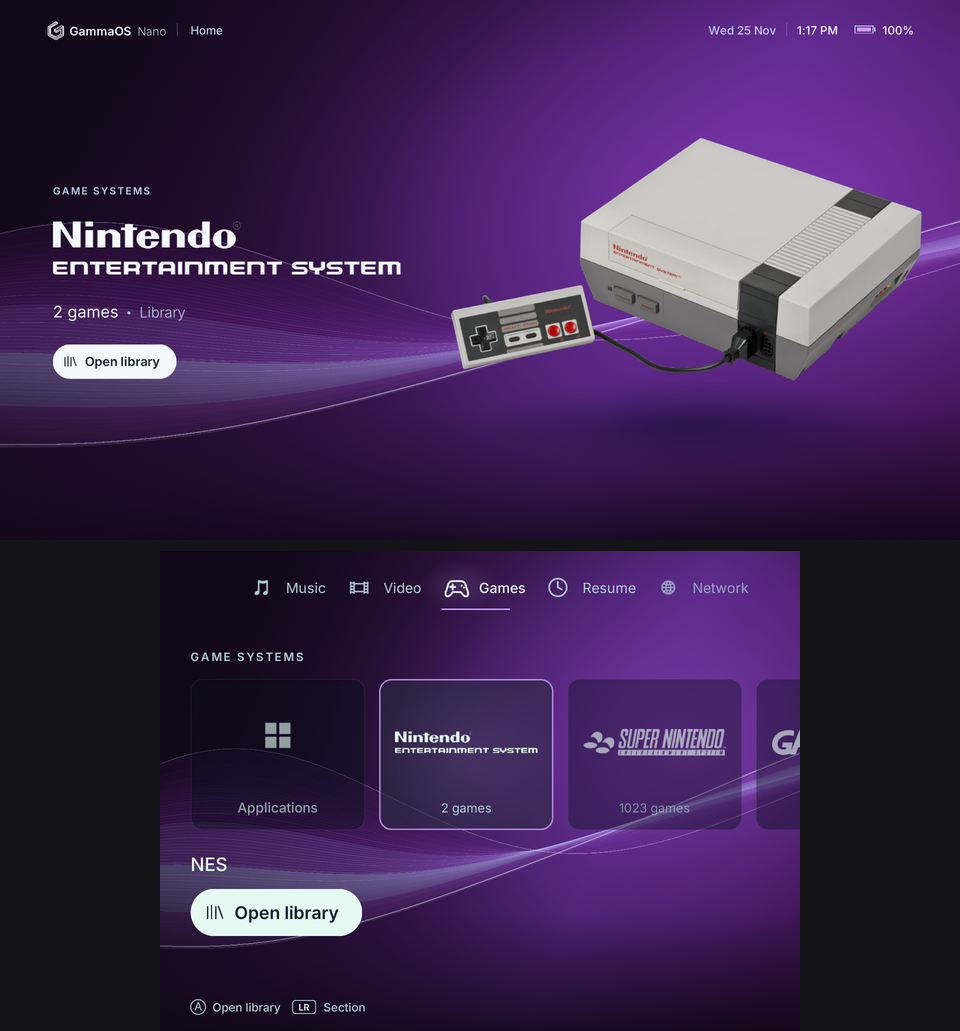
The GammaOS theme is the home in the look of the GammaOS Pico menu: a deep blue field with a drifting current of light, a header with the GammaOS mark, a rail of sections and your systems as tiles with a photo of each console. It is the default home theme on new installs (a device can ship with another theme picked by its maker), and it works on single screen and dual screen handhelds.
Turning it on
- Open Settings > Theme Settings.
- Choose Home Theme and pick GammaOS.
Applying restarts the home with the new look. To go back, pick another theme in the same row. See Home Themes for the others.
The two screens
On a dual screen device the top screen shows the focused system or game large: the console photo and the system logo for a system, the game's banner or box art for a game. The bottom screen is a touch panel with a rail of sections (Music, Video, Games, Resume, Network and the rest), a strip of system tiles and the lists. On a single screen device the same parts share the one panel.
- System tiles carry a photo of each console and the system's logo, with the number of games below.
- Lists scroll with momentum: flick them on the touch screen and they glide to a stop, or use the D-Pad and the shoulder buttons as usual.
- Touch works everywhere on the bottom screen: tap a rail tab to change section, a tile or a row to open it, and the hints along the bottom edge to press their button.
Game art
- 3DS banners. Nintendo 3DS games show their own banner from the game file on the top screen.
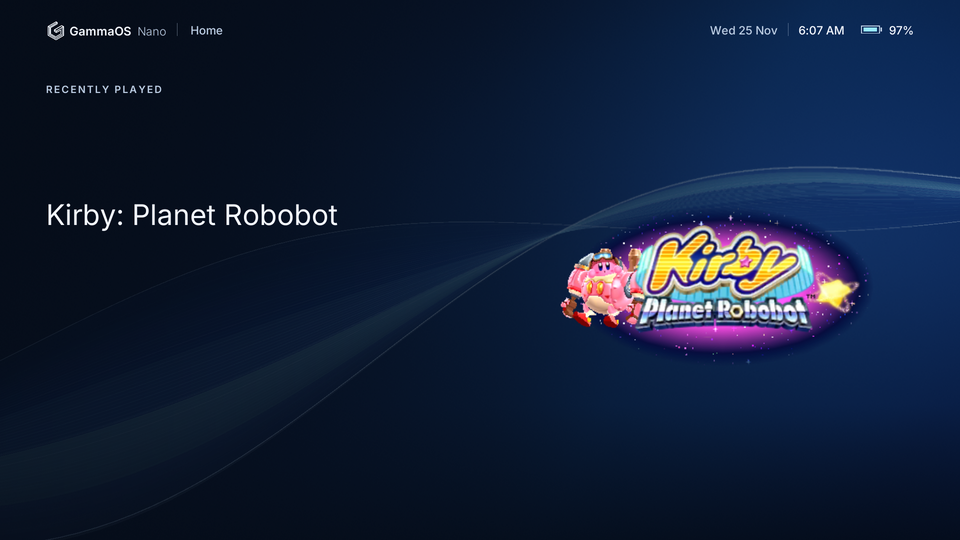
- DS cartridges. A DS game without box art shows its cartridge, which slides in with a short animation, next to the title read from the ROM.
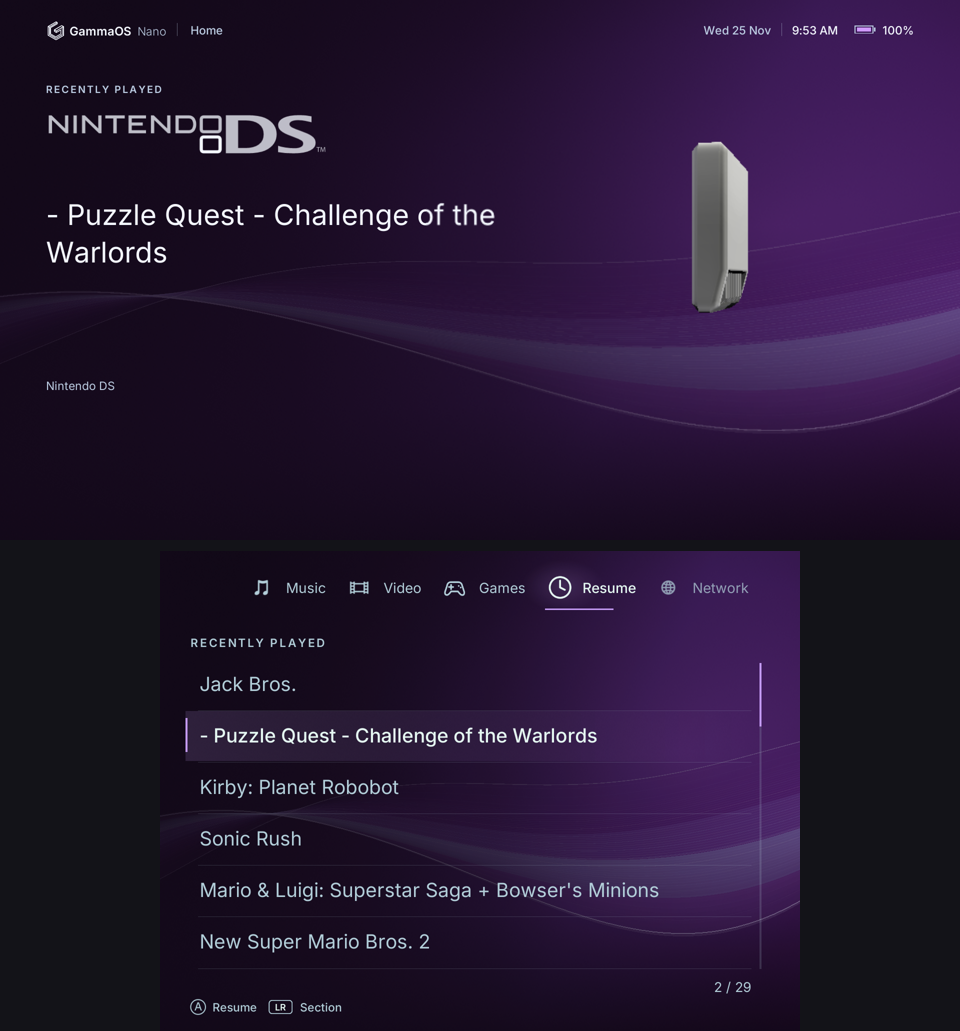
- Box art and fanart. Scraped box art shows next to the game's details, with the game's fanart as a dimmed backdrop behind it. New art shows straight after a scrape, with no rescan. See Boxart and Custom Boxart.
Wallpapers and effects
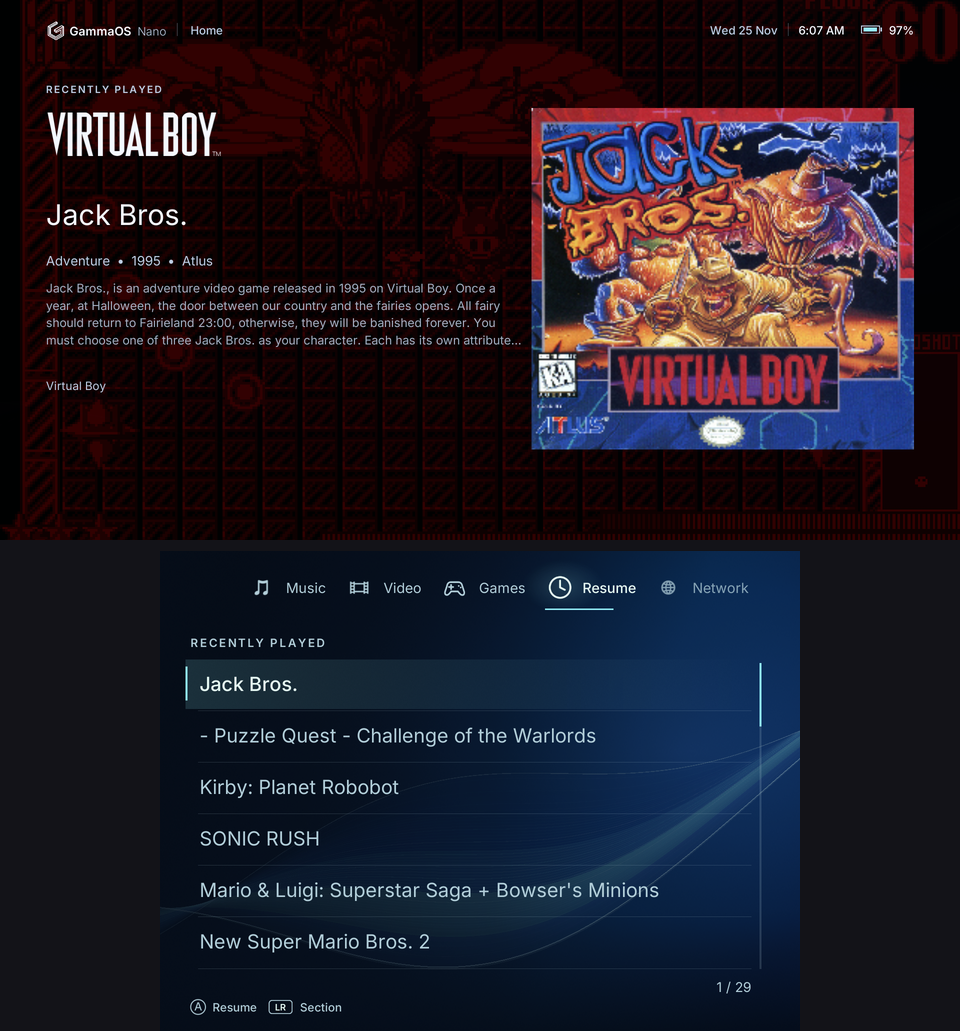
Theme Settings has Wallpaper, Wallpaper Image and Bottom Wallpaper for a picture of your own on each screen, and the animated background effects (Snow, Rain, Confetti, Sparks, Fireflies, Bubbles, the XMB Wave and more) play behind the home. The Colour accent recolours the theme like it does the others.
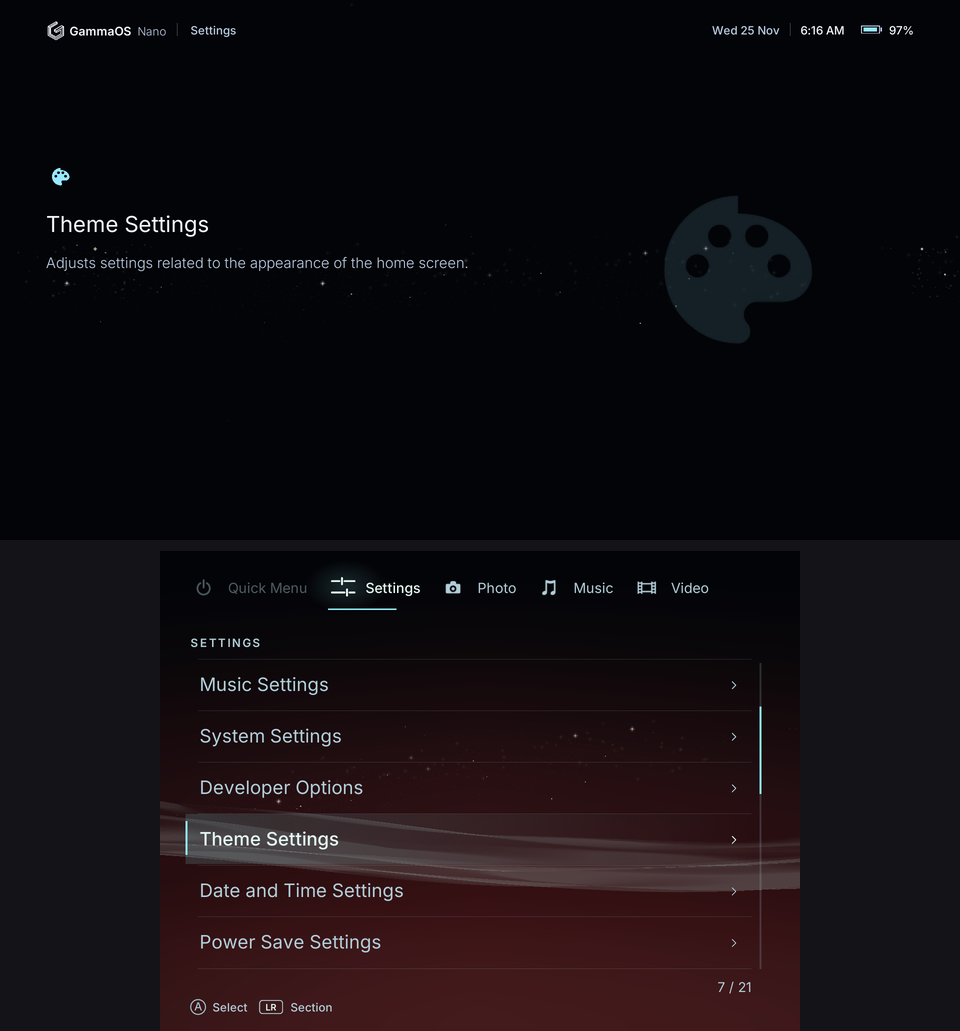
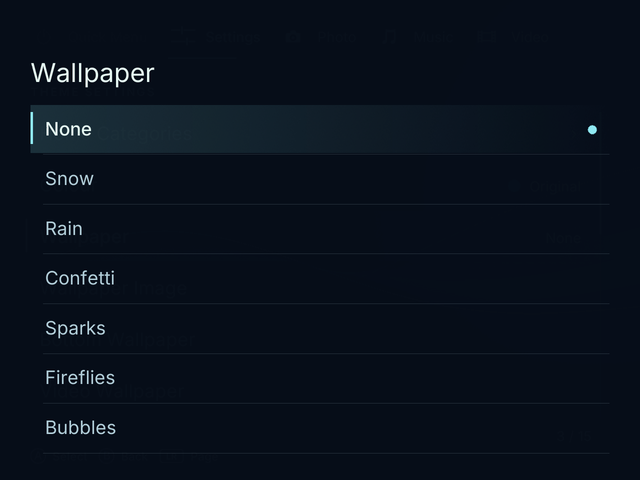
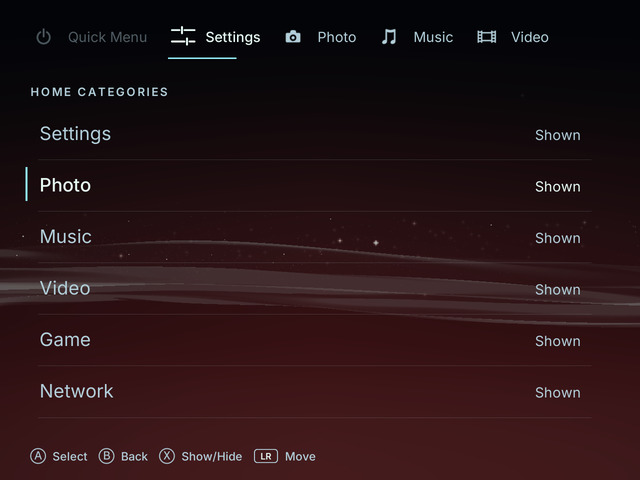
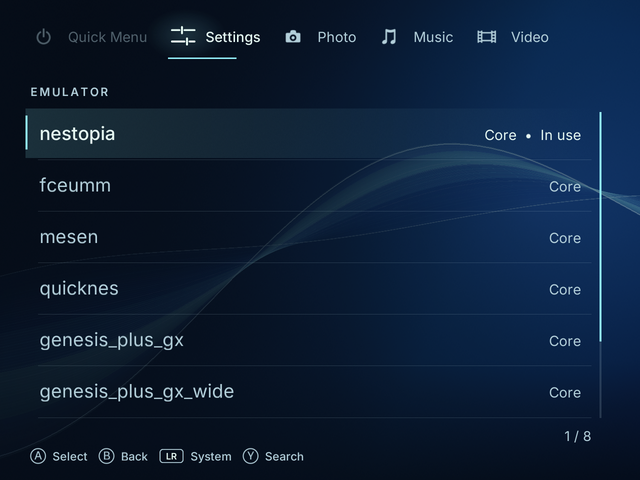
Settings in the GammaOS theme
The Settings pages work like the ones of the 3DS Menu theme:
| Where | Button | What it does |
|---|---|---|
| Home Categories | X | Show or hide a category |
| Home Categories | L / R | Move the category up or down the list |
| Game Systems | X | Turn a system on or off |
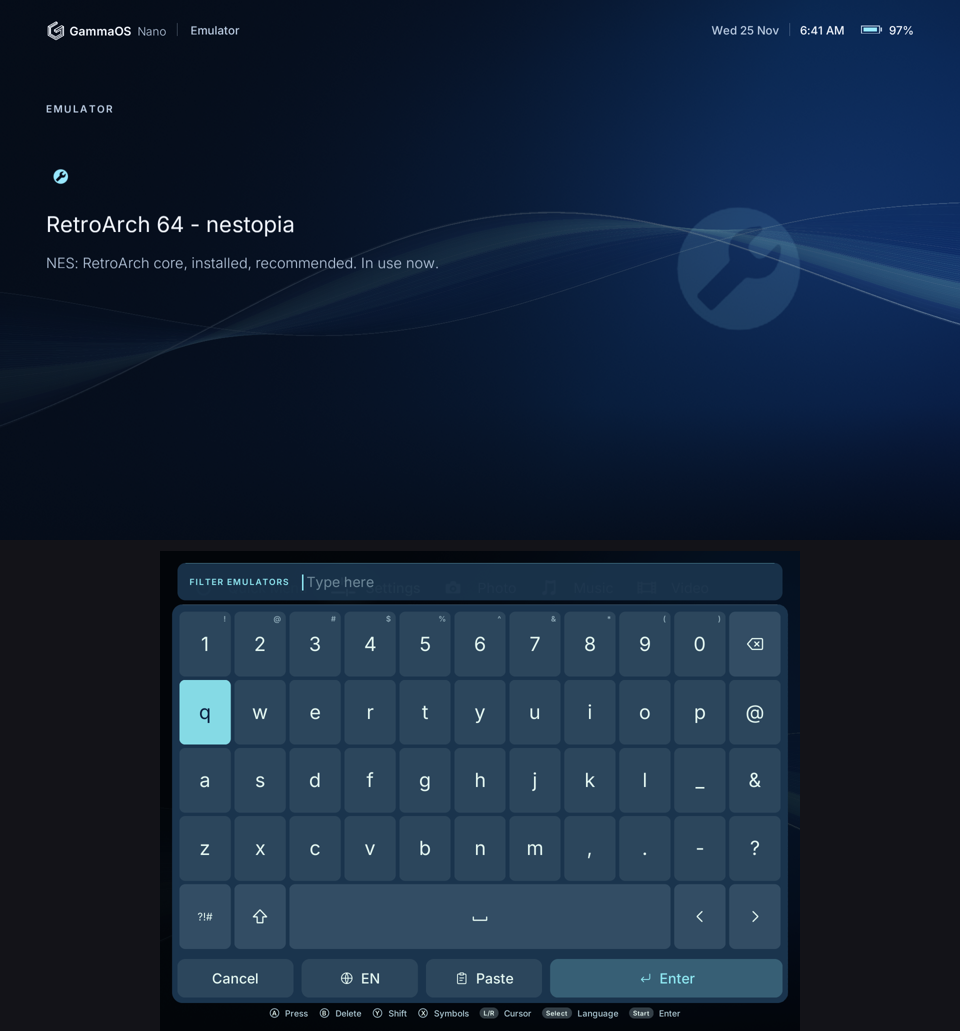
| Emulator list of a system | Y | Search the emulators |
Player controls on the second screen
While music, a video or photos play, the bottom screen becomes a touch remote for the player, in this theme and in every other one. See Media.