Registering Your Console
An early access build of GammaOS shows a drifting UNREGISTERED DEVICE badge until the console is registered. You register a console with the archive password of the build it runs: the password shown under your download on the GammaOS download portal.
A public release needs no registration. If your console has no Device Registration row in Settings > System Settings, its build does not use registration and this page does not apply to it.
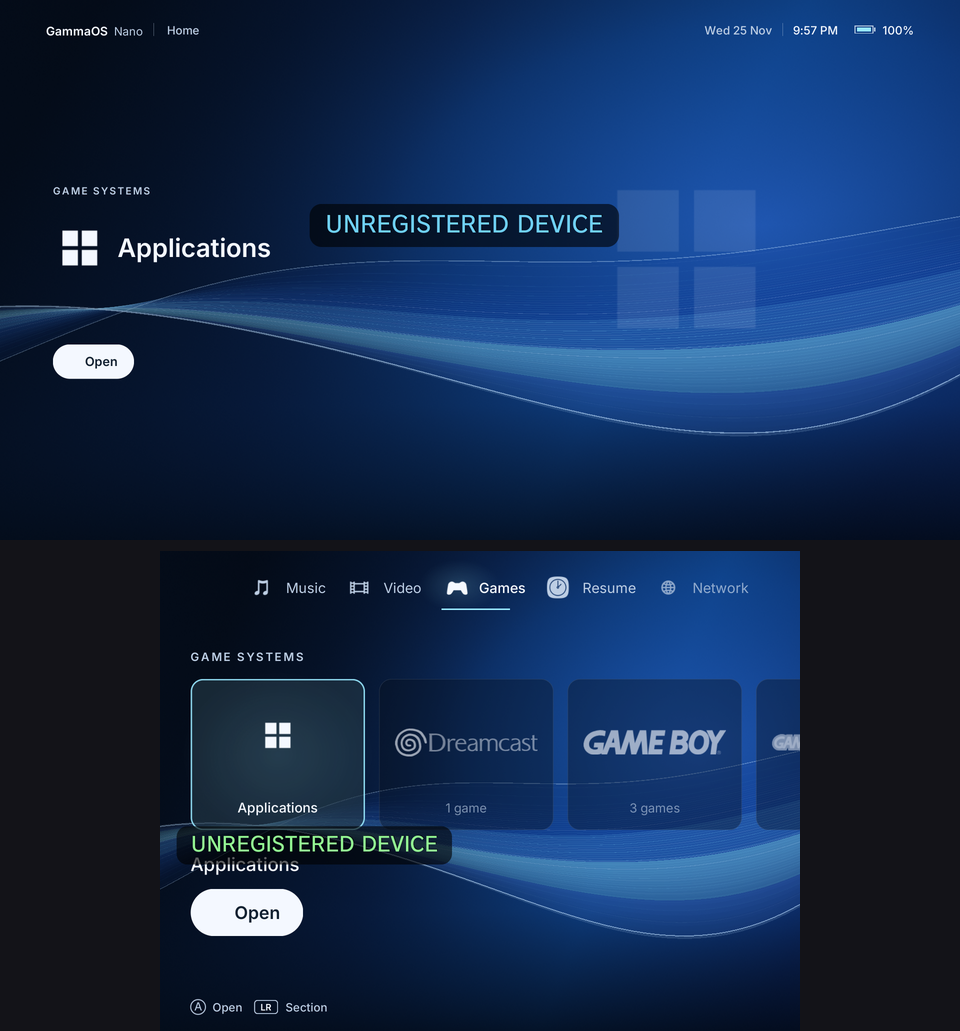
Until a console is registered:
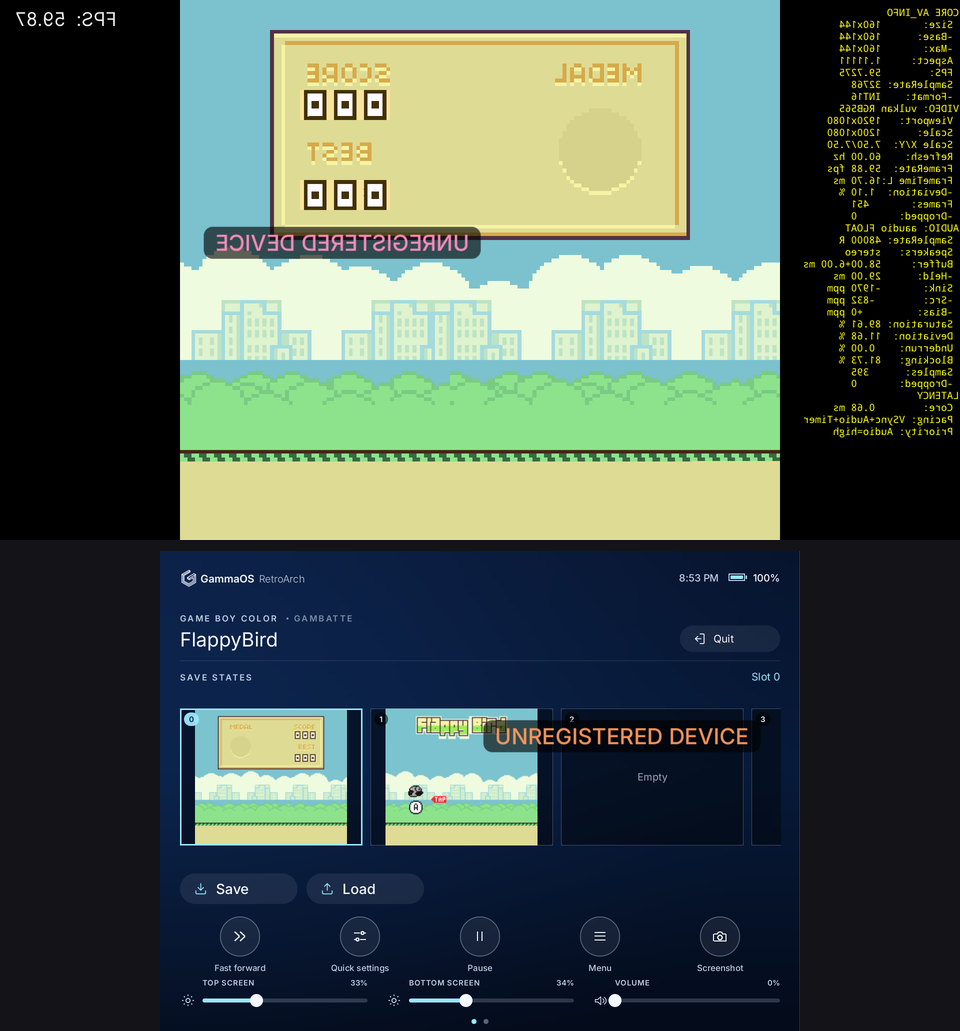
- UNREGISTERED DEVICE is shown on every screen, in the menus and in games.
- Games run without screen effects (LCD effects, shaders, Motion Smoothing). Your settings are kept and apply again once the console is registered.
- Only the emulators GammaOS built are started. An emulator you built or changed yourself starts once the console is registered.
Nothing else is held back.
What you need
- The archive password of the build on the console. Sign in at downloads.gammaos.net: the password is shown under each download. It is the same password that opens the archive.
- Wi-Fi on the console, or a computer or phone for the license file.
- The correct date and time on the console, for registering online. The connection to the registration server is secure, and it fails when the console's clock is wrong.
The password has to be the one for the release and the device you installed. A password for another release or another device is refused.
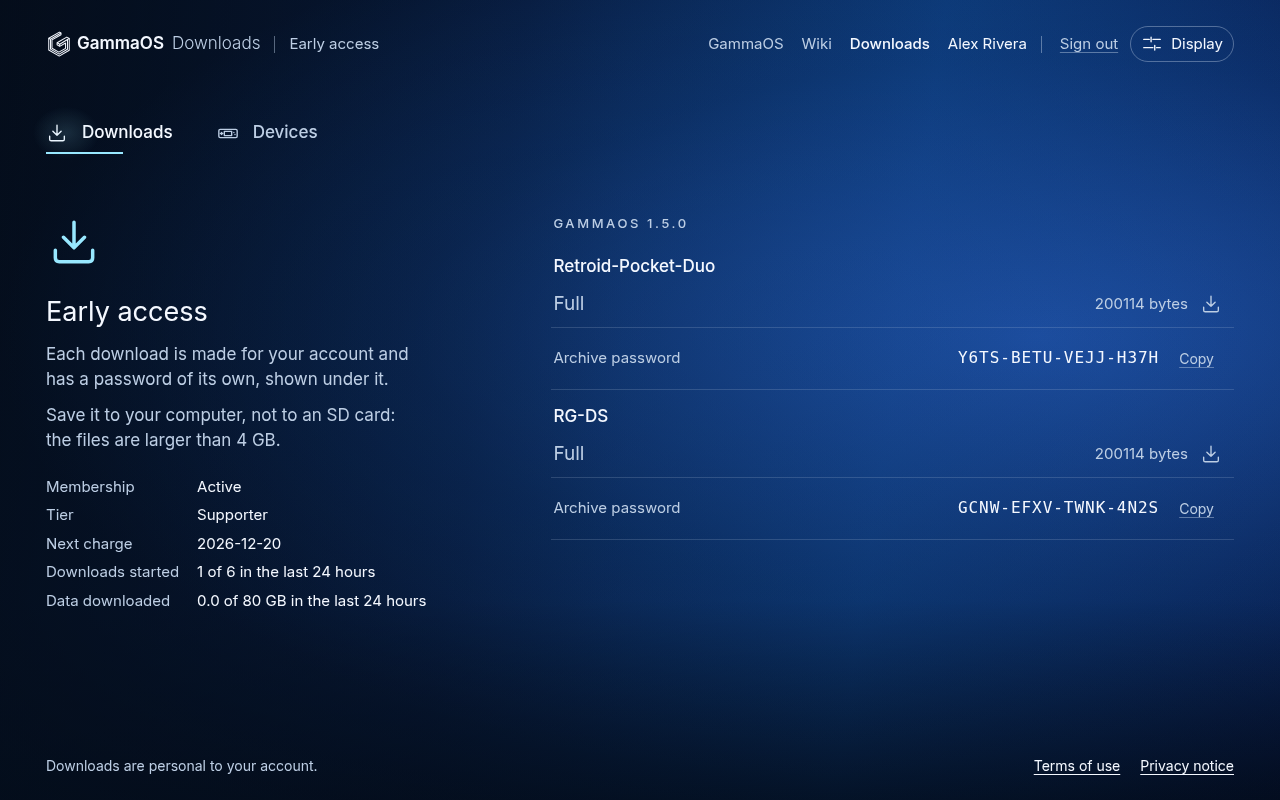
Register on the console
Registering on the console only works when the console is online and its date and time are correct:
- Connect to Wi-Fi first, and check that a web page or the store opens, so the connection really works.
- Check the date and time in Settings > Date and Time Settings. Right after an install, wait a minute after connecting to Wi-Fi: the console sets its clock from the internet. If the date is still wrong, set it by hand.
If the console cannot go online, or registering keeps saying The registration server could not be reached., use the offline path with a license file instead. It works without Wi-Fi on the console.
-
Open Settings > System Settings > Device Registration.
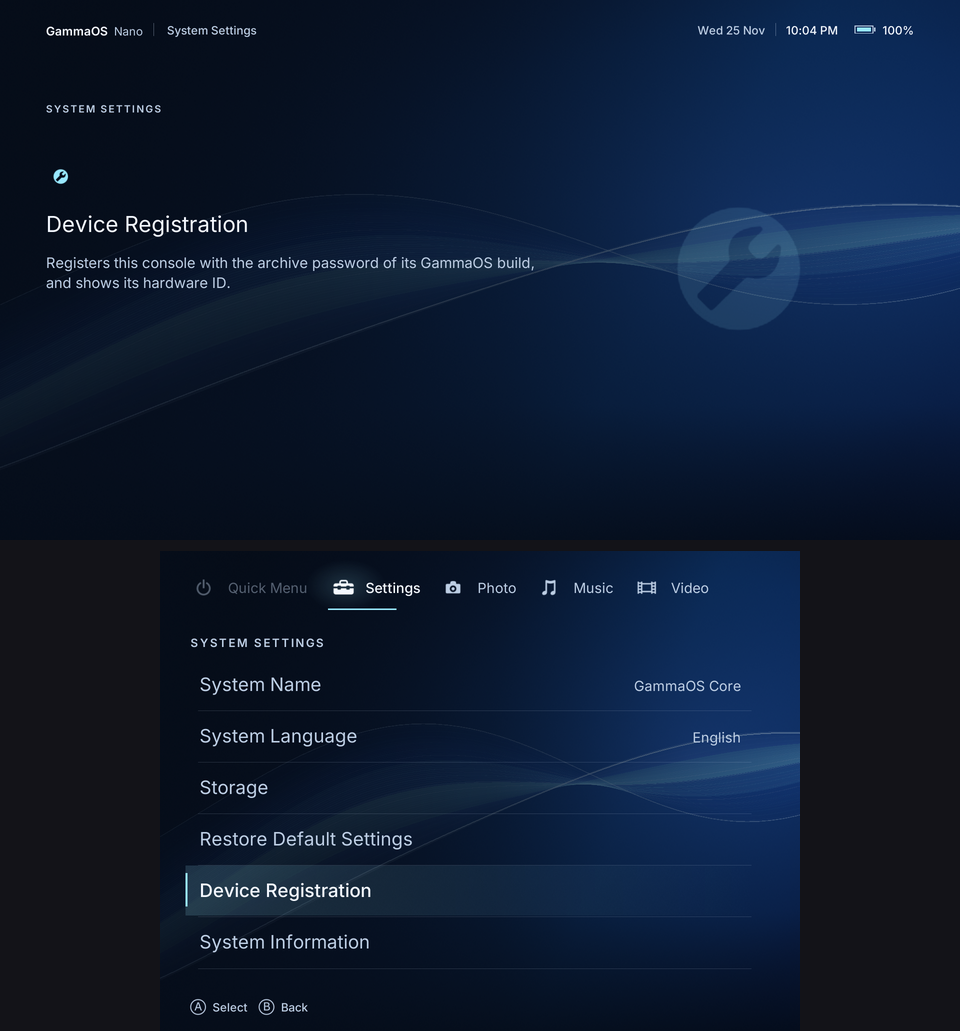
-
Choose Enter the Archive Password.
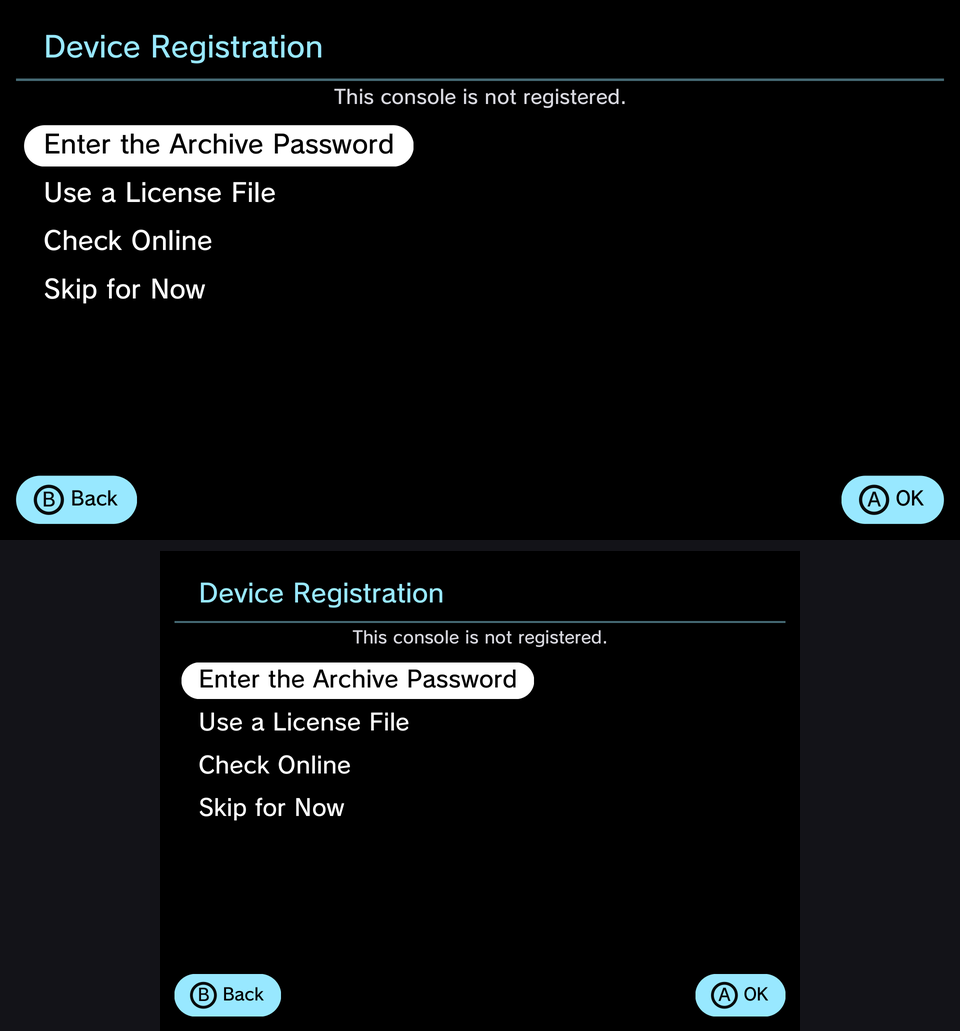
-
Type the password. It has 16 letters and digits. Capitals and the dashes do not matter:
abcd-efgh-jklm-npqr,ABCDEFGHJKLMNPQRandabcdefghjklmnpqrare the same password. Press Start, or choose Enter.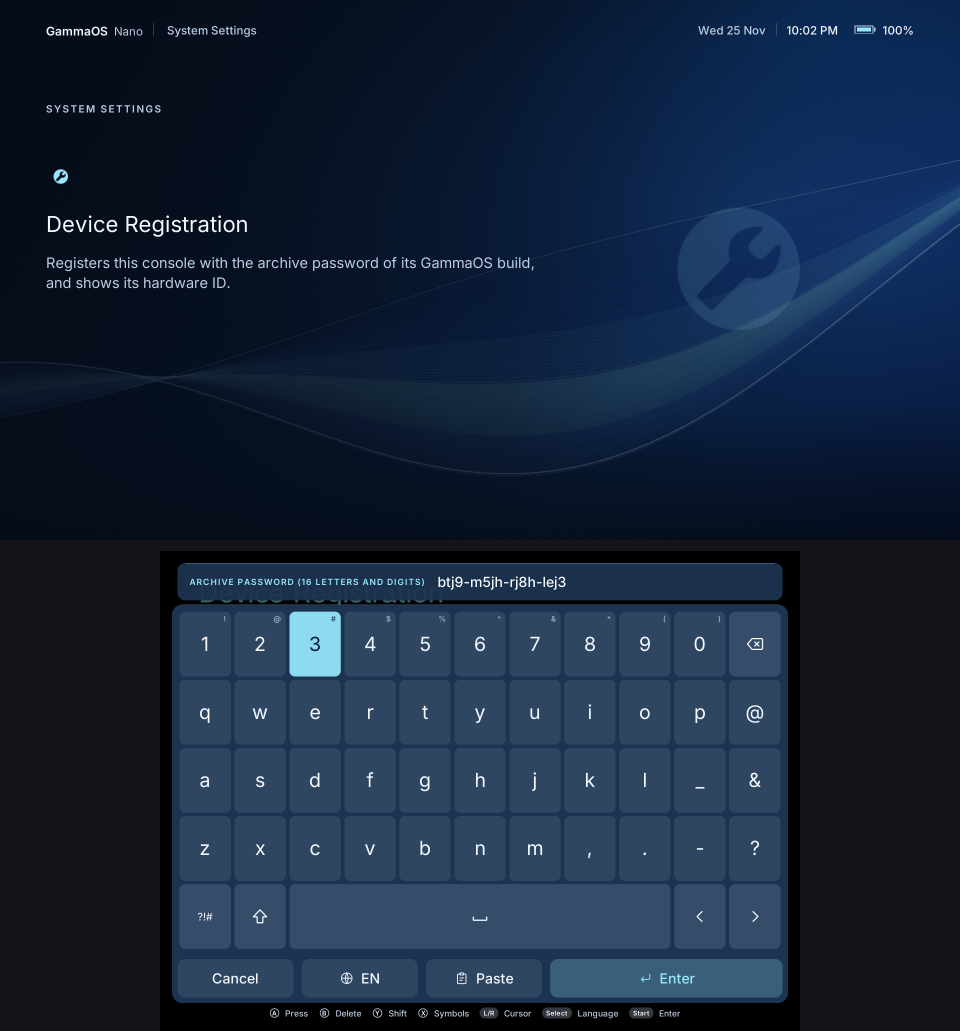
-
The console asks the registration server and shows This console is registered. The badge goes away within a second.
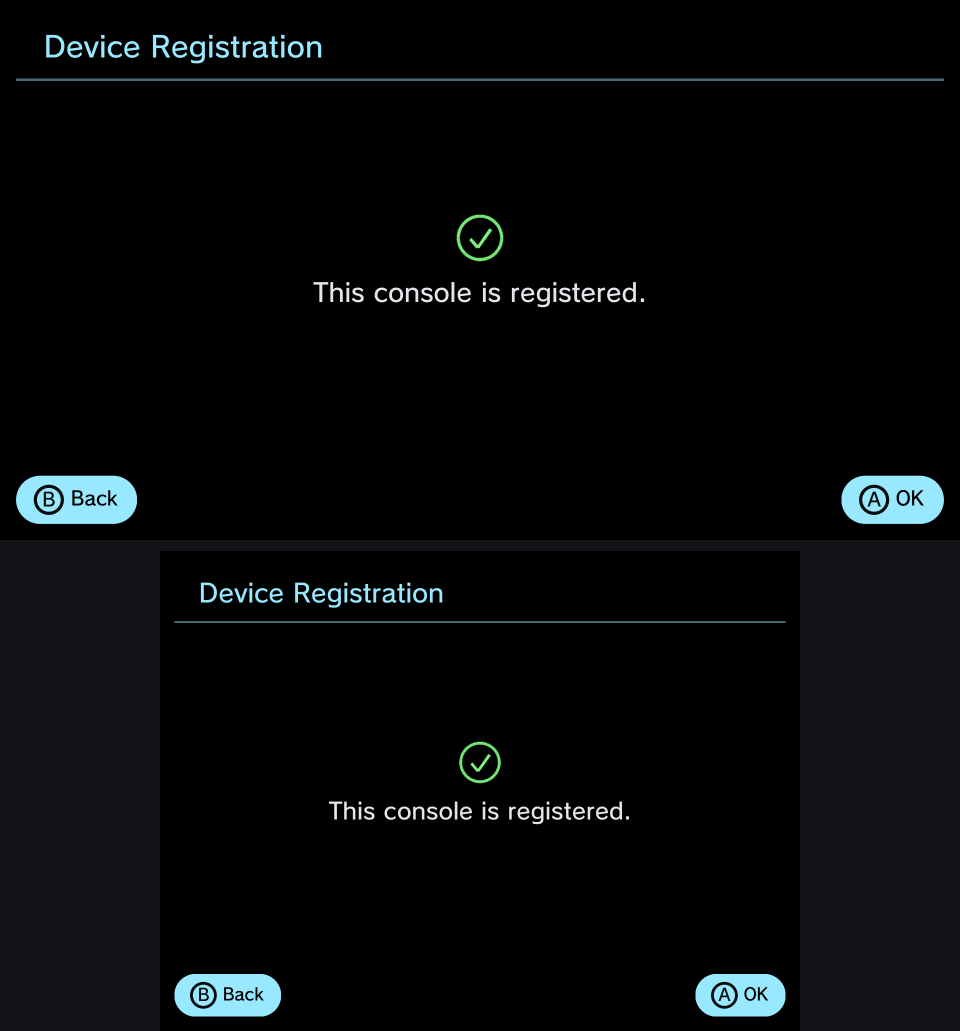
During the first-run setup the same screens come up by themselves after the Wi-Fi step.
After a factory reset or an update
There is nothing to do. A console that was registered gets its registration back by itself the next time it is online, and it stays registered on later releases. To ask straight away, open Device Registration and choose Check Online.
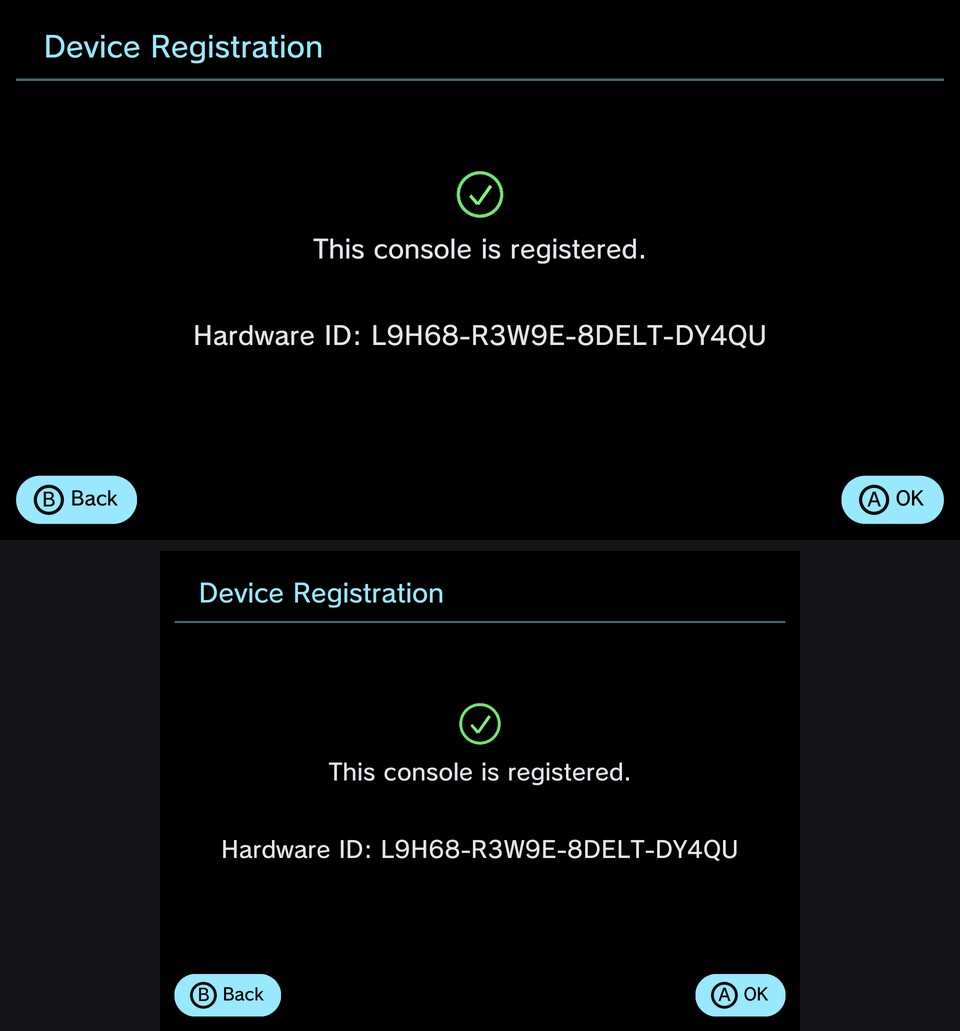
A registered console shows its state and its hardware ID in Device Registration:
A console that cannot go online
A console that never has Wi-Fi is registered with a license file that you make on the portal.
-
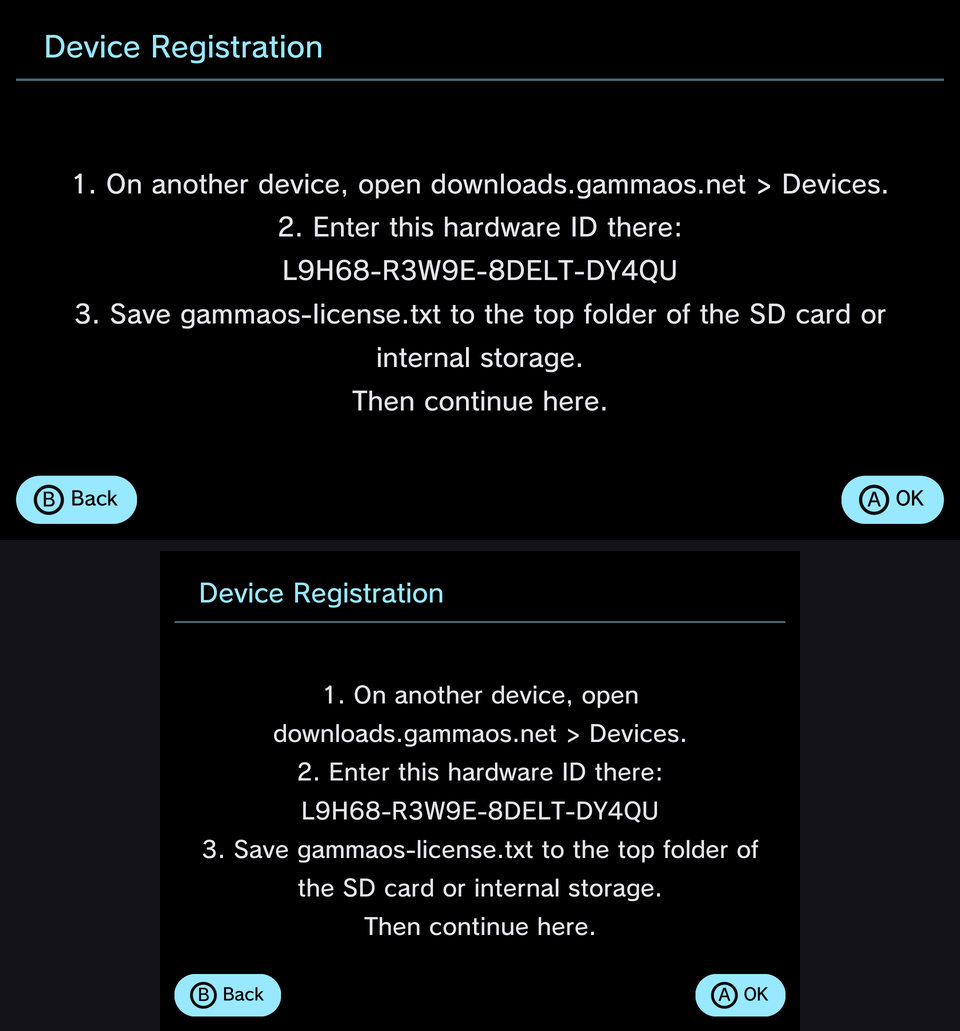
On the console, open Settings > System Settings > Device Registration and choose Use a License File. Write down the hardware ID it shows: 20 letters and digits.
-
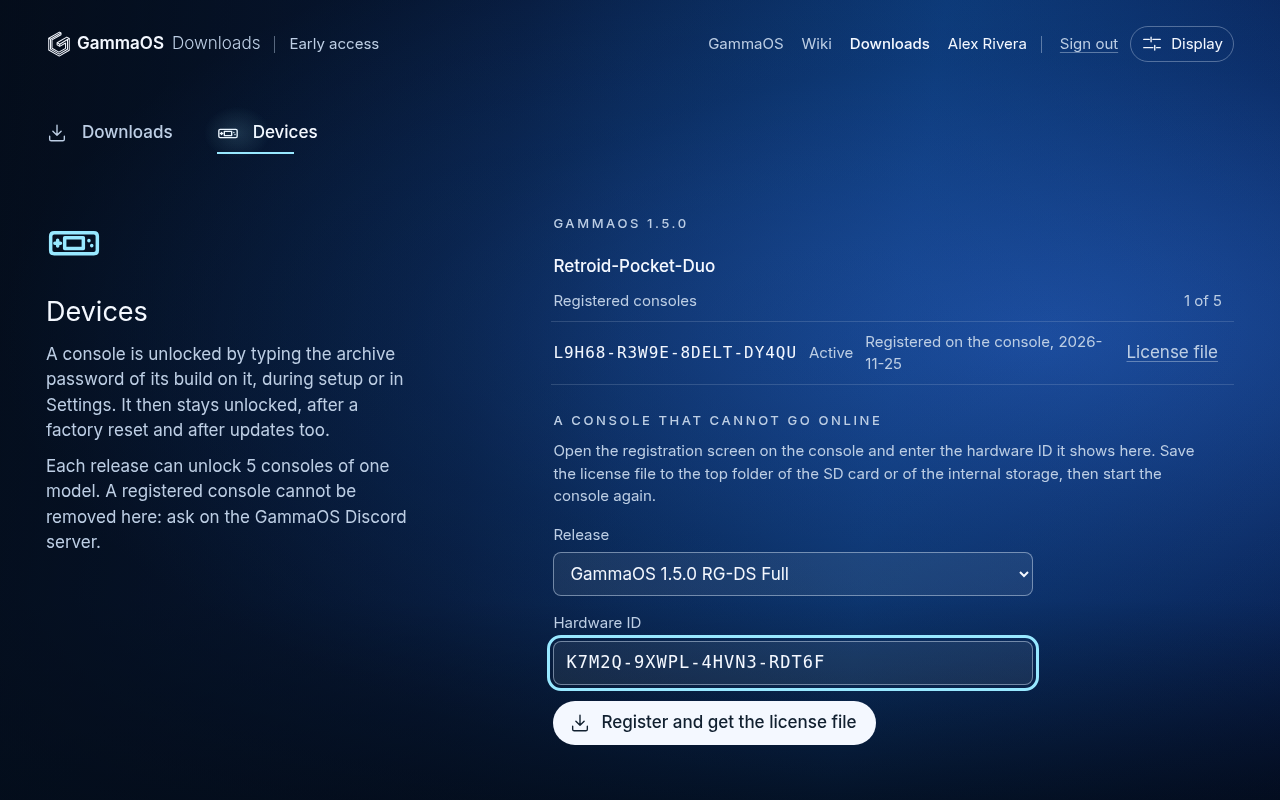
On a computer or phone, sign in at downloads.gammaos.net and open Devices. Under A console that cannot go online, choose the release the console runs, type the hardware ID and choose Register and get the license file.
-
Save the file as
gammaos-license.txtin the top folder of the SD card, or of the console's internal storage. Do not rename it. - On the console, continue from the license file page (A). The console reads the file and is registered. A file that is put there later is also found the next time the console starts.
A license file is made for one console. It does not register any other console.
When an early access release becomes public, its release page offers a public license file. It has the same name and goes in the same place, and it registers any console that runs that release without a connection.
Your consoles
The Devices page of the portal lists the consoles you registered, by release and device, and how many places are used.
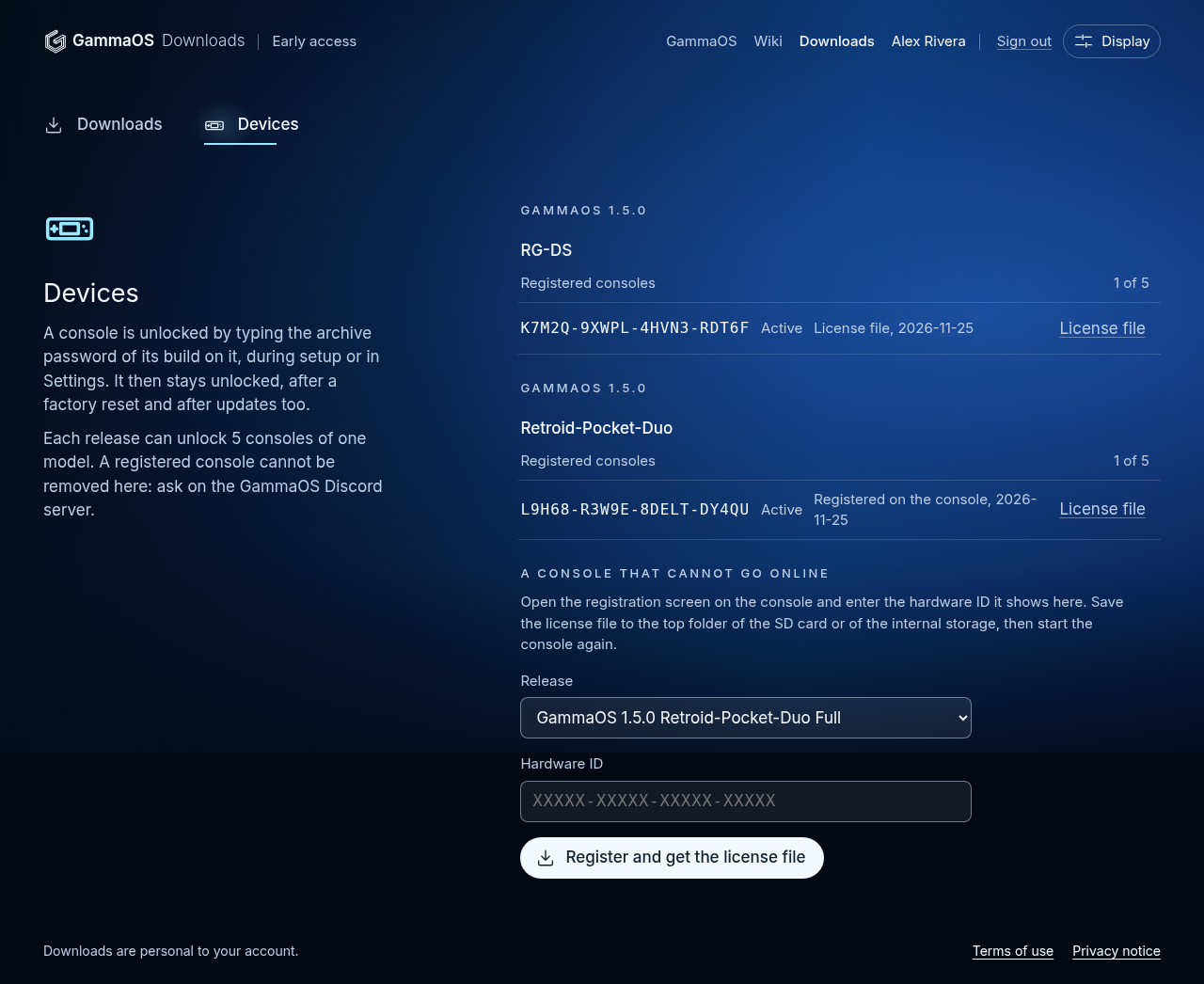
- Each archive password registers up to five consoles of the device it was made for. The Full, Lite and Core variants of one release share those five.
- A console registered with a license file takes one of the five too.
- You cannot remove a console yourself. Ask on the GammaOS Discord server and its place is freed.
- Keep your archive passwords to yourself. A password that is shared is withdrawn, the consoles registered with it lose their registration, and you get a new password on the portal.
If your membership ends
Nothing you have is taken away.
- The consoles you registered stay registered.
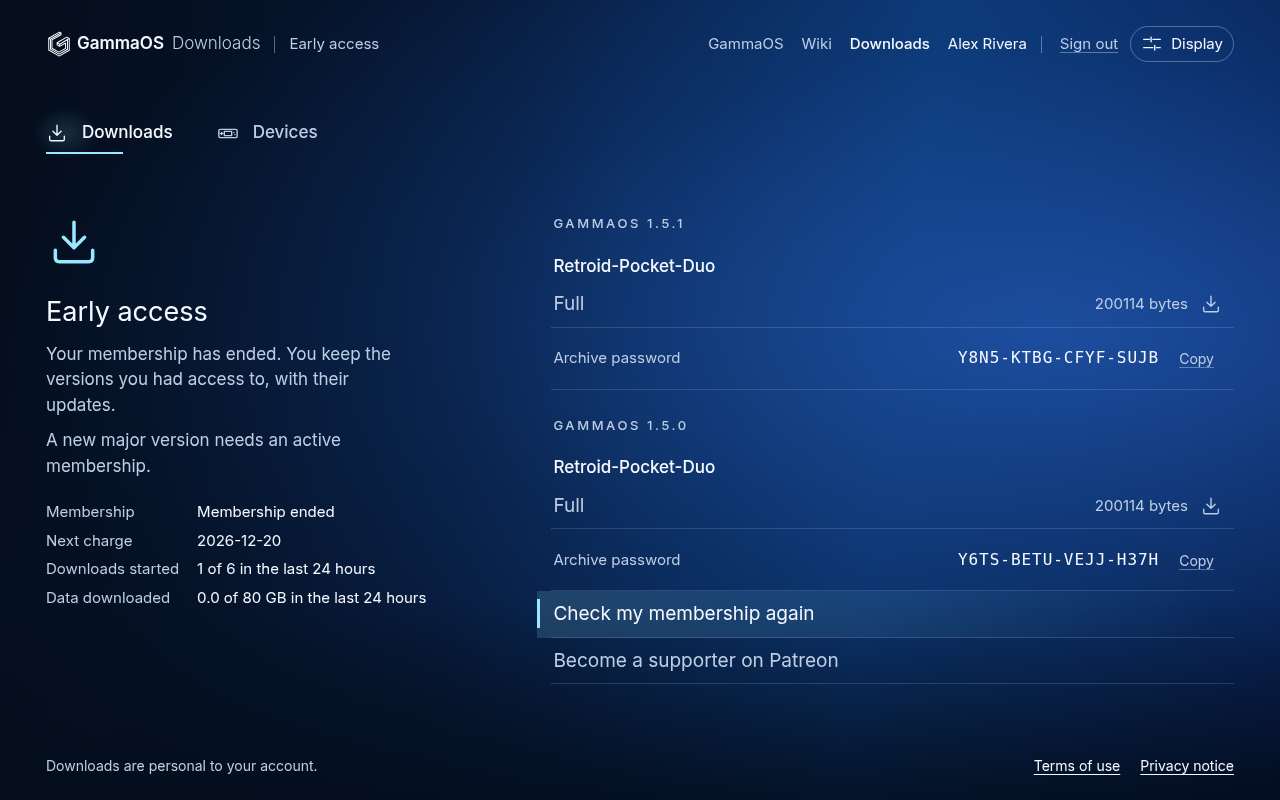
- You keep every major version that was offered while you were a member, with its later updates. If you were a member while 1.5.0 was out, then 1.5.1 and 1.5.2 are yours too when they come out.
- Sign in to the portal as before. Downloads lists those releases with their archive passwords, and you can download them.
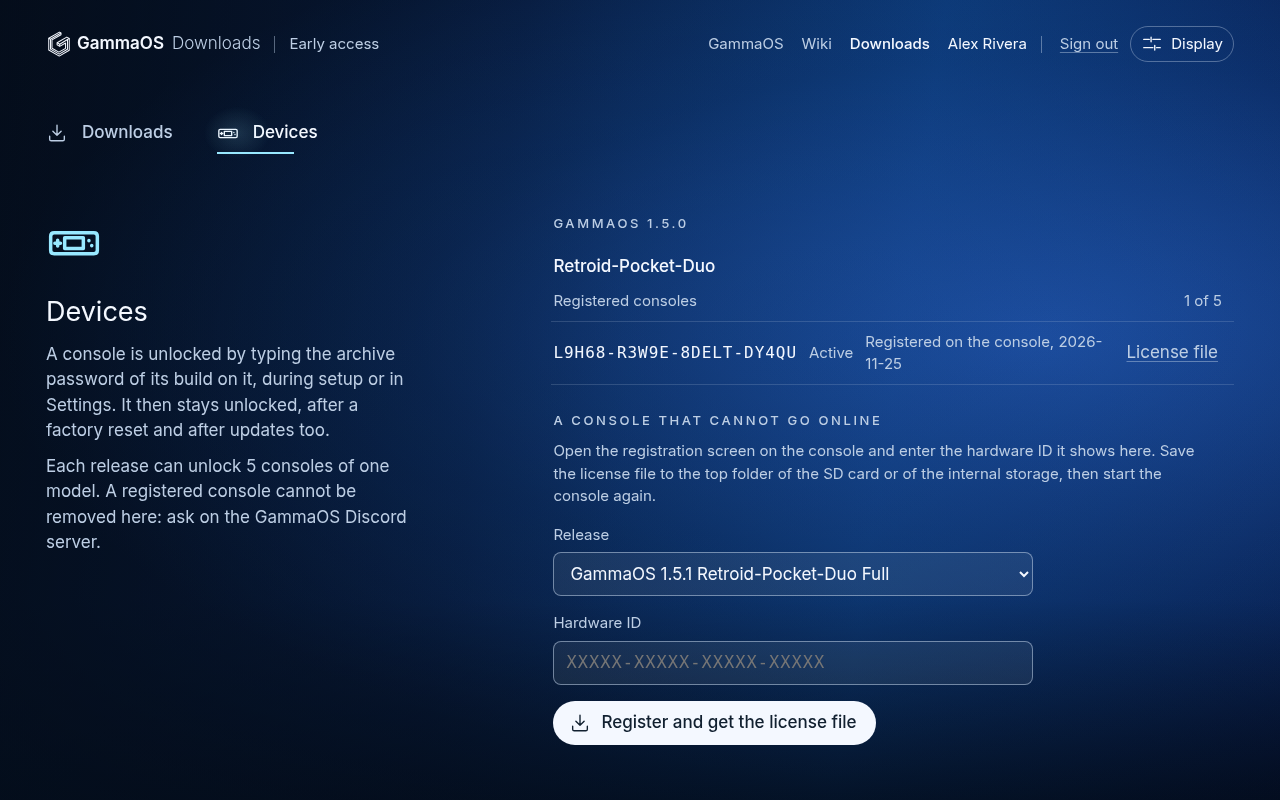
- You can still register consoles for them, on the console or with a license file, up to the five per release and device.
- A new major version, for example 1.6.0, needs an active membership. It appears on the portal once your membership is active again.
In this picture the membership ended after 1.5.0. The update 1.5.1 came out later and is listed; 1.6.0 is out as well and is not.
The Devices page stays open too, with the registered consoles and the license file form for those releases:
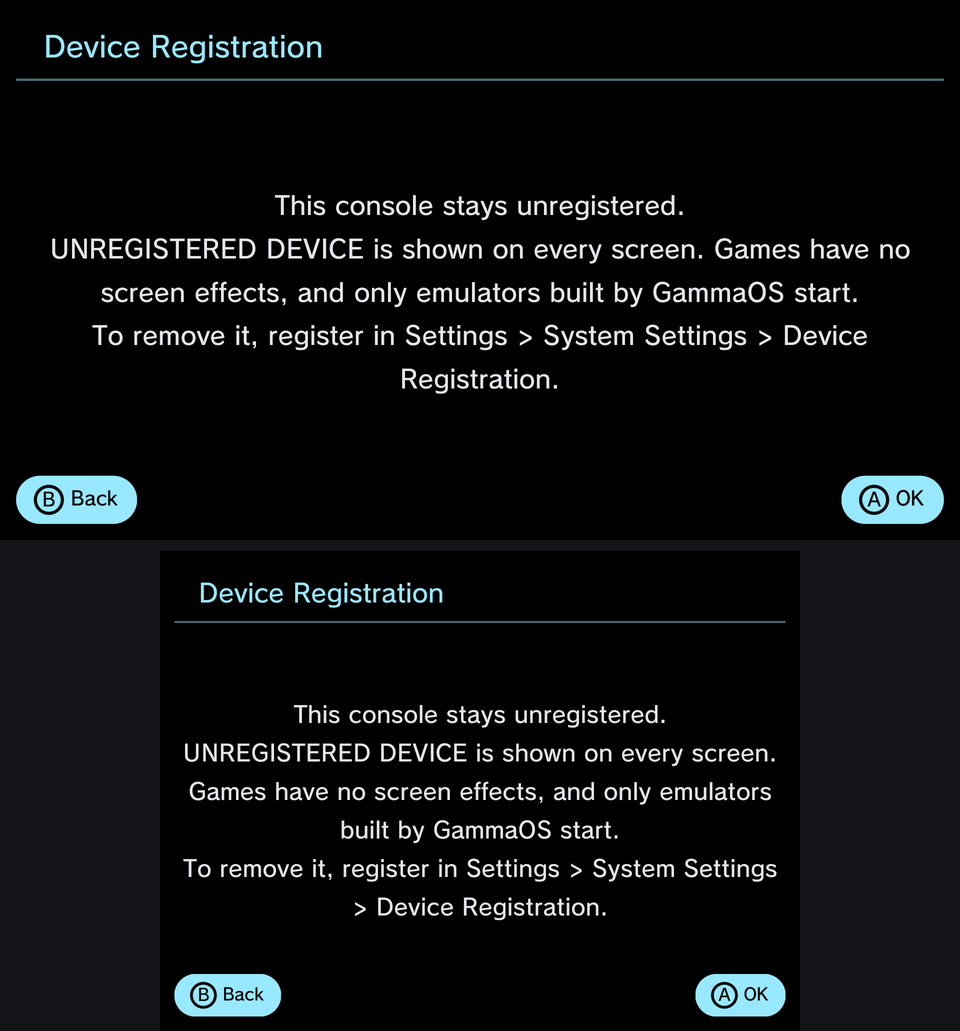
Skipping registration
You can choose Skip for Now and register later. The console says what that means before it lets you go:
In a game the badge looks like this, on both screens of a dual screen console:
Messages
| The console says | What it means |
|---|---|
| This console is registered. | Done. |
| This release is public. No registration is needed. | The build on the console is a public release. |
| The password was not recognised. | It is not an archive password from the portal, or it was mistyped. A password only works once a download has been started with it. |
| This password belongs to another GammaOS release or device. | Use the password of the build that is on the console. |
| This password has already registered the highest number of consoles. | All five places are taken. Ask on Discord to have a console removed. |
| This password is no longer valid. | The password was replaced. Sign in to the portal for the current one. |
| This console's registration has been withdrawn. | The registration was removed. Register again with your current password, or ask on Discord. |
| The registration server could not be reached. | Check that the console is online and that its date and time are right, wait a minute and try again. If it still fails, use a license file. |
| The console's date is wrong, so the secure connection fails. | Set the date in Settings > Date and Time Settings and try again. |
| No license file for this console was found. | The file is not in the top folder, has another name, or was made for another hardware ID. |
What the console sends
When you register, and from time to time afterwards, the console sends the registration server its hardware ID, the GammaOS version and the model it reports, and the archive password when you type one. The hardware ID is worked out from the console's serial numbers with a one-way function; the serial numbers themselves are not sent. Nothing about your games or files is sent. The portal's privacy notice has the details.